On this page
How to Test a Website Template Before Buying It

WebbyCrown Solutions-
July 30, 2026-13 min read
A polished demo can show a template at its best, but it cannot prove that every page, interaction, file, dependency, or advertised feature will work for your project. A reliable pre-purchase test should therefore focus on evidence: what the demo actually does, how it behaves with realistic content, what the source package contains, and which features still require a platform, plugin, API, service, or custom backend.
Quick Answer
To test a website template before buying it, open every important demo page, use realistic content, test mobile and desktop layouts, navigate with a keyboard, check forms and interactive controls, run performance tests, inspect the source-file structure where possible, and verify what is included in the licence and support terms. Treat visible interfaces such as checkout, account, booking, or newsletter screens as unverified until the seller explains the system behind them.
Key Takeaways
- Test the product against a written checklist rather than judging only its homepage design.
- Use several demo pages and at least one real phone, one desktop, and the main browsers used by your audience.
- Performance scores are diagnostic results from a specific test, not permanent guarantees.
- Source folders reveal structure, but folder names alone do not prove code quality or working functionality.
- A visible interface is not the same as a connected backend.
- Reject the product when a must-have requirement remains unsupported or unclear.
15-Point Website Template Testing Checklist
| Test | What to Verify | Reason to Pause or Reject |
|---|---|---|
| 1. Listing Accuracy | Product name, technology, supported version, included files, required software, and exclusions | The description is vague or conflicts with the demo |
| 2. Demo Coverage | Home, inner pages, detail pages, forms, legal pages, search, 404, and relevant account flows | Only a homepage or screenshots are available |
| 3. Link Integrity | Navigation, buttons, breadcrumbs, footer links, filters, and calls to action | Broken, empty, or placeholder destinations |
| 4. Real-Content Fit | Long headings, realistic copy, image ratios, tables, products, and forms | The layout works only with short demo content |
| 5. Mobile Behaviour | Menu, touch targets, forms, media, sticky elements, tables, and overflow | Horizontal scrolling, overlap, or inaccessible controls |
| 6. Browser Behaviour | Current Chrome, Firefox, Safari, and Microsoft Edge where relevant | Core interactions fail outside one browser |
| 7. Interaction States | Hover, focus, open, closed, loading, error, empty, and success states | Controls appear interactive but do not work |
| 8. Keyboard Access | Tab order, visible focus, Enter, Space, arrow keys, menus, dialogs, and forms | Important controls cannot be reached or used |
| 9. Visual Accessibility | Contrast, labels, headings, zoom, readable text, and target spacing | Text or controls become difficult to perceive or operate |
| 10. Performance | Several pages, mobile and desktop modes, LCP, CLS, blocking time, assets, and scripts | Claims rely on one unexplained score |
| 11. Source Structure | Folders, templates, components, package files, assets, scripts, and naming | Required files or setup instructions are missing |
| 12. Build and Deployment | Install commands, build commands, environment requirements, warnings, and deployment steps | The documented build fails in a clean environment |
| 13. Functional Scope | What is real, sample data, a platform feature, or dependent on another service | Front-end screens are presented as a complete system |
| 14. Documentation and Support | Setup, customization, troubleshooting, update history, support channel, and exclusions | Instructions are generic, incomplete, or outdated |
| 15. Commercial Terms | Permitted use, project limits, asset licences, update access, and refund conditions | Your intended use is not clearly permitted |
How This Guide Was Tested
The process below uses original screenshots from three product formats: the ENX HTML template, the Clare Next.js eCommerce template, and the Glowist Ghost theme. The supplied evidence includes responsive demo views, desktop PageSpeed Insights results, and source-package views.
The screenshots confirm only what was visible when captured. They do not prove compatibility with every device, browser, hosting environment, integration, future release, or content configuration. Any price, policy, version, or product-specific condition should be checked again on the current product page before purchase.
1. Confirm What the Demo Represents
Before testing, write down exactly what the seller says is included and what still depends on another system. This is not a full template-selection exercise; it is a scope check that prevents you from testing the wrong expectation.
A Figma design, HTML package, Next.js starter, and CMS theme require different technical tests. For help choosing the correct format before you begin, use our guide on how to choose the right website template for your business.
Testing rule: Rewrite every important claim as a question. “Checkout included” becomes “Is this a connected checkout or only a front-end layout?” “Responsive” becomes “Which pages and viewport sizes were tested?”
2. Audit the Listing and Open Every Important Demo Page
Create a simple evidence sheet before clicking through the demo. Record the technology, supported versions, required software, included pages, known dependencies, documentation, update date, author, demo URL, and stated limitations.
Then open every page you expect to use. Do not stop at the homepage. Check service or product details, article layouts, contact forms, search, policy pages, 404 pages, empty states, account areas, cart or checkout flows, and any page promoted as a major feature.
Click important navigation links and calls to action. Look for placeholder text, duplicated pages, inconsistent headers, missing destinations, console errors, dead buttons, or components that appear only in promotional screenshots. A missing secondary page can create more work than a small visual change on the homepage.
3. Test With Realistic Content
Demos usually use short headings, ideal image proportions, balanced card counts, and carefully edited copy. Replace that ideal content with representative examples from your project.
- Use the longest navigation label you expect.
- Test a long page title and a detailed paragraph.
- Insert landscape, portrait, and square images.
- Try a large product name, several variants, or a long price label.
- Use a complete form with validation messages.
- Test a table, quotation, caption, video, and policy-style page.
Watch for text overflow, cropped media, inconsistent card heights, broken buttons, unreadable tables, excessive empty space, sudden layout shifts, and menu labels that wrap or disappear. The goal is not to make the demo look attractive; it is to discover how much correction your real content will require.
4. Test Mobile, Browser, and Interaction Behaviour
Use at least one real phone and one desktop. Also resize the browser across several widths, because a template can work at the exact mobile and desktop breakpoints while failing between them.
- Open and close menus, dropdowns, filters, accordions, and modals.
- Test forms, error messages, success messages, and required fields.
- Check tabs, sliders, galleries, carousels, sticky elements, and cookie notices.
- Look for horizontal scrolling, clipped media, overlap, and very small touch targets.
- Compare current Chrome, Firefox, Safari, and Microsoft Edge where your audience uses them.
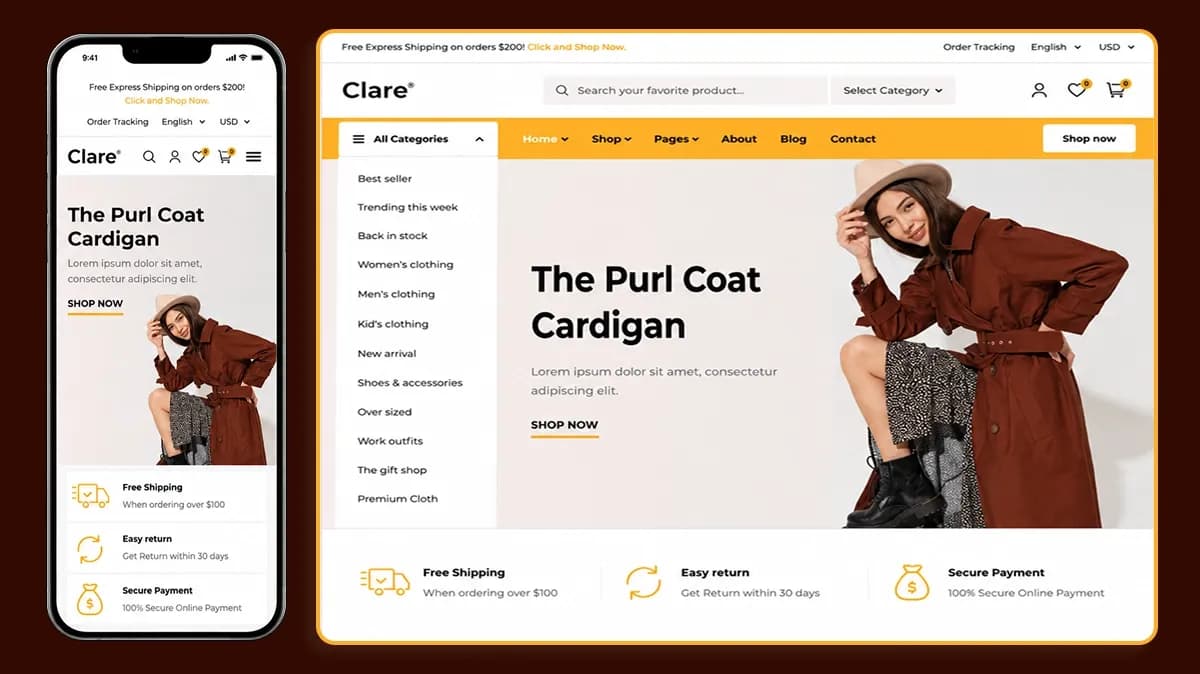
Clare Next.js demo shown at mobile and desktop widths, allowing the header, navigation, hero content, and page hierarchy to be compared.
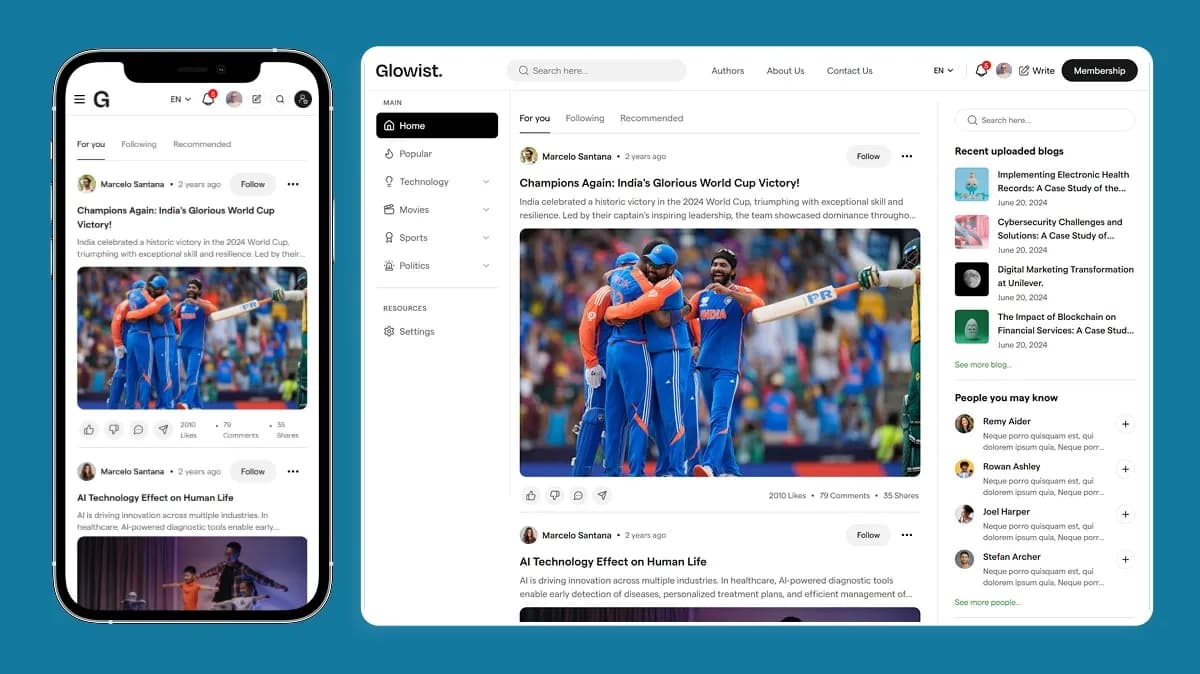
Glowist Ghost theme shown in mobile and desktop views, including article content, navigation, author information, and membership-related interface elements.
For publication themes, also test long-article readability, captions, author details, tags, related content, subscription controls, and sticky interface elements.
5. Perform a Practical Keyboard and Accessibility Check
A pre-purchase review cannot prove full accessibility conformance, but it can expose basic barriers before you commit to the product.
Start at the top of the page and use Tab and Shift+Tab without the mouse. Confirm that focus is visible, follows a logical order, and reaches menus, buttons, forms, dialogs, filters, and other interactive controls. Use Enter, Space, and arrow keys where appropriate. Then zoom the page to 200%, check whether content remains usable, and review visible labels, heading order, colour contrast, and target spacing.
WCAG 2.2 includes requirements related to focus visibility, dragging alternatives, target size, consistent help, and accessible authentication. Use the official WCAG 2.2 standard for a deeper audit. Do not describe a template as fully accessible based only on an automated score or a brief manual review.
6. Run Performance Tests and Read the Results Honestly
Run PageSpeed Insights or Lighthouse on more than one page. Save the tested URL, date, device mode, and detailed metrics. Lab results help identify issues, but the final website may perform differently because of hosting, content, analytics, fonts, images, APIs, and third-party scripts.
The current Core Web Vitals thresholds classify LCP of 2.5 seconds or less, INP of 200 milliseconds or less, and CLS of 0.1 or less as “good” at the 75th percentile when field data is available.
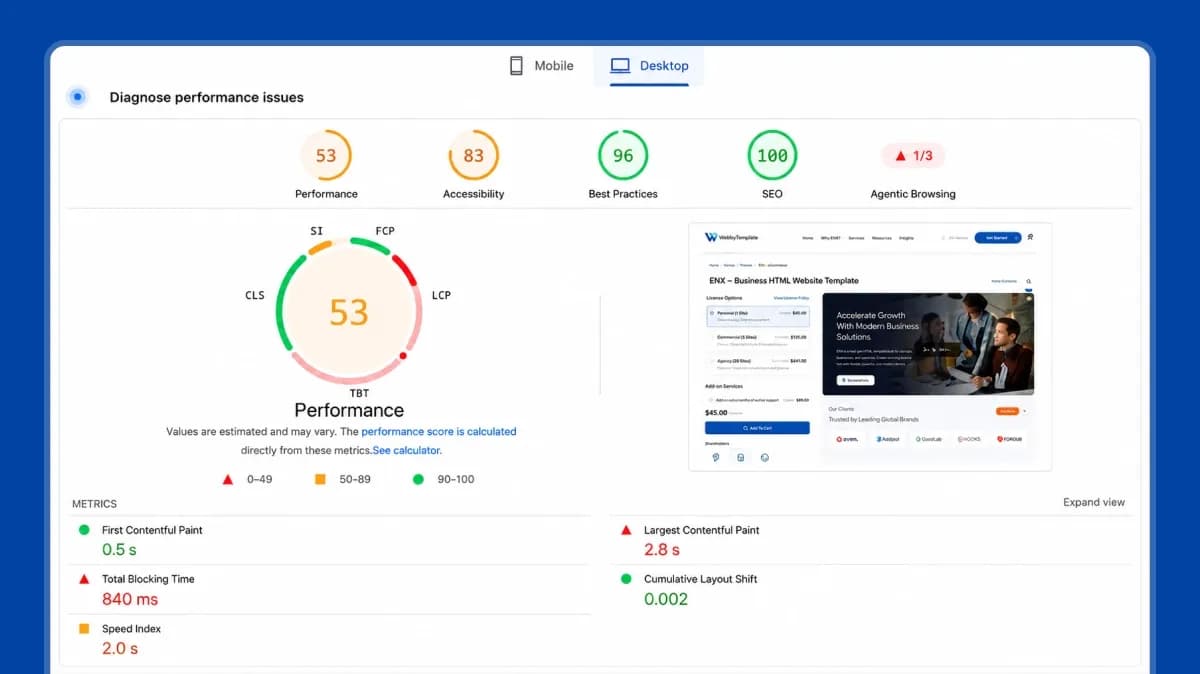
The ENX capture shows strong SEO and Best Practices checks in that test, while Performance 53 and Accessibility 83 indicate improvement opportunities. The displayed metrics include FCP 0.5 seconds, LCP 2.8 seconds, Total Blocking Time 840 milliseconds, CLS 0.002, and Speed Index 2.0 seconds.
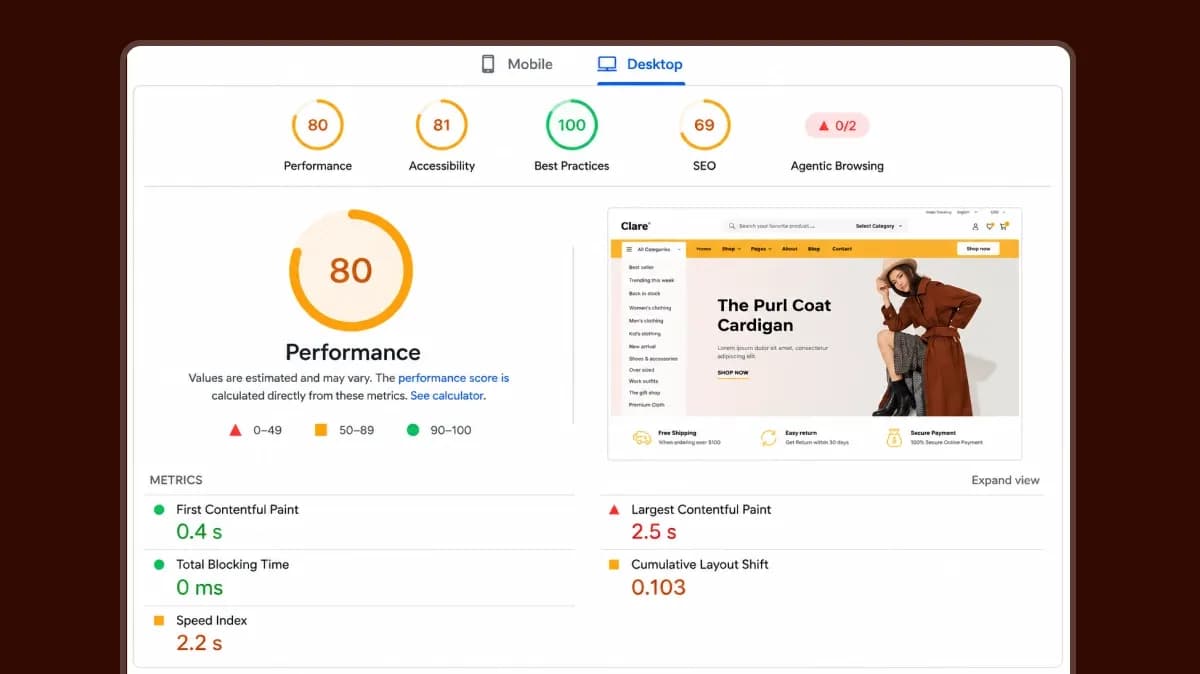
In the captured Clare test, FCP was 0.4 seconds, LCP 2.5 seconds, Total Blocking Time 0 milliseconds, CLS 0.103, and Speed Index 2.2 seconds. LCP reaches the recommended threshold, while CLS is slightly above 0.1. The SEO and accessibility scores also show why the framework name alone cannot prove implementation quality.
Do not rank products by one aggregate score. Review the failing audits and decide whether the cause is the template, demo content, hosting, configuration, or a third-party resource. For implementation guidance after selecting a template, see our website optimization tips for template-based sites.
Desktop PageSpeed Insights capture for the ENX demo: Performance 53, Accessibility 83, Best Practices 96, and SEO 100.
The ENX capture shows strong SEO and Best Practices checks in that test, while Performance 53 and Accessibility 83 indicate improvement opportunities. The displayed metrics include FCP 0.5 seconds, LCP 2.8 seconds, Total Blocking Time 840 milliseconds, CLS 0.002, and Speed Index 2.0 seconds.
Desktop PageSpeed Insights capture for the Clare demo: Performance 80, Accessibility 81, Best Practices 100, and SEO 69.
In the captured Clare test, FCP was 0.4 seconds, LCP 2.5 seconds, Total Blocking Time 0 milliseconds, CLS 0.103, and Speed Index 2.2 seconds. LCP reaches the recommended threshold, while CLS is slightly above 0.1. The SEO and accessibility scores also show why the framework name alone cannot prove implementation quality.
Do not rank products by one aggregate score. Review the failing audits and decide whether the cause is the template, demo content, hosting, configuration, or a third-party resource. For implementation guidance after selecting a template, see our website optimization tips for template-based sites.
7. Inspect the Source Package and Build Process
When source access is unavailable before purchase, use the specification, documentation, and file-list evidence to identify questions for the seller. After purchase, inspect the package before starting customization.
HTML Template Source Check
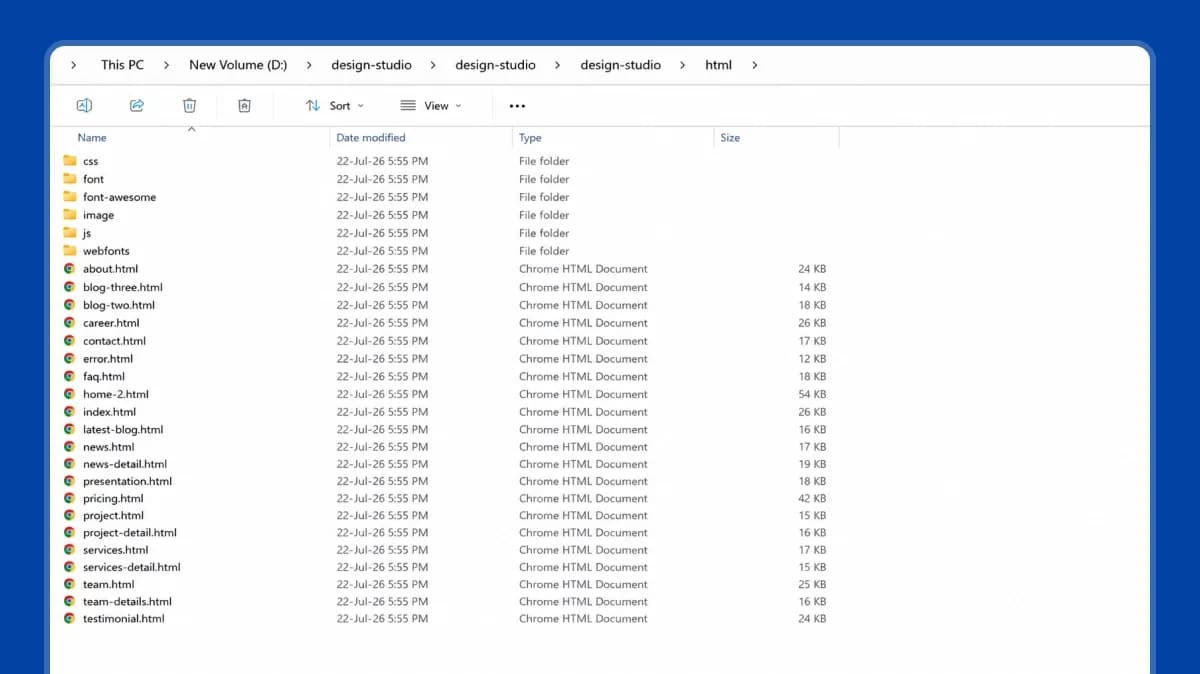
ENX HTML source package showing CSS, distribution, fonts, images, JavaScript, video, and multiple HTML page files.
The folder view confirms front-end assets and multiple HTML layouts. It does not prove clean code, browser support, accessibility, or backend functionality. Open the files, review scripts and dependencies, check the browser console, test forms, and deploy a clean copy.
Next.js Template Source Check
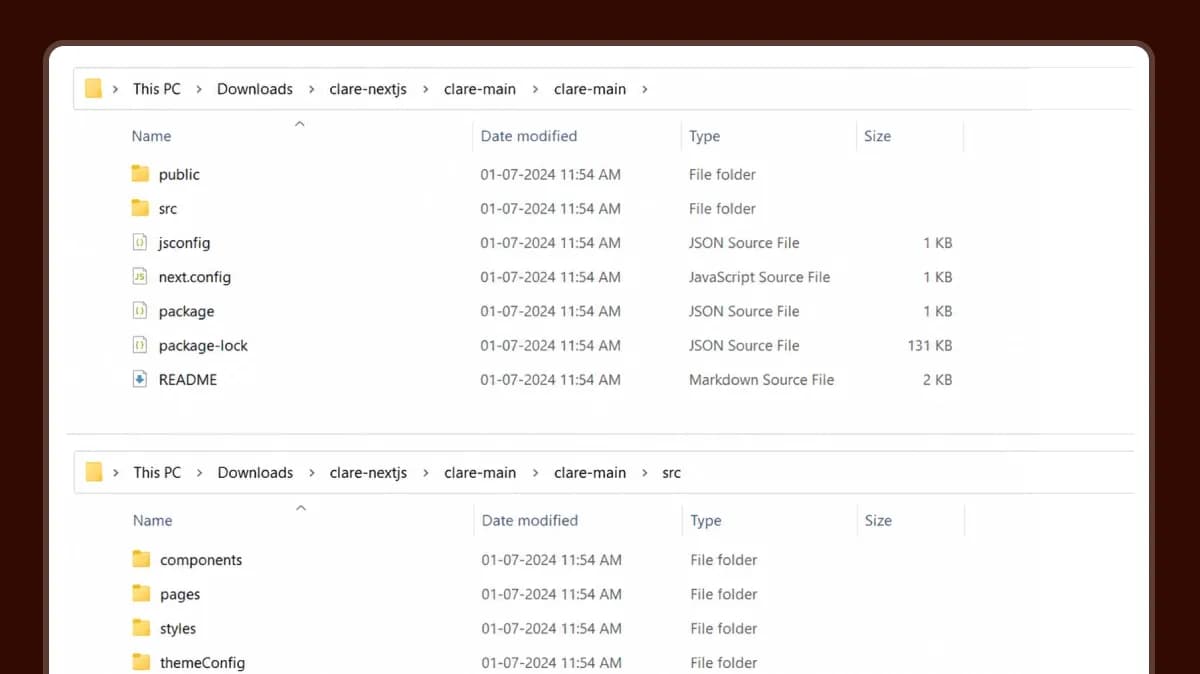
Clare Next.js package showing public and src folders, configuration files, package files, README, components, pages, styles, and theme settings.
Review package.json, the lock file, scripts, routes, components, public assets, environment requirements, and documented Node.js and Next.js versions. Install dependencies and run the documented development and production builds in a clean environment. Record warnings, missing variables, and deployment assumptions.
Ghost Theme Source Check
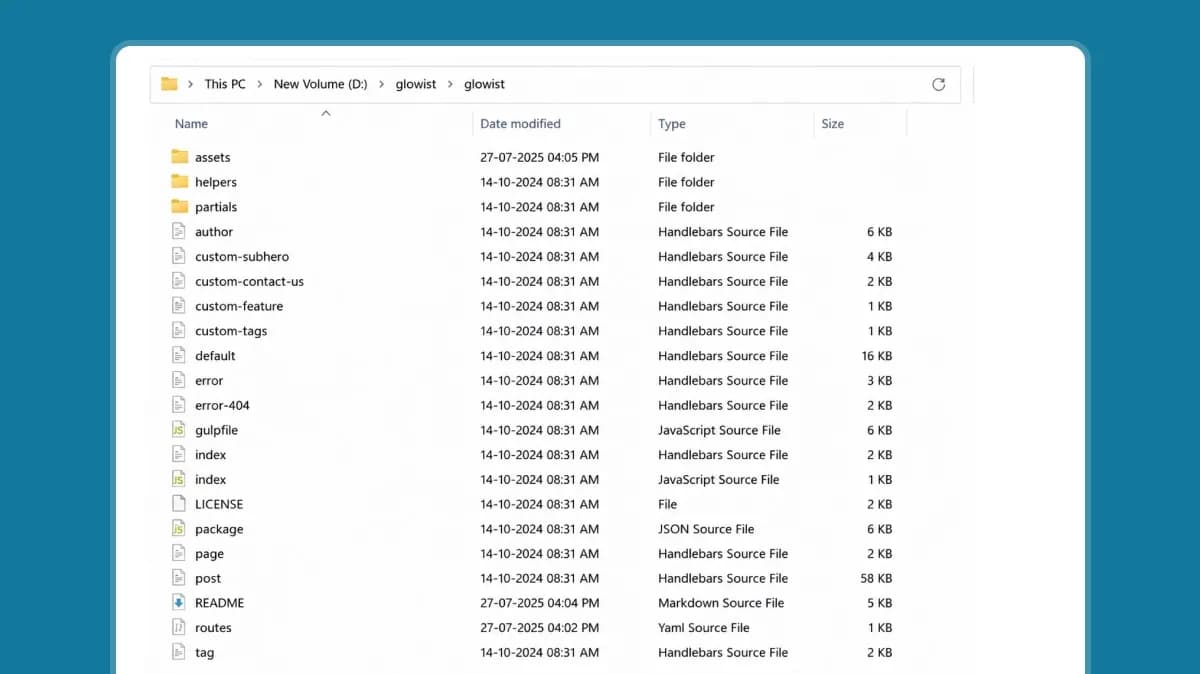
Glowist Ghost theme source showing assets, helpers, partials, Handlebars templates, package information, README, and routes configuration.
The visible files are consistent with a Ghost theme structure. Buyers should still run Ghost’s theme validation, review the README, confirm the supported Ghost version, and test routes, memberships, search, and content rendering with a clean Ghost installation.
8. Separate Visible UI From Working Functionality
A demo can show cart, checkout, login, booking, membership, search, wishlist, account, and newsletter screens without including the complete system behind them.
| Classification | Meaning | Evidence to Request |
|---|---|---|
| Static Layout | The page is visual only | Source files and a clear statement that no backend is included |
| Demo Interaction | The interface responds using sample or browser-side data | Explanation of what persists and what resets |
| Platform Feature | The CMS or commerce platform supplies the function | Supported platform version and setup instructions |
| Third-Party Integration | An app, plugin, API, or service is required | Provider name, cost, configuration, and limitations |
| Included Backend | Server-side logic and data handling are part of the product | Architecture, installation, security, database, and deployment documentation |
Do not assume a working payment, customer account, inventory system, form-delivery service, or booking engine from a visual flow. This is one of the most important checks because an incorrect assumption can change the budget and delivery timeline after purchase.
9. Verify Documentation and Commercial Terms
Documentation should explain installation, requirements, folder structure, dependencies, customization, content replacement, development and production commands, deployment, integrations, updates, troubleshooting, third-party assets, and the support process.
Before buying, confirm the permitted number of projects, client use, redistribution limits, included asset rights, support period, update access, download access, and refund conditions. Product-specific terms should take precedence when they differ from general marketplace policies. For WebbyTemplate products, verify the current WebbyTemplate License Policy, Support Policy, and Download & Updates Policy before purchase.
Keep this section factual. Do not treat “future updates,” “support,” or “lifetime access” as interchangeable promises unless the written terms define them clearly.
10. Decide: Pass, Conditional Pass, or Reject
| Decision | Use It When | Required Next Action |
|---|---|---|
| Pass | Every must-have test is supported, limitations are understood, and the product can be maintained by your team. | Save the evidence and proceed with purchase or implementation. |
| Conditional Pass | The product fits, but specific fixes, integrations, licences, or technical work are required. | Document the extra cost, owner, deadline, and acceptance criteria before purchasing. |
| Reject | A must-have feature is missing, the scope is unclear, the build fails, the licence blocks the intended use, or the maintenance risk is unacceptable. | Choose another product rather than relying on assumptions. |
A strong visual design cannot compensate for a failed must-have test. The correct decision is based on evidence and project risk, not the number of attractive sections in the demo.
FAQs
Q1.
Can I test a template without downloading the source files?
Q2.
Should I trust a template’s PageSpeed score?
Q3.
How many devices and browsers should I test?
Q4.
How can I tell whether checkout or account screens are functional?
Q5.
What should I inspect in a code-based template?
Q6.
When should I reject a template even if the demo looks good?
Conclusion
Testing a website template before buying is a risk-reduction process. Open the complete demo, test realistic content and interactions, use mobile and keyboard controls, review performance honestly, inspect the source and build process, and separate visible UI from working functionality.
The ENX, Clare, and Glowist evidence also shows why one testing method cannot answer every question. HTML, Next.js, and Ghost products have different files, build requirements, platform dependencies, and functional boundaries.
After completing the checklist, compare suitable website templates and themes by technology and project type.