On this page
How to Connect Claude to Odoo Using MCP: Step-by-Step Setup Guide

WebbyCrown Solutions-
August 26, 2026-14 min read
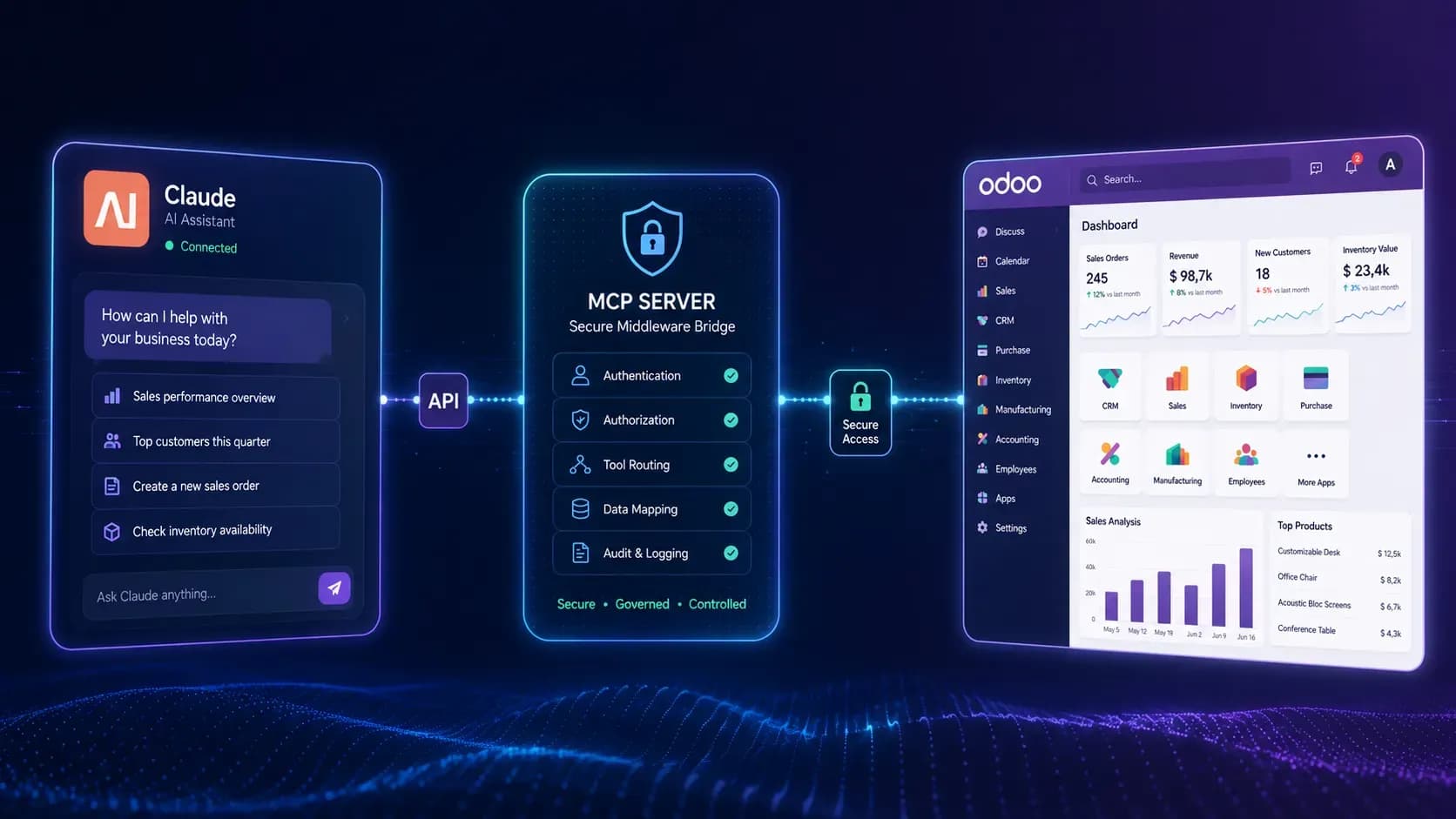
Connecting Claude to Odoo requires three things: an Odoo environment that can run the required connector, a reachable MCP endpoint, and an authentication model that limits Claude to the Odoo data and actions it actually needs. With a compatible Odoo MCP server, Claude can search approved records, inspect business data and use permitted tools without giving the AI unrestricted access to the ERP.
This guide focuses on the implementation path: prepare Odoo, configure MCP access, add the remote connector in Claude, authenticate, test read-only queries, and only then enable write operations if the business workflow requires them.
Editorial disclosure: WebbyTemplate publishes this guide and offers related Odoo MCP products through its marketplace. Product examples use current first-party product information and are presented with their documented limitations.
To connect Claude to Odoo using MCP, install or deploy an Odoo-compatible MCP server, expose its remote MCP endpoint over public HTTPS, configure a restricted Odoo user and permissions, then add the MCP server URL in Claude under Customize > Connectors > Add custom connector. Authenticate using the method supported by the connector, enable it for a conversation, and test read-only Odoo queries before allowing write actions. Anthropic currently notes that remote custom connectors connect from its cloud infrastructure, so the MCP server must be reachable from the public internet or appropriately allowlisted.
New to MCP? Start with our guide to what an Odoo MCP server is before configuring Claude.
Before You Start: Check These Requirements
Most failed Claude-to-Odoo setups are not caused by the prompt. They fail because the hosting, endpoint, authentication or Odoo permissions are wrong. Check these items first:
- An Odoo deployment that supports the connector you plan to install or run.
- A version-matched Odoo MCP package or external MCP server.
- A dedicated Odoo user or service identity with only the required access rights.
- A remote MCP endpoint that Claude can reach over the public internet.
- HTTPS for remote authentication, especially when OAuth is used.
- A clear decision about read-only versus create/update/delete access.
Does Your Odoo Hosting Support This Setup?
For the Odoo MCP Connectio product discussed in this guide, supported deployment types are self-hosted Odoo, Odoo.sh and Docker-based Odoo deployments. Odoo Online SaaS is not supported by that product. If you use Odoo Online, do not assume a module-based connector will work; the integration architecture needs to be evaluated separately.
Anthropic's current remote custom-connector guidance says Claude connects to remote MCP servers from Anthropic's cloud infrastructure rather than from the local desktop device. That means a server available only on localhost, a private LAN or an inaccessible VPN endpoint will not work as a normal remote custom connector.
Step 1: Choose the Right Odoo MCP Connector
Start with the business requirement rather than the product name. Write down what Claude must be able to do.
- Search and retrieve Odoo records
- Inspect models and fields
- Run analytics or summaries
- Create records
- Update records
- Delete records
- Work only with selected apps, models or fields
If the requirement is mostly read access, a smaller tool surface may be sufficient. If the workflow needs analytics, updates, stricter governance or controlled CRUD, choose a connector that explicitly exposes those capabilities.
Step 2: Install the Version-Matched Odoo Package
WebbyTemplate's Odoo MCP Connection is available for Odoo 10 through 19, with separate compatible packages. After purchase, the buyer provides the required Odoo version and receives the matching package.
Install the connector using the deployment process appropriate for your Odoo environment. Before moving to Claude, verify that the module is installed correctly and that its MCP configuration is available in Odoo.
If you plan to use Claude, follow our step-by-step guide on how to connect Claude to Odoo using MCP to configure the remote endpoint, authentication, permissions and first connection tests.
Step 3: Create a Restricted Odoo User
Do not begin by connecting Claude through a broad administrator account. Create a dedicated Odoo user or service identity for the integration.
Odoo 19's API documentation recommends dedicated bot users for extended automated access because permissions and access logs then remain tied to a distinct identity.
- Grant only the Odoo apps required by the workflow.
- Remove HR, accounting, payroll or other sensitive groups unless they are genuinely required.
- Use normal Odoo ACLs and record rules as the first authorization boundary.
- Keep the user separate from human administrator accounts.
Step 4: Configure MCP Permissions Before Connecting Claude
Claude should not receive every capability just because the MCP server can expose it.
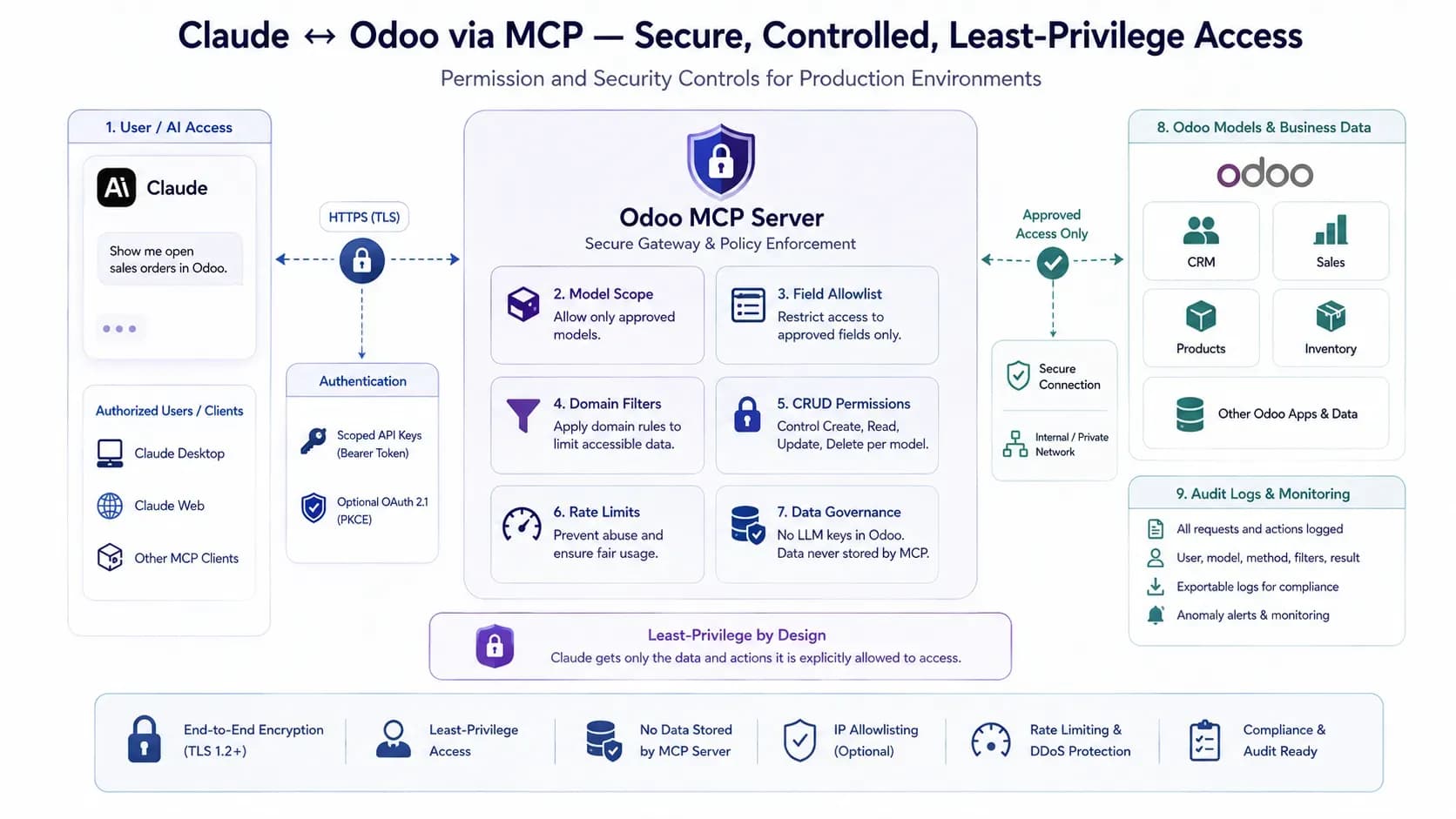
Odoo MCP Connection currently supports a governance model across:App -> Model -> Field Allowlist -> Domain Filter -> CRUD
- App access: choose which Odoo applications are visible.
- Model access: restrict Claude to approved Odoo models.
- Field allowlists: keep sensitive or unnecessary fields out of the tool response.
- Domain filters: restrict which records can be reached.
- CRUD controls: separately decide whether create, read, update or delete actions are allowed.
For a first connection, use read access wherever possible. Odoo MCP Connection supports create, update and delete when authorized, but delete is disabled by default.
Step 5: Choose Authentication - OAuth or Bearer Token
OAuth
OAuth is useful when you want a sign-in and consent flow rather than manually placing a fixed token into a client configuration. Odoo MCP Connection supports OAuth 2.1 with PKCE and requires HTTPS when OAuth is used.
Anthropic's custom-connector interface also supports OAuth configuration for remote MCP servers. Depending on the connector, Claude may open an authentication flow when the user connects.
Bearer Token
A bearer token can be simpler for controlled technical environments when the connector and Claude client path support fixed credentials. Keep tokens out of prompts, screenshots, public repositories and shared documentation.
Use separate credentials per integration where possible so that one connector can be revoked without affecting other services.
Step 6: Make the MCP Endpoint Reachable Over HTTPS
A remote Claude connector needs to reach the MCP server over the network. Anthropic states that remote custom connectors connect from Anthropic's cloud infrastructure.
- Use a public HTTPS URL for the MCP endpoint.
- Confirm DNS and reverse-proxy routing are correct.
- Do not expose a development endpoint without authentication.
- If a firewall is used, review Anthropic's current network guidance and allowlist requirements.
- If the Odoo host serves multiple databases, include the required database routing information according to the connector's documentation.
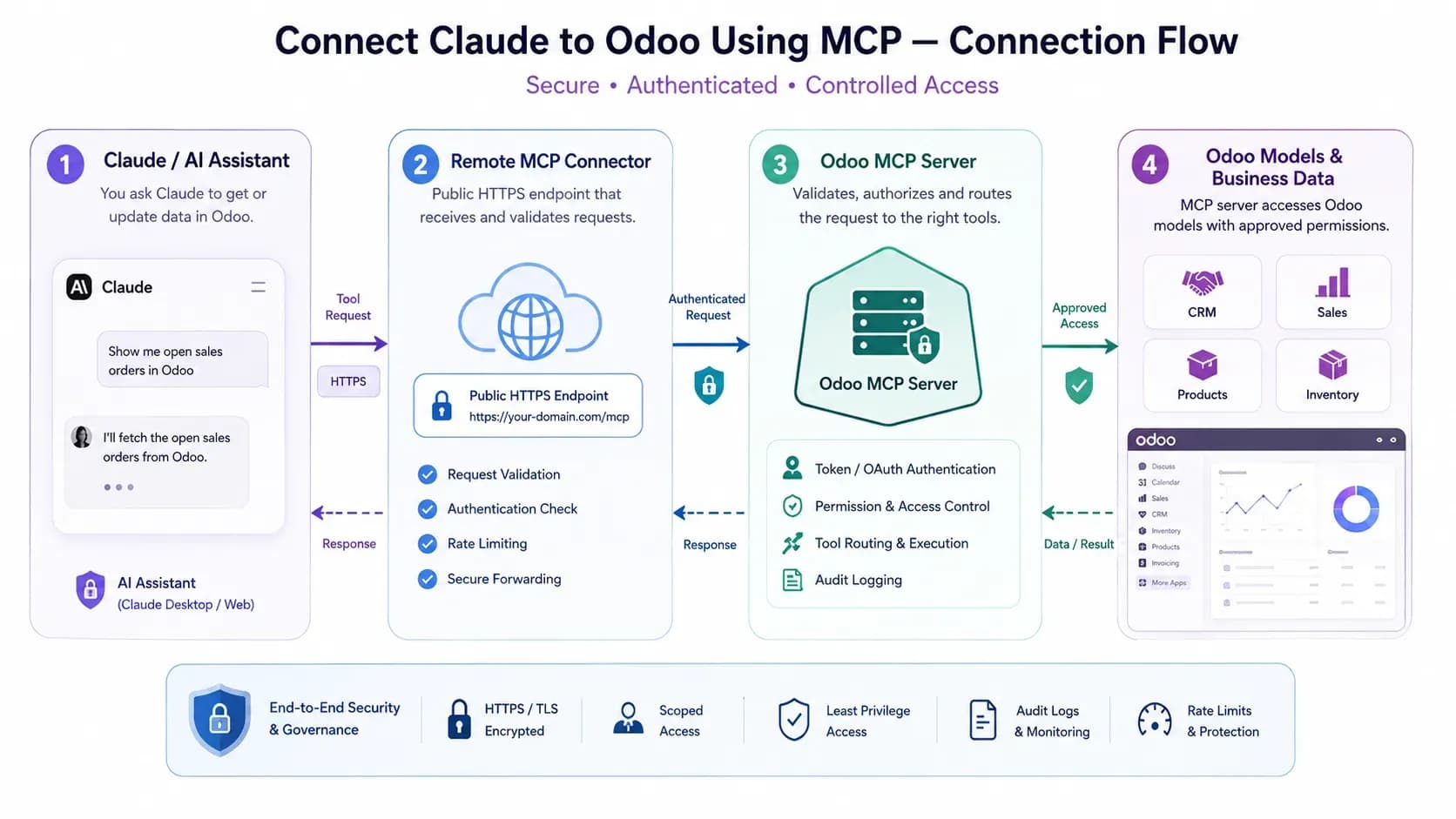
A typical Claude-to-Odoo MCP flow: Claude sends a request through a remote MCP endpoint, the server validates access, and Odoo returns the permitted result.
Step 7: Add Odoo as a Custom Connector in Claude
Anthropic's current setup for individual Claude users is:
1. Open Claude and go to Customize > Connectors.
2. Click the + button and choose Add custom connector.
3. Enter a clear name such as Odoo.
4. Paste the remote MCP server URL provided by your Odoo connector.
5. Use Advanced settings only if your authentication flow requires OAuth client details.
6. Click Add, then connect and complete the authentication flow.
For Team and Enterprise environments, Anthropic documents an organization-owner setup path under Organization settings > Connectors, after which individual users connect their own accounts.
Step 8: Enable the Connector in a Claude Conversation
Adding the connector does not mean every conversation should automatically use it. Claude lets users enable connectors for individual chats.
For the first test, enable the Odoo connector and use simple read-only questions that are easy to verify inside Odoo.
Good First Test Prompts
- Which Odoo server or environment are you connected to?
- List the Odoo models I am allowed to access.
- Find five CRM opportunities I am permitted to view.
- Show the top customers by confirmed sales this month, if an approved analytics tool is available.
- Retrieve one known record and return only the fields I am allowed to see.
Compare Claude's answer with the same records inside Odoo. A successful connection test should confirm not only that allowed data is returned, but also that restricted data stays unavailable.
Step 9: Test Denied Requests
This is one of the most important steps and is often skipped.
Ask Claude to access something the integration user should not be able to reach. For example, if the user has no HR access, an HR record request should fail rather than return data.
Also test:
- A restricted model
- A field excluded by the allowlist
- A record outside the configured domain filter
- A write operation that has not been enabled
A connector that answers allowed questions correctly but ignores denied boundaries is not ready for production.
Step 10: Enable Write Actions Only When the Workflow Requires Them
If Claude only needs analysis and lookup, keep the connector read-only.
If the business case requires record creation or updates, enable them selectively and test them in a staging or non-critical environment first.
Treat delete as a separate risk decision. With Odoo MCP Connection, delete capability exists but is disabled by default.
Step 11: Review Audit Logs, Rate Limits and IP Controls
Production access needs ongoing governance, not just a successful first connection.
Odoo MCP Connection includes audit logging, configurable rate limiting and IP access controls. Its current product specification states that audit retention defaults to seven days and is configurable.
- Review which tool was called.
- Check whether the request succeeded or failed.
- Review write actions separately.
- Rotate or revoke credentials when staff or integrations change.
- Re-test permissions after major Odoo, Claude or connector upgrades.
What Can Claude Do After It Is Connected to Odoo?
The answer depends on the MCP tools and permissions you expose. With the broader Odoo MCP Connection tool set, approved Claude workflows can include:
- Searching Odoo records
- Retrieving selected records and fields
- Discovering approved models
- Inspecting model structure
- Running aggregate or pivot-style analysis
- Working with time-series, top-N, cohort or funnel queries
- Creating or updating approved records
Claude should never be described as having unrestricted access to the entire ERP. The useful model is controlled tool access through the Odoo identity and connector permissions.
Odoo MCP Options on WebbyTemplate
Production Claude-to-Odoo connections should use least-privilege access with authentication, restricted models and fields, domain controls and audit logging.
After the connection requirements are clear, choose an Odoo MCP product by tool scope, write requirements, permission model and deployment fit - not by the product name alone. WebbyTemplate currently lists two Odoo MCP options relevant to Claude workflows, and they serve different requirements.
| Buyer question | Odoo MCP Connection | RAG Odoo MCP Server |
|---|---|---|
| Best fit | Broader analytics, governed tool access and controlled CRUD | Lighter Claude-focused record access, retrieval and controlled record creation |
| Odoo versions | 10-19, version-matched packages | 10-19, version-matched packages |
| Claude evidence | Officially tested with Claude, ChatGPT and Cursor | Claude Desktop/Mobile are the primary documented clients |
| Tool surface | Buyer Trust Card lists 26 tools, including analytics and governed operational tools | 5 MCP tools: model list, search, get, create and server info |
| Write scope | Create, update and delete when authorized; delete disabled by default | Create at the MCP tool layer; no dedicated update/delete tools |
| Governance | App/model/field/domain/CRUD controls plus rate limiting and IP controls | Odoo ACLs/record rules plus model/field/domain restrictions |
| Vector / embedding RAG | Not required | No vector DB, embeddings, semantic search, automatic indexing or document chunking |
| Current trust evidence | Last tested 20 Aug 2026; 12 months author support | Last tested 20 Aug 2026; 12 months author support |
Odoo MCP Connection
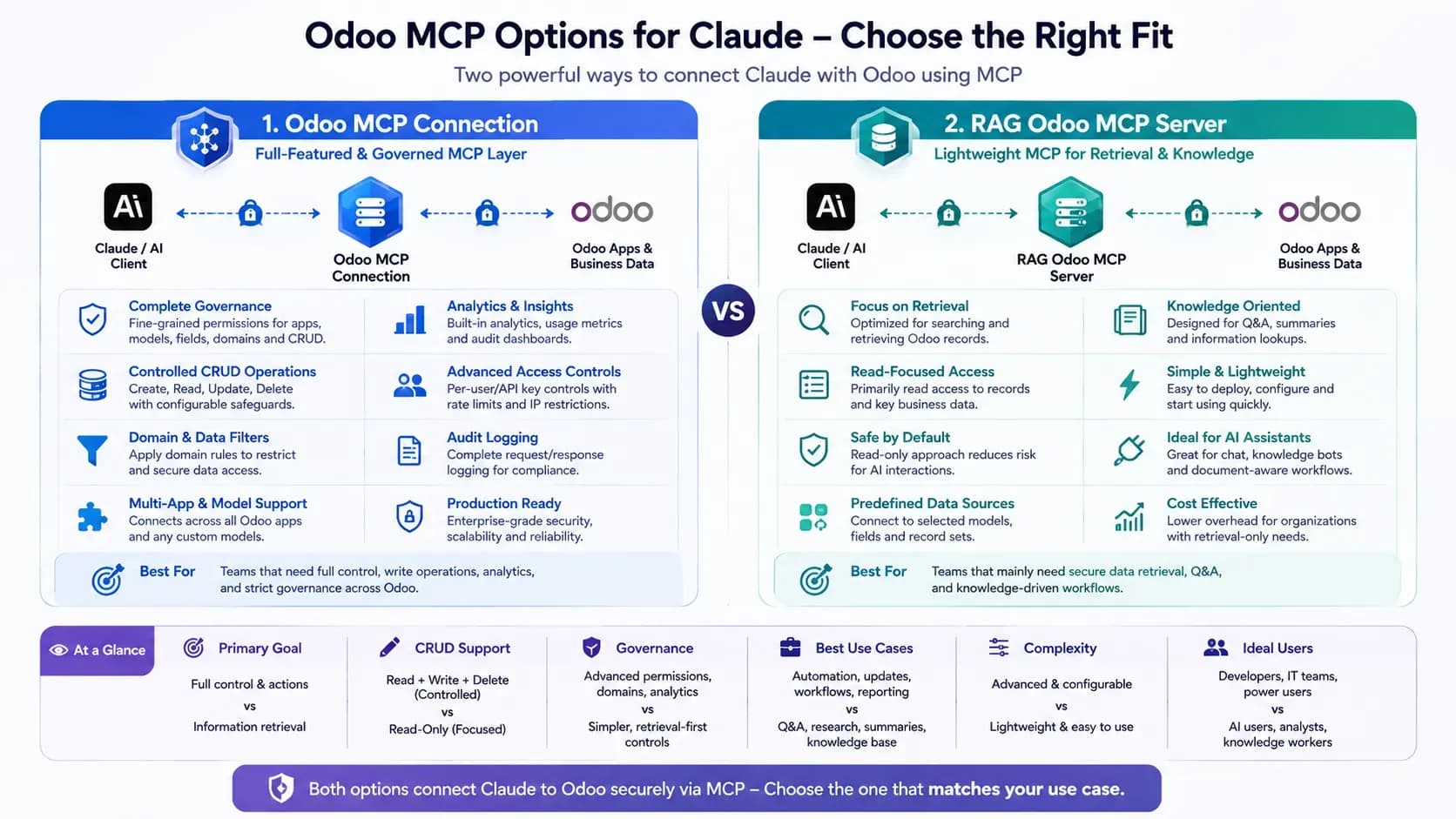
Odoo MCP Connection provides broader tooling and governance, while RAG Odoo MCP Server offers a lighter Claude-oriented MCP workflow for record access and controlled creation.
Odoo MCP Connection is the better-aligned of these two options when Claude needs broader analytics, controlled create/update operations, granular app/model/field/domain governance, or production controls such as rate limiting and IP restrictions. It is available for Odoo 10-19, Community and Enterprise, with version-matched packages.
Choose it when the workflow needs more than record lookup - for example, structured analytics, governed operational actions or tighter control over what Claude can read and change.
RAG Odoo MCP Server
RAG Odoo MCP Server is the lighter option when the main requirement is Claude-oriented live Odoo record access, retrieval and controlled record creation through a smaller five-tool MCP surface. It also supports Odoo 10-19, Community and Enterprise, with version-matched packages.
Despite the product name, its current implementation is not classic vector/embedding RAG: it does not provide a vector database, embeddings, semantic similarity search, automatic indexing or document chunking. Choose it for its tool-based Odoo access model and manually managed knowledge guidance, not for vector-RAG requirements.
Which Option Should You Choose?
Choose Odoo MCP Connection when Claude needs broader tooling, analytics, controlled updates or stronger governance. Choose RAG Odoo MCP Server when a smaller Claude-focused tool surface with record search, retrieval and creation is sufficient. If the project requires vector or embedding-based semantic RAG, neither product should be positioned as that architecture.
What If You Want AI Inside Odoo Instead of Connecting Claude Externally?
MCP is not the only way to use AI with Odoo. If the goal is AI-assisted email and chatter directly inside Odoo rather than an external Claude-to-Odoo tool connection, that is a different intent.
For that use case, read the Odoo AI Assistant guide instead of forcing an MCP architecture onto a communication workflow.
Troubleshooting Claude-to-Odoo MCP Connections
Claude cannot reach the MCP server
Confirm the endpoint is public, HTTPS is valid, DNS resolves correctly and firewall rules allow Anthropic's current connector traffic.
Authentication keeps failing
Confirm the OAuth client, redirect flow or bearer credential matches the connector configuration. Revoke and regenerate credentials if necessary.
Claude connects but no Odoo tools appear
Check whether the MCP server is enabled, the correct endpoint is being used, and the connected Odoo user/token is allowed to discover tools or models.
Claude sees too much data
Stop testing and tighten the Odoo user, model rules, field allowlists and domain filters before continuing.
Read works but create/update fails
Verify the MCP tool actually exists and that both Odoo permissions and connector CRUD settings allow the operation.
The setup works locally but not in Claude web
A local-only server is different from a remote custom connector. Claude's remote connector must be reachable from Anthropic's cloud infrastructure.
Odoo MCP Connection provides broader tooling and governance, while RAG Odoo MCP Server offers a lighter Claude-oriented MCP workflow for record access and controlled creation.
Security Checklist Before Production
- Use a dedicated restricted Odoo identity.
- Keep the MCP endpoint behind HTTPS.
- Use the smallest possible app, model, field and record scope.
- Start with read-only access.
- Do not expose delete unless there is a clear business requirement.
- Use separate credentials for separate integrations when possible.
- Review audit logs and revoke unused credentials.
- Test both allowed and denied requests.
- Revalidate the integration after major upgrades.
Methodology and Limitations
This guide was prepared in August 2026 using Anthropic's current custom-connector documentation, Odoo 19 API/security documentation, the live search landscape for Claude-to-Odoo MCP queries, and current WebbyTemplate product specifications.
The setup flow is intentionally implementation-focused rather than a benchmark. Exact menu names, endpoint formats and authentication details can vary by Odoo MCP product and Claude plan. Always use the documentation for the connector you deploy.
The article does not claim that every Claude environment supports every MCP transport, or that every Odoo MCP connector exposes the same tool set. Compatibility should be rechecked before purchase and before production rollout.
FAQs
Q1.
How do I connect Claude to Odoo?
Q2.
Does Claude connect directly to Odoo?
Q3.
Do I need an Odoo MCP server to connect Claude to Odoo?
Q4.
Can Claude update Odoo records?
Q5.
Can Claude delete Odoo records?
Q6.
Can I connect Claude to Odoo Online?
Q7.
Does Claude need a public Odoo MCP URL?
Q8.
Should I use OAuth or a bearer token?
Q9.
What should I test first after connecting Claude to Odoo?
Q10.
Which WebbyTemplate Odoo MCP product is better for Claude?
Final Takeaway
Connecting Claude to Odoo is not just a matter of pasting a URL. The quality of the integration depends on the Odoo identity, MCP tool surface, authentication, permission boundaries and deployment model behind that URL.
Use a version-matched connector, expose only the Odoo capabilities the workflow needs, connect Claude over a secure remote endpoint, validate read-only and denied requests first, and enable writes selectively. That gives Claude useful ERP context without turning the AI assistant into an unrestricted Odoo administrator.