On this page
How to Use macOS Shortcuts Automation for Web Development Workflows

WebbyCrown Solutions-
November 13, 2026-11 min read

The macOS Shortcuts app lets you combine actions into a repeatable workflow. For web development, that can mean opening a project workspace, checking a read-only API endpoint, previewing selected design assets, or preparing a consistent QA note without repeating the same sequence manually.
Start with small, safe automations. Build each shortcut from known actions, run it with sample input, inspect the result, and only then use it in a real project. Shortcuts can reduce repetitive setup steps, but it does not replace the code editor, browser DevTools, build tools, or the checks a developer must perform before release.
This tutorial focuses on Apple Shortcuts workflows rather than ordinary keyboard combinations such as Command-C or app-specific editing shortcuts. The four examples below use actions described in Apple's Shortcuts User Guide. Their exact appearance may vary by macOS version and installed applications.
For individual key combinations rather than multi-step automations, see our guide to Mac keyboard shortcuts for developers.
Download the printable shortcuts PDF: Download.
What Can macOS Shortcuts Automate for a Web Developer?
A shortcut is a sequence of actions. Each action can receive information from an earlier action and pass its output to the next one. Some actions open apps, others process text or files, and some communicate with online services. A workflow can be triggered from within Shortcuts or, when configured, from places such as Finder, the share sheet, the menu bar, or a key combination.
| Development Task | Useful Shortcuts Pattern | Important Limitation |
|---|---|---|
| Open Working References | Open App + Open URLs | Opening a localhost URL does not start a development server. |
| Inspect Demo API Data | URL + Get Contents of URL + Quick Look | A GET request to a public demo endpoint is not a production health check. |
| Review Selected Assets | Finder Quick Action + Quick Look | File input types and permissions must be configured. |
| Prepare QA Handoff | Ask for Input + Date + Text + Copy to Clipboard | Text is prepared; a ticket is not automatically created. |
Before automating a task, ask whether it is predictable, reversible and safe. Manual approval is appropriate for sensitive operations, irreversible file changes, deployment, purchases, emails, or requests that modify live data.
1. Create Your First Shortcut on Mac
Open the Shortcuts app and create a new shortcut. Give it a descriptive name, then use the action library to search for actions. Add them in the intended order and run the workflow from the editor to see what each step returns. Apple's official Create a custom shortcut guide describes this process.
1. Open Shortcuts on your Mac and create a new shortcut.
2. Name it for its outcome, such as Open Project References, not a vague name such as Task 1.
3. Search for the first action, add it, and configure its input.
4. Add the next action; confirm which output it receives.
5. Run the shortcut with a harmless test value, then inspect the result.
A keyboard shortcut is just one possible trigger for a Shortcuts workflow. The automation itself is the ordered action sequence; assigning a hotkey does not create the actions for you.
Official instructions: Apple - Create a custom shortcut on Mac.
2. Workflow One: Open a Project Work Session
Use this workflow when you repeatedly open an editor and trusted reference pages at the start of a work session. It is deliberately simple: the shortcut launches an app and opens a documented web reference, without editing project files or attempting deployments.
Build the action sequence
Open App -> select your installed editor
URL -> https://developer.mozilla.org/en-US/docs/Web/HTML
Open URLs -> use the URL action output
Choose your installed code editor in Open App, then provide the reference URL in the URL action. Open URLs uses the URL passed to it. If you want another reference page, add another URL and Open URLs step or configure a compatible list according to your version of Shortcuts.
Expected result: the selected editor opens and the documentation page opens in the browser that handles this action. Verify the actual behavior on your Mac; do not assume it can focus a particular editor project without additional configuration.
If VS Code is your daily editor, our VS Code keyboard shortcuts for Mac guide covers faster file navigation and code editing once your workspace is open.
If you want to add http://localhost:3000 or another local preview, first start the appropriate development server. Opening its address does not build the project or guarantee the service is running.
3. Workflow Two: Check a Read-Only API Response
A safe introduction to API automation is a GET request to a public demonstration endpoint. It teaches you to connect a URL action to a network request and inspect the output without creating, editing or deleting production records.
Build the action sequence
URL -> https://jsonplaceholder.typicode.com/users/1
Get Contents of URL -> Method: GET
Quick Look -> preview the returned content
Apple's Shortcuts guide documents the Get Contents of URL action for API requests, including GET, POST, PUT, PATCH and DELETE. For this exercise, keep the request method set to GET and use the public JSONPlaceholder demonstration URL. The service is for learning; availability and returned content are controlled by its operator.
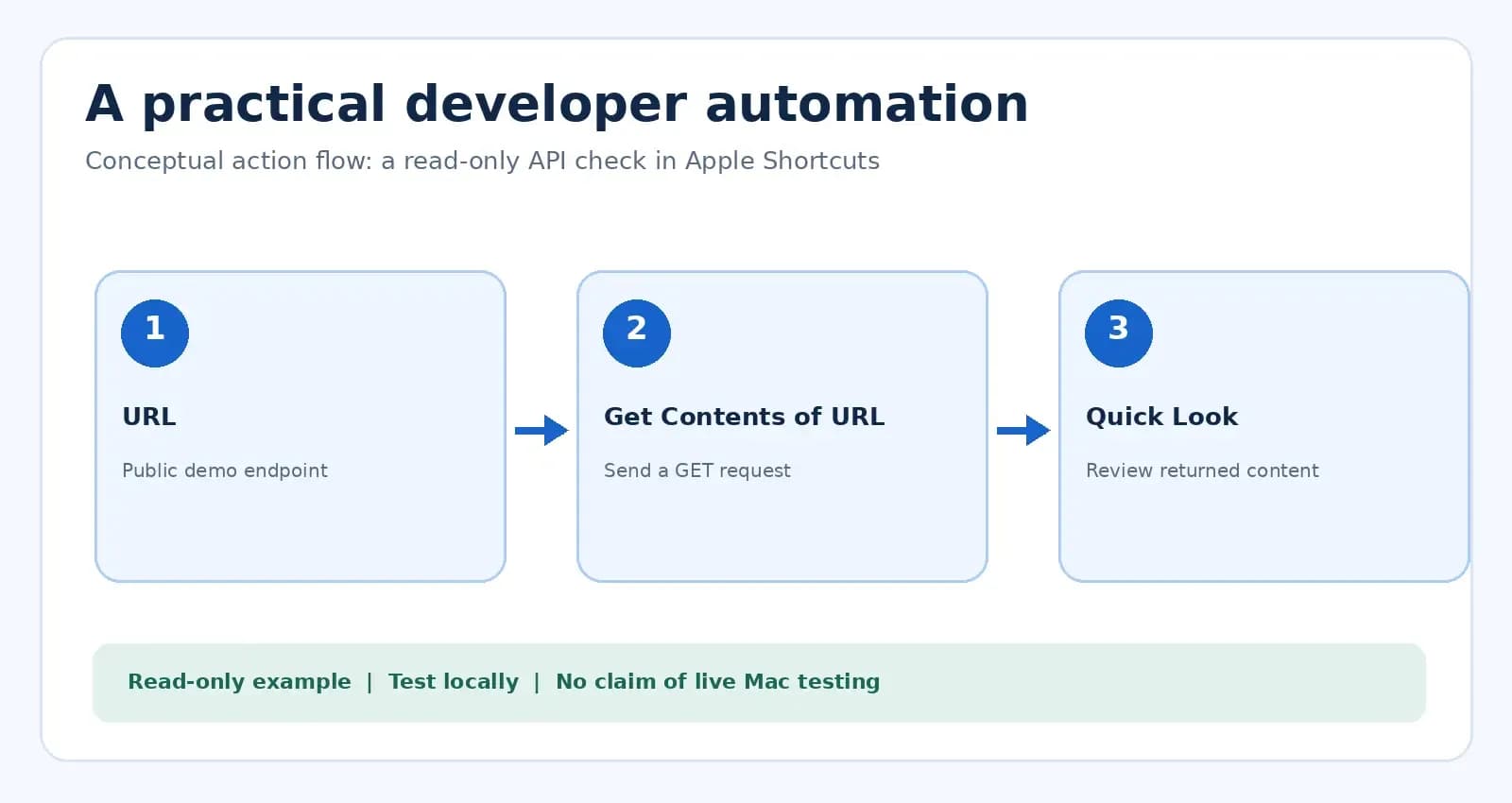
Conceptual diagram of a read-only Shortcuts workflow, not a screenshot of a tested API request.
Expected result: Quick Look shows data returned by the service. If the request fails or returns an unexpected value, inspect the URL, network access and the previous action output. Do not label this check as website uptime monitoring or as evidence that a real store integration passed.
Never paste private API keys into a shareable shortcut, and do not switch to POST or DELETE against a real service until authentication, permissions, test data and rollback procedures have been reviewed.
Official API reference: Apple - Get Contents of URL for API requests.
4. Workflow Three: Preview Selected Assets From Finder
Design handoffs and downloaded website templates often include many images, PDFs and other files. A Finder Quick Action can provide a convenient way to run a shortcut on selected items. The example here is intentionally read-only: it previews selected files rather than renaming, converting or deleting them.
Build the action sequence
1. Create a new shortcut named Review Selected Assets.
2. Open its Details panel and select Use as Quick Action.
3. Set the shortcut to accept suitable file or folder input from Finder; configure the input types supported by your macOS version.
4. Add Quick Look and supply Shortcut Input as its input.
5. Select a disposable test file in Finder, run the Quick Action, and confirm the correct item is previewed.
If the Quick Action does not appear in Finder, check the enabled extension, allowed input types, and whether you selected an item of the expected kind. A file-preview shortcut should not be presented as a comprehensive asset QA audit: it does not check copyright, image optimization, alt text, or actual website rendering.
Configuration reference: Apple - Run a shortcut while working on your Mac.
5. Workflow Four: Make a Consistent Website QA Note
A recurring source of confusion in website projects is an incomplete bug report. A simple shortcut can collect one issue description and compose a note that is ready to paste into the issue tracker or developer chat.
Build the action sequence
Ask for Input -> "Describe the issue and affected URL"
Date -> current date
Text -> template using Date + Provided Input
Copy to Clipboard -> copy the formatted note
Configure the Text action to use the actual variables from Date and Ask for Input. You can use a simple template such as:
Website QA note
Reviewed: [Date variable]
Issue and URL: [Provided Input variable]
Browser / device: [fill in before sending]
Expected behavior: [fill in before sending]
Actual behavior: [fill in before sending]
The bracketed labels above are editorial placeholders for the variable chips and human details you will configure in Shortcuts. Do not paste the bracketed labels and expect them to resolve automatically.
Expected result: a formatted note is available on the clipboard. It is not submitted to Jira, GitHub or another service unless you separately implement and authorize that integration. Avoid copying access tokens, credentials or customer personal information into routine QA notes.
When an issue requires browser inspection, use Chrome DevTools keyboard shortcuts for Mac to gather CSS, network, and console evidence before preparing your QA note.
6. How to Trigger Your Shortcut
After a shortcut behaves correctly, choose the most useful way to start it. Apple documents options including the Shortcuts app itself, Spotlight, menu bar, the Dock, Finder Quick Actions, the share sheet, and assigning a keyboard combination.
| Trigger | Best Suited To | Setup Consideration |
|---|---|---|
| Run Inside Shortcuts | First-time testing | Inspect action output and permission prompts. |
| Keyboard Combination | Frequent personal workflow | Avoid system or app shortcut conflicts. |
| Finder Quick Action | Selected design assets | Configure accepted input types and file extensions. |
| Share Sheet | Selected content in supported apps | Shortcut must accept that content type. |
| Menu Bar or Dock | Launch a routine on demand | These routes do not automatically carry app content as input. |
To assign a hotkey, open shortcut Details, choose Add Keyboard Shortcut, and press an available combination. If the system or another app already uses it, choose a different combination. Apple notes that reserved system shortcuts cannot always be overridden.
7. Troubleshooting a Mac Shortcut That Does Not Work
| Symptom | What to Check |
|---|---|
| The shortcut runs but opens the wrong item | Review action inputs and any selected application or URL. |
| A Finder Quick Action is missing | Confirm Use as Quick Action, input types and enabled extension. |
| The API preview is empty | Inspect the GET method, service response and action output. |
| The assigned hotkey does nothing | Check shortcut conflicts or reserved macOS combinations. |
| A workflow requests permission | Review what data or app access the action requires before allowing. |
| An imported shortcut asks to run scripts | Read every action; do not execute unknown JavaScript or shell code. |
Troubleshoot one action at a time. Test the earliest output that differs from your expectation. A later action often fails because the preceding action supplied the wrong kind of data.
8. Security, Privacy, and Automation Limits
Automations can access documents, selected content and online services. Review the actions in any shared shortcut before running it. Shortcuts that contain website JavaScript can access information on the page; Apple requires additional permissions for certain script actions and warns of possible data-loss risks.
- Keep initial developer workflows read-only and reversible.
- Use demo services and disposable sample files while learning.
- Do not embed production passwords, API secrets or client data in shareable workflows.
- Do not assume a shortcut verifies a website simply because its actions completed.
- Retest after macOS updates, app changes or changes to the target URL or API.
- Avoid automating deployment or destructive edits without separate authorization and recovery procedures.
If the task requires browser layout inspection, debugging or accessibility testing, use suitable tools and manual testing as well. WebbyTemplate's website template accessibility checklist discusses checks performed on the actual website, rather than inferred from a completed automation.
For performance work after template customization, review website optimization tips for template-based sites rather than assuming an automation makes a website fast.
9. When to Use Shortcuts Instead of a Script or Build Tool
Shortcuts is useful for small workflows that join supported applications, content and service actions. It is not automatically the right environment for source-code builds, CI/CD, repository operations or production deployments.
| Requirement | Practical starting point |
|---|---|
| Open a routine set of tools | Shortcuts with Open App / Open URLs |
| Preview selected local files | Finder Quick Action with Quick Look |
| Read a simple public demo API | Shortcuts with URL and Get Contents of URL |
| Compile, lint or run automated tests | Project-specific tooling or a documented development pipeline |
| Deploy a production website | Version-controlled, reviewed deployment workflow |
The strongest use case is often a small automation that supports your normal development tools rather than attempting to replace them.
FAQs
Q1.
What is the difference between a Mac keyboard shortcut and an Apple Shortcuts workflow?
Q2.
Can macOS Shortcuts open VS Code and a documentation website?
Q3.
Can I use macOS Shortcuts to call an API?
Q4.
Can Shortcuts replace Chrome DevTools?
Q5.
Can I run a shortcut from Finder?
Q6.
Are downloaded .shortcut files always safe?
Q7.
Does a shortcut run automatically at a specific time on every Mac?
Q8.
Do I need programming experience to use Apple Shortcuts?
Final Thoughts
Apple Shortcuts can remove repetitive setup and coordination work from a developer's day when each step has a clear purpose. Start with a workspace launcher, read-only API preview, Finder asset review, or formatted QA note. Verify outputs and permissions before trusting the workflow. Treat automation as support for careful website development, not as a substitute for testing, review or release controls.