On this page
VS Code Keyboard Shortcuts for Mac: Edit HTML, CSS, and JavaScript Faster

WebbyCrown Solutions-
October 30, 2026-9 min read

The fastest way to use VS Code on a Mac is to learn shortcuts for the tasks you repeat: opening project files, finding markup, changing repeated CSS classes, formatting code, and moving between an editor and terminal. Start with a few commands, then add multi-cursor and refactoring shortcuts once you know exactly what they change.
This guide focuses on editing real website template files in Visual Studio Code. It does not repeat general macOS shortcuts or browser DevTools commands. You will find practical HTML, CSS, and JavaScript examples, a quick-reference download, and troubleshooting steps for shortcuts that do not work as expected.
Download the printable shortcuts PDF: [Download](https://webby-template-dot-com.s3.eu-north-1.amazonaws.com/Pdf/VS_Code_Mac_Template_Editing_Quick_Reference.pdf
).
1. Essential VS Code Shortcuts for Mac
The following are default macOS bindings in VS Code. The keyboard layout, user customizations, focus, and extensions can change how they behave. Use the Keyboard Shortcuts editor to confirm the active binding in your own setup.
| Task | Default Mac Shortcut | Why It Matters |
|---|---|---|
| Quick Open File | ⌘ + P | Jump directly to an HTML or CSS file |
| Command Palette | ⇧ + ⌘ + P | Find commands without menus |
| Search Across Files | ⇧ + ⌘ + F | Find a class name across the project |
| Find in File | ⌘ + F | Locate a section or selector |
| Add Next Match to Selection | ⌘ + D | Edit repeated occurrences cautiously |
| Select All Matching Occurrences | ⇧ + ⌘ + L | Change confirmed repeated text |
| Open Keyboard Shortcuts | ⌘ + K, then ⌘ + S | Inspect the active keybindings |
| Format Document | ⇧ + ⌥ + F | Invoke the available formatter |
| Quick Fix | ⌘ + . | Review available fixes |
| Toggle Terminal | ⌃ + ` | Use the integrated terminal |
Official source: Visual Studio Code default keyboard shortcuts
Here, ⌘ means Command, ⇧ Shift, ⌥ Option, and ⌃ Control. A comma in a shortcut such as “⌘ + K, then ⌘ + S” denotes a two-step chord, not a simultaneous press.
2. Open HTML, CSS, and JavaScript Files Without Browsing Folders
A website template can contain dozens of pages, assets, stylesheets and scripts. Press ⌘ + P, type a filename such as “style.css” or “contact.html”, and select the matching file. This searches available files in the open workspace. For large projects, include enough of the path to distinguish files with the same name.
To locate markup when you know text but not the file, press ⇧ + ⌘ + F and search the project. Review the results before editing: a heading might appear in source files, translations and generated output. Do not modify a compiled distribution file when the source project rebuilds it automatically.
Related: WebbyTemplate guide to choosing a website template and checking source files
3. Change Repeated HTML Classes With Multiple Cursors
The quickest way to create a broken website is to replace every matching word without reviewing context. VS Code offers a more controlled technique: select a class name, press ⌘ + D to add the next match, inspect the highlighted selections, then type the replacement once.
Example: imagine two card elements using the same class name.
Fast setup
Clean UI
Select “feature-card” in the first line. Use ⌘ + D until both intended class names are selected. Replace them with “benefit-card”. Then update the relevant CSS selector and preview the page. Avoid changing unrelated instances such as documentation text or data attributes.
.benefit-card {
border-radius: 12px;
padding: 1rem;
}
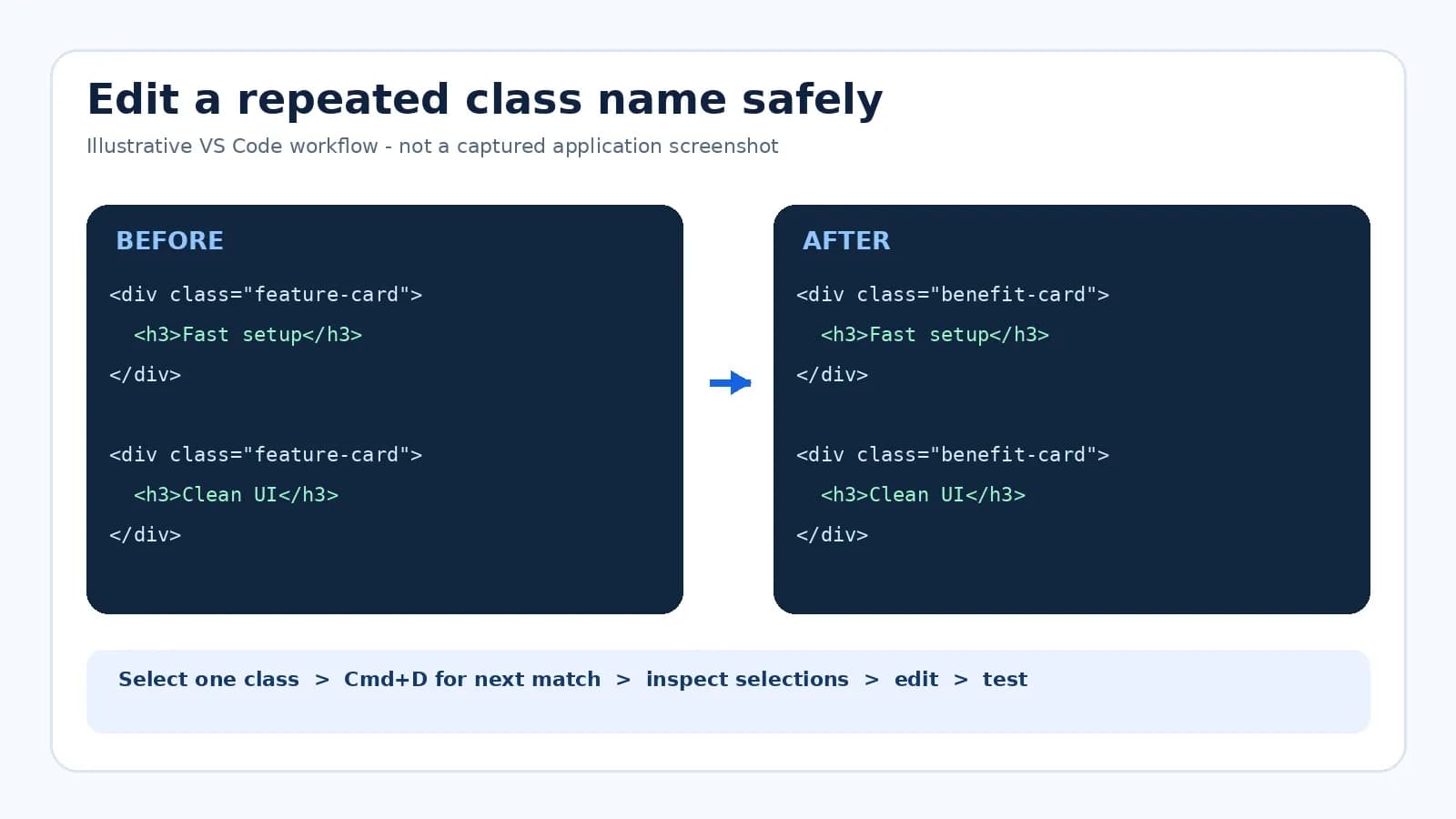
Alternative: use ⇧ + ⌘ + L to select all occurrences of the current selection. This can be efficient, but only after you are confident that every occurrence in the active editor needs the same change. For changes across files, review Search results and use replace selectively instead.
4. Make Safer Code Changes With Rename Symbol and Quick Fix
Text replacement and semantic refactoring are different operations. When the language service understands a symbol, F2 (Rename Symbol) can offer a more meaningful rename than editing the same characters everywhere. Availability and correctness depend on the active language support, project configuration, and symbol being renamed.
For example, renaming a JavaScript function may be appropriate with F2 if references are resolved by the language service. Renaming a CSS class across unrelated HTML and CSS files may instead need a targeted search-and-review process. Preview the affected edits and verify the running page.
Press ⌘ + . to inspect Quick Fix actions where VS Code or an extension reports an applicable issue. Review the proposed modification; do not assume every suggested change is correct for your project.
5. Format Code, Move Lines, and Add Comments
| Task | Default Shortcut | Practical Use |
|---|---|---|
| Format Document | ⇧ + ⌥ + F | Apply a configured formatter to the active file |
| Move Line Up/Down | ⌥ + ↑ / ↓ | Reorder a short CSS declaration or code line |
| Copy Line Down | ⇧ + ⌥ + ↓ | Duplicate a repeated declaration for editing |
| Delete Line | ⇧ + ⌘ + K | Remove an unwanted line |
| Toggle Line Comment | ⌘ + / | Temporarily comment an applicable line |
| Toggle Word Wrap | ⌥ + Z | Read long lines without horizontal scrolling |
Formatting only works as intended when the relevant file type has a supported formatter. If VS Code requests a formatter or nothing appears to happen, inspect installed and configured formatters rather than repeatedly pressing the shortcut. Use version control or review the diff to identify unexpectedly broad formatting changes.
6. Split the Editor and Use the Integrated Terminal
When updating an HTML template, you may want its markup and stylesheet visible together. Press ⌘ + \ to split the editor, then use ⌘ + 1 and ⌘ + 2 to focus the first and second editor groups. Open “index.html” in one group and “style.css” in the other.
Use ⌃ + ` to toggle the integrated terminal. It can run a development command appropriate to the project, but the presence of a terminal does not mean every static HTML template requires a build step. Follow the product’s own setup and dependency instructions.
For example, a plain static HTML project might be previewed through a suitable local server; a framework project might require installing packages and starting a configured development script. Do not invent build commands for a product you have not inspected.
7. Diagnose VS Code Shortcuts That Are Not Working on Mac
If a shortcut does not respond, first confirm that VS Code is focused and that you are pressing the keys required by your actual keyboard layout. Then open the Keyboard Shortcuts editor with ⌘ + K, followed by ⌘ + S. Search for the intended command to see its configured binding.
VS Code can show multiple commands using the same key combination under different contexts. Extensions and imported keymaps can introduce conflicts. Right-click an entry and use “Show Same Keybindings” to inspect overlaps.
For a more exact diagnosis, open the Command Palette and run “Developer: Toggle Keyboard Shortcuts Troubleshooting.” Then press the problematic keys and inspect the Output log for the detected keypress and dispatched command. This diagnostic method is described by the official VS Code documentation.
| Symptom | What to Inspect |
|---|---|
| A shortcut triggers another command | User and extension bindings; context conditions |
| Key combination seems ignored | Focus, keyboard layout, macOS conflicts |
| Format Document does nothing | Formatter availability and file language |
| Multi-cursor behavior differs | Editor settings and conflicting modifiers |
| Terminal toggle opens the wrong action | Current binding in the Keyboard Shortcuts editor |
8. Customize a Shortcut Without Breaking Existing Commands
Open the Keyboard Shortcuts editor, search for the desired command, and assign a combination that does not conflict with an important system or application action. Test it in the exact editor context where you need it.
Advanced users can manage custom rules in keybindings.json. These rules can include context conditions (“when” clauses), but avoid copying arbitrary configurations from a blog without reviewing their effect on your own editor. The official keyboard shortcuts guide explains how overrides and contextual resolution work.
9. A Practical Five-Minute Template-Editing Workflow
Use the next sequence on a development copy of your site, not as an unreviewed bulk edit on production:
- Press ⌘ + P to open the target HTML file.
- Press ⌘ + F to find the text or CSS class you need to change.
- Use ⌘ + D to select only intended repeated matches.
- Update the corresponding stylesheet and inspect the diff.
- Format the relevant file if an appropriate formatter is configured.
- Save changes, run the project’s documented preview process, and check the affected pages and mobile layouts.
This repeatable workflow is more valuable than memorizing dozens of shortcuts unrelated to your project. The shortcuts reduce navigation friction; correctness still depends on understanding the code and testing the result.
10. Download a VS Code Mac Shortcut Quick Reference
For a concise task-based reference, use the accompanying VS Code for Mac quick-reference PDF. It groups shortcuts by navigation, safe multi-cursor editing, reviewing changes, and diagnostics. It is designed to make the editing workflows easy to reference while you work.
You can also consult Microsoft’s official comprehensive macOS shortcuts PDF, which covers a broader set of default bindings. The local cheat sheet is a companion to this worked tutorial rather than a substitute for official documentation.
Microsoft official VS Code keyboard shortcuts for macOS (PDF)
FAQs
Q1.
What is the shortcut to open a file in VS Code on Mac?
Q2.
How do I select multiple occurrences in VS Code on Mac?
Q3.
What is the VS Code Mac shortcut for Rename Symbol?
Q4.
How do I format HTML or CSS in VS Code on a Mac?
Q5.
Why are my VS Code shortcuts different from an online list?
Q6.
How do I open the integrated terminal in VS Code on Mac?
Q7.
Do VS Code and Chrome DevTools use the same shortcuts?
Final Thoughts
The most useful VS Code keyboard shortcuts for Mac are the ones that help you edit real projects accurately. Begin with opening files and project search, learn how to select repeated text deliberately, and use language-aware tools such as Rename Symbol when appropriate. Verify changes in the source and the browser before shipping a website.