On this page
Essential Mac Keyboard Shortcuts for Web Designers and Developers

WebbyCrown Solutions-
October 26, 2026-7 min read
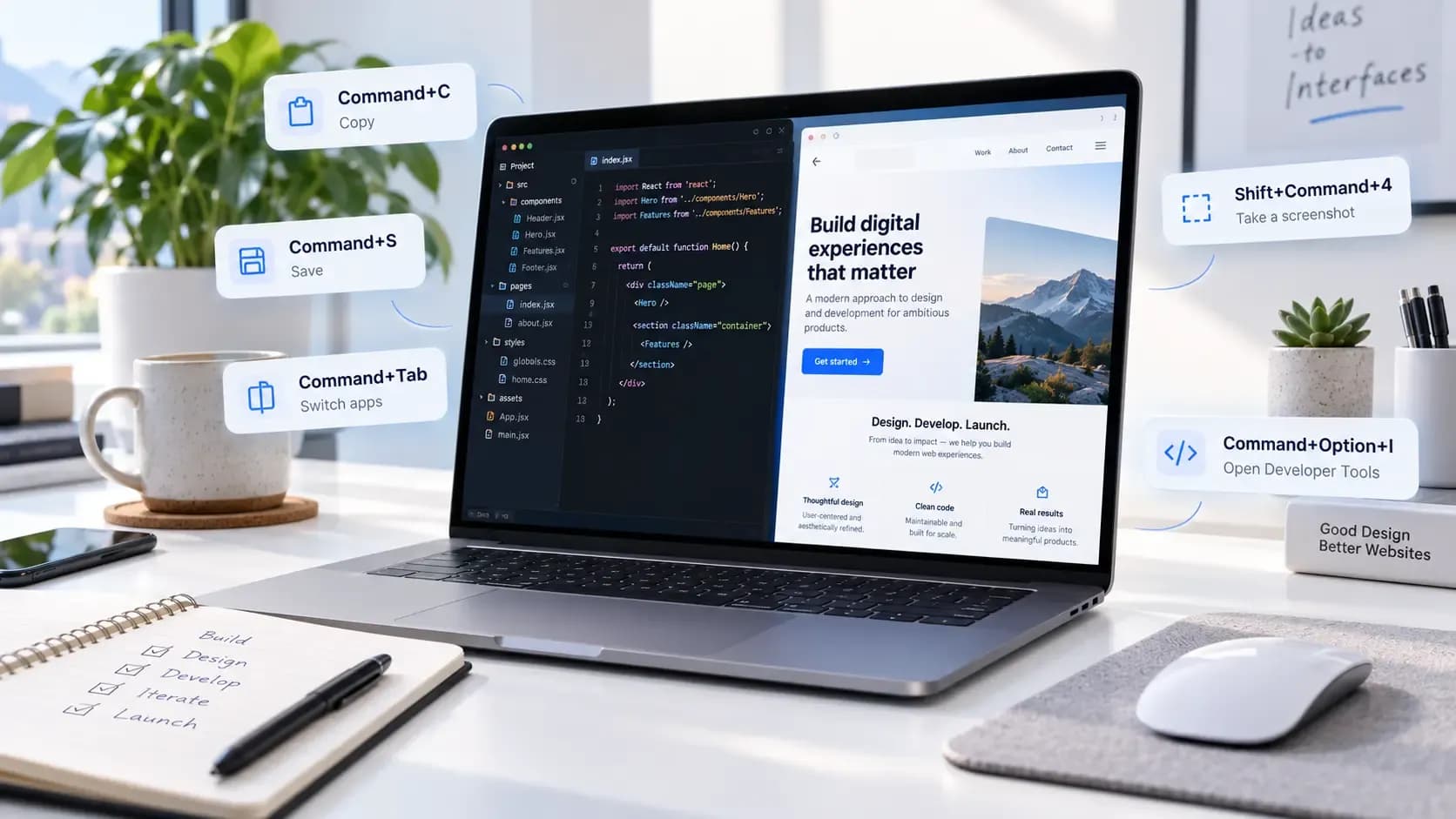
Mac keyboard shortcuts help web designers and developers move between apps, edit code, inspect websites, capture screenshots, and manage files without repeatedly reaching for the mouse. The most useful commands are the ones that fit tasks you do every day.
This guide organizes useful macOS, Chrome DevTools, VS Code, and Finder shortcuts by workflow. It also includes a printable quick-reference PDF to keep beside your workspace. Shortcut behavior may vary with keyboard layout, application settings, and customization.
Mac Keyboard Shortcuts at a Glance
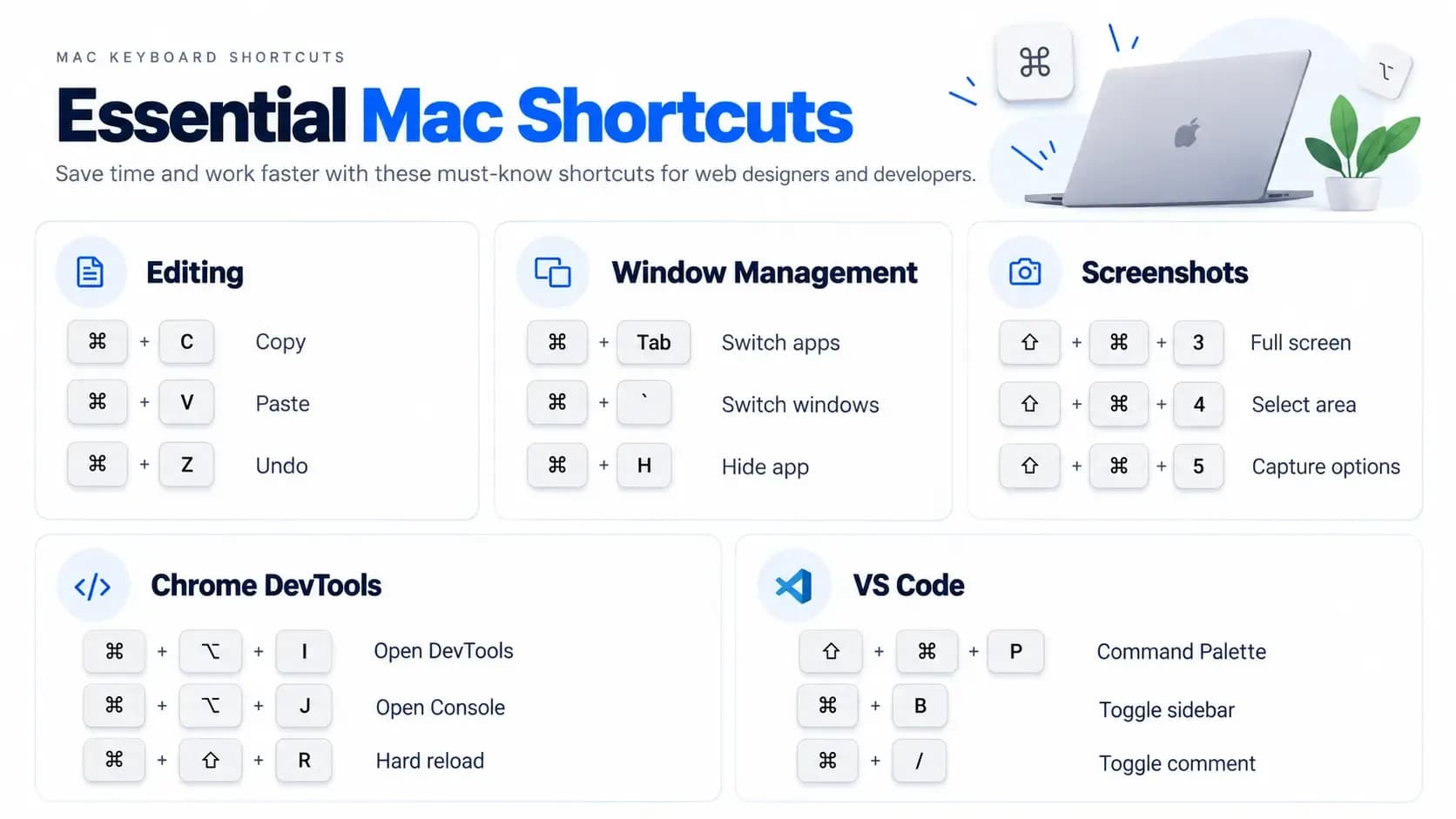
| Action | Shortcut |
|---|---|
| Copy | Command + C |
| Paste | Command + V |
| Undo | Command + Z |
| Redo | Shift + Command + Z |
| Select All | Command + A |
| Save | Command + S |
| Spotlight | Command + Space |
| Switch Apps | Command + Tab |
| Selected-Area Screenshot | Shift + Command + 4 |
| Chrome DevTools | Command + Option + I |
| Chrome Console | Command + Option + J |
These commands are useful when editing website templates, previewing changes, or checking pages in the browser. Confirm system-specific shortcuts against Apple Support and application commands against the relevant software documentation.
Download the printable Mac shortcuts PDF: Download.
Understanding Mac Keyboard Symbols
| Symbol | Name | Meaning |
|---|---|---|
| ⌘ | Command | Common primary shortcut modifier |
| ⌥ | Option | Alternate actions and modifiers |
| ⌃ | Control | System and app-specific functions |
| ⇧ | Shift | Additional modifier |
| Fn | Function | Keyboard-dependent functions |
For example, ⇧ + ⌘ + 4 means hold Shift and Command while pressing 4. Shortcuts can differ on international keyboard layouts or when an app remaps keys.
1. Essential Mac Shortcuts for Everyday Web Design Work
| Action | Shortcut | Example |
|---|---|---|
| Copy | ⌘ + C | Copy content or a selected asset |
| Paste | ⌘ + V | Insert content in an editor |
| Undo | ⌘ + Z | Reverse an unintended change |
| Save | ⌘ + S | Save HTML or CSS changes |
| Find | ⌘ + F | Locate a heading or filename |
| Close Window/Tab | ⌘ + W | Close an extra preview |
| Quit App | ⌘ + Q | Exit application |
| Hide App | ⌘ + H | Clear the workspace temporarily |
Practical example: Open a website template’s HTML file, change a heading, save with Command + S, switch to Chrome with Command + Tab, and reload to inspect the change. A short repeatable sequence is more useful than memorizing a giant list.
2. Mac Shortcuts for Managing Windows and Apps
| Task | Shortcut |
|---|---|
| Switch Between Applications | ⌘ + Tab |
| Switch Windows in Current App | ⌘ + ` (varies with keyboard layout) |
| Hide Active App | ⌘ + H |
| Minimize Current Window | ⌘ + M |
| Open Spotlight | ⌘ + Space |
| New Finder Window When Finder Is Active | ⌘ + N |
Frontend work often means moving between code, live preview, and client notes. Keeping a predictable app-switching workflow can reduce the number of times you need to search through windows. Window tiling commands may vary by macOS version and settings.
3. Screenshot Shortcuts for Website Reviews
| Action | Shortcut |
|---|---|
| Capture Entire Screen | ⇧ + ⌘ + 3 |
| Capture Selected Area | ⇧ + ⌘ + 4 |
| Open Screenshot Controls | ⇧ + ⌘ + 5 |
For responsive-layout bug reports, include the affected URL, browser, and viewport dimensions along with the screenshot. Review screenshots for private user data or credentials before sharing them.
4. Chrome DevTools Keyboard Shortcuts for Mac
| Task | Shortcut |
|---|---|
| Open DevTools | ⌘ + ⌥ + I |
| Open Console | ⌘ + ⌥ + J |
| Inspect Element | ⌘ + ⌥ + C |
| Toggle Device Mode (DevTools Focused) | ⌘ + ⇧ + M |
| DevTools Command Menu | ⌘ + ⇧ + P |
| Hard Reload | ⌘ + ⇧ + R |
Example: If a hero button is misplaced, open the page in Chrome, activate Inspect Element, and select the button. Review its styles and box model, correct the source stylesheet, then reload and test across screen sizes. These commands refer specifically to Chrome on macOS.
5. VS Code Keyboard Shortcuts for Mac
| Action | Default Shortcut |
|---|---|
| Command Palette | ⇧ + ⌘ + P |
| Quick Open File | ⌘ + P |
| Keyboard Shortcuts Editor | ⌘ + K, then ⌘ + S |
| Delete Current Line | ⇧ + ⌘ + K |
| Toggle Integrated Terminal | ⌃ + ` |
| Find in Current File | ⌘ + F |
| Search Across Files | ⇧ + ⌘ + F |
Example: Use Command + P to open the navigation component, Command + F to find its markup, edit and save, then return to the browser to preview the result. Custom keymaps, extensions, and keyboard layouts can change bindings; use the Keyboard Shortcuts editor as the local source of truth.
6. Finder Shortcuts for Organizing Website Assets
| Task | Shortcut |
|---|---|
| New Folder | ⇧ + ⌘ + N |
| Duplicate Selected File | ⌘ + D |
| Get Info | ⌘ + I |
| Quick Look Selected File | Space |
| Move Selected Item to Trash | ⌘ + Delete |
Before replacing a template image or moving CSS assets, make a backup or use version control. Updating an asset’s name or location without fixing its source references can result in missing files on the deployed website.
7. A Five-Minute Keyboard Workflow for Frontend Developers
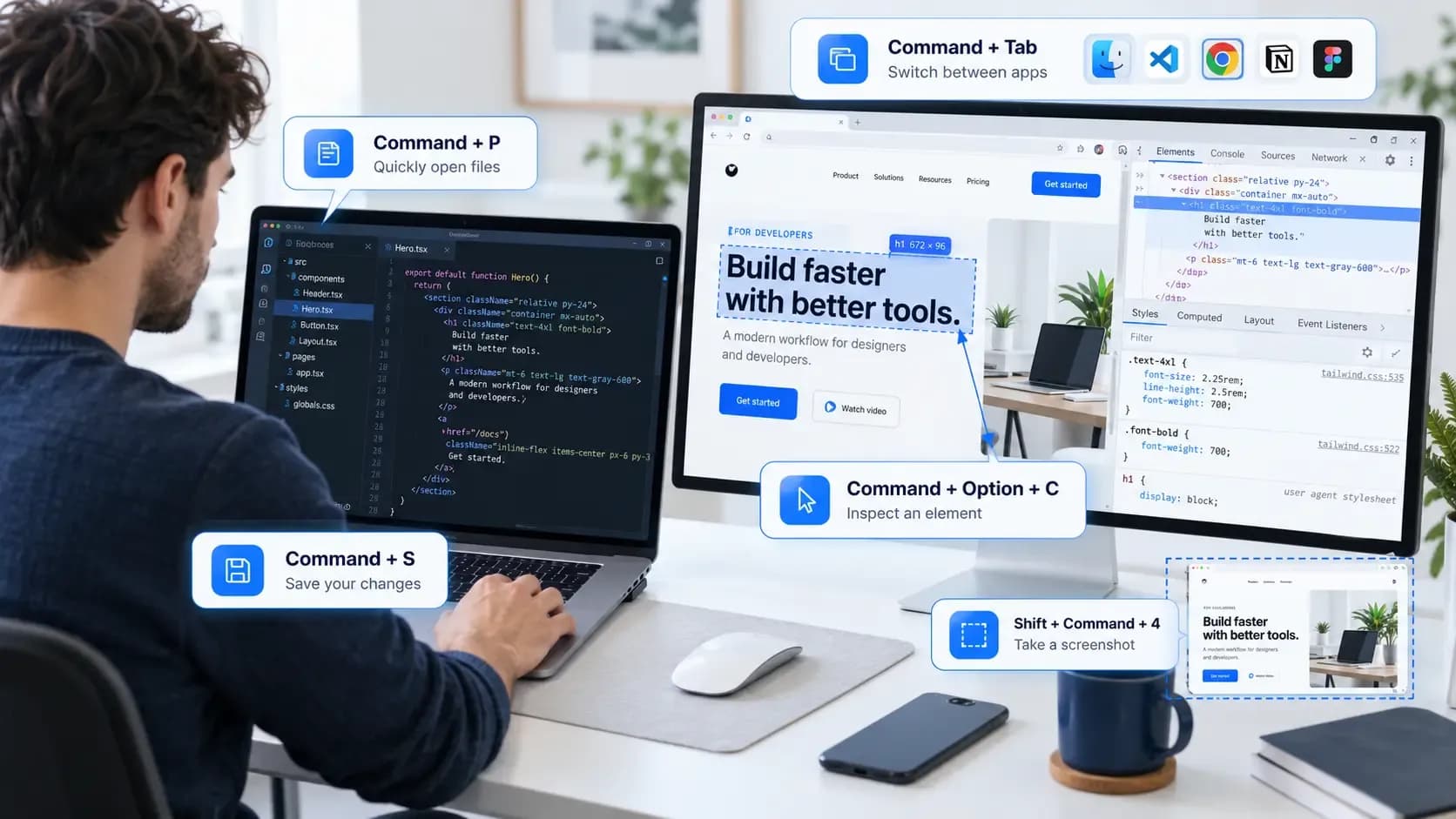
- Open the relevant file in VS Code with Command + P.
- Find the text you need with Command + F.
- Edit and save the file with Command + S.
- Switch to Chrome with Command + Tab.
- Reload the local preview and inspect elements with Command + Option + C.
- Capture a screenshot with Shift + Command + 4 when a visual issue needs documentation.
This workflow assumes your development server or preview reflects the saved change. Some projects require a build process or additional refresh steps.
8. How to Customize Mac Keyboard Shortcuts
To add an appropriate macOS application-menu shortcut, open System Settings → Keyboard → Keyboard Shortcuts → App Shortcuts. Choose the application and use the exact menu command wording. Test for conflicts with existing shortcuts. In VS Code, open the Keyboard Shortcuts editor with Command + K, followed by Command + S, and assign a binding to the command you want to change.
9. Keyboard Shortcuts vs. macOS Shortcuts Automation
Keyboard shortcuts are combinations of keys that trigger actions. The macOS Shortcuts app combines supported actions into workflows and automations. They are different tools with different search intents: a keyboard shortcut can switch applications, while a Shortcuts workflow might prepare several supported apps or files for a task. See Apple’s Shortcuts User Guide for available actions and limitations.
10. Learn Shortcuts Without Memorizing Everything
Start with three shortcuts you will use every day. For coding, try Quick Open, Find, and Command Palette. For website QA, try DevTools, Inspect Element, and selected-area screenshot. Practice those commands during normal work before adding more.
FAQs
Q1.
What are the most useful Mac shortcuts for web developers?
Q2.
Are MacBook shortcuts different from desktop Mac shortcuts?
Q3.
How do I inspect a website using a Mac keyboard?
Q4.
What is the shortcut to open the terminal in VS Code on Mac?
Q5.
Can I create custom keyboard shortcuts on macOS?
Q6.
Do keyboard shortcuts improve development speed?
Q7.
Are Chrome DevTools shortcuts identical on Mac and Windows?
Q8.
Can I download a Mac shortcuts cheat sheet?
Final Thoughts
Mac shortcuts are most valuable when they fit the work you already do. Use a small set of reliable commands for editing files, inspecting websites, managing windows, and sharing screenshots. Verify unfamiliar commands against the app’s own documentation, and build your personal reference gradually.