On this page
How to Replace Images in an HTML Website Template Without Breaking the Layout

WebbyCrown Solutions-
October 22, 2026-6 min read
To replace images in an HTML website template, find the existing image reference, add your new asset, update the HTML or CSS path, and test the layout at desktop and mobile widths. The main risk is changing the image proportions or path without checking how the template displays it.
Replacing a wide hero photograph with a small square image can cause awkward cropping or blur. A renamed file or incorrect relative path can make the image disappear completely. This tutorial covers both the change itself and the checks that make it reliable.
1. Find Where Your HTML Template Stores Images
Most downloadable website templates have separate folders for HTML, CSS, JavaScript, images, and fonts. Your folder may be named images, img, media, assets, or public. Start by finding the existing image filename in your code editor. If no HTML reference appears, inspect the CSS for background-image declarations.
my-website/
index.html
about.html
assets/
css/style.css
images/hero.jpg
images/logo.png
Make a backup or commit your changes in version control first. If the site uses a build tool or frontend framework, follow its asset-publication conventions rather than assuming every relative image path will work.
2. Replace a Standard Image in HTML
In an HTML element, the src attribute points to the image file. Keep the existing CSS classes unless you intentionally want to redesign the component. Update the alt attribute so it accurately describes the replacement image.
img src="assets/images/our-team.webp" alt="Agency team working together" width="1200" height="800"
The width and height attributes should correspond to the intrinsic proportions of the new file, where practical. They help the browser reserve space while the asset loads. Check the replacement file exists under the precise spelling and capitalization used in src.
3. Change a CSS Background Image
Many hero banners and decorative panels are loaded using a CSS background instead of an tag. Find the background-image rule and point it to your new file:
.hero {
background-image: url("../images/new-hero.webp");
background-size: cover;
background-position: center;
}
When the CSS is in assets/css/style.css, a path beginning ../images/ resolves relative to that stylesheet. With background-size: cover, the browser fills the area and may crop the image. Move background-position when a key subject would otherwise fall outside the visible area.
4. Prevent Image Stretching and Poor Cropping
Image replacement problems are not all the same. If proportions look wrong, use max-width: 100% and height: auto for ordinary flowing images. For equal-height cards, a fixed aspect ratio plus object-fit may be more appropriate.
.content-image {
display: block;
max-width: 100%;
height: auto;
}
.team-image {
width: 100%;
aspect-ratio: 4 / 3;
object-fit: cover;
object-position: center;
}
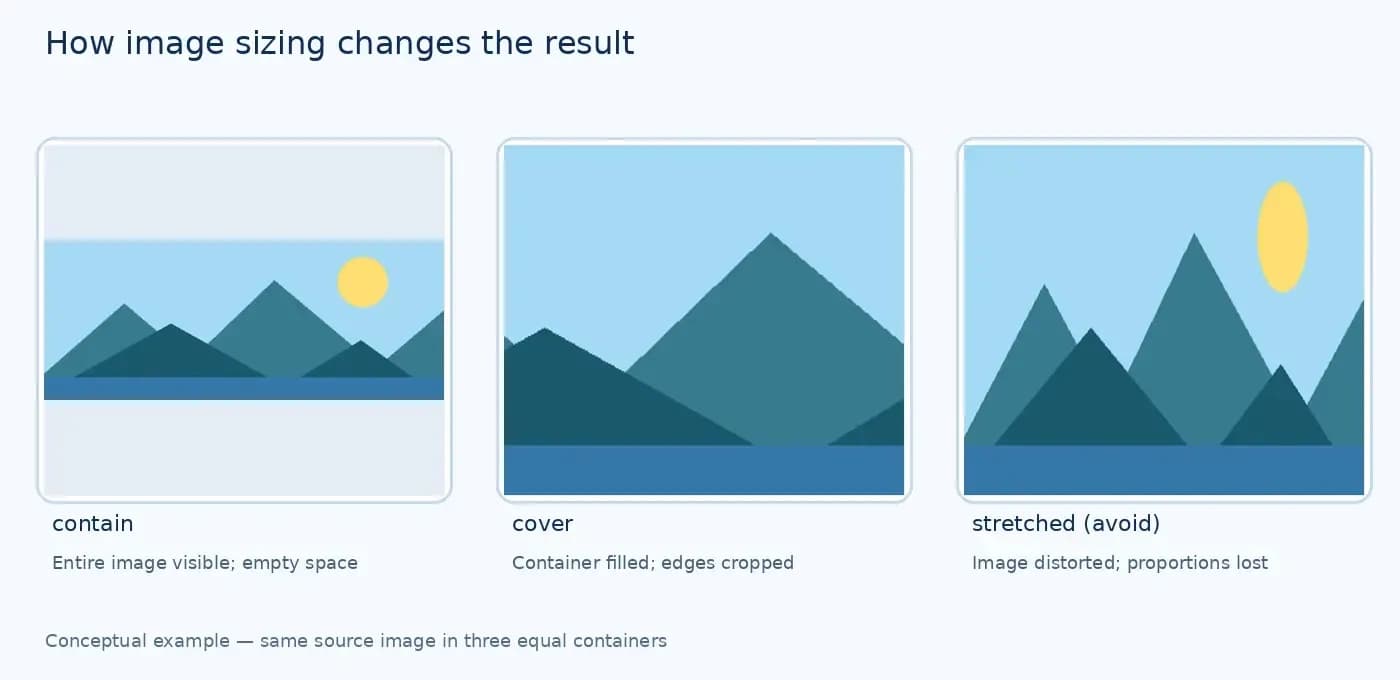
The difference matters: object-fit: contain shows the full image but may leave empty space; object-fit: cover fills the frame but crops some edges. Forcing incompatible width and height values distorts the subject.
| Problem | Likely adjustment |
|---|---|
| Image looks stretched | Preserve intrinsic proportions or use object-fit appropriately. |
| Image cropped badly | Change object-position or choose an image with a suitable composition. |
| Image overflows the section | Check max-width and parent container styling. |
| Image blurry | Provide a sufficiently detailed source file. |
| Layout shifts while loading | Set meaningful dimensions or aspect-ratio. |
5. Choose Sensible Image Formats and Dimensions
Use a file that looks sharp at its real display size without transferring unnecessary bytes. WebP and AVIF may offer useful compression for photographic content; SVG can be appropriate for simple vector logos and graphics. Format choice depends on the visual and supported workflow.
Do not rename a .jpg file to .webp without actually converting it. If a template uses a responsive hero and a mobile-specific composition, retain or rebuild those variants instead of supplying one badly cropped source for every device.
6. Deliver Different Sizes With srcset
The srcset and sizes attributes let the browser choose between multiple image files. The following is an example; create all referenced files before copying it into a live template:
src="assets/images/office-1200.webp"
srcset="assets/images/office-480.webp 480w, assets/images/office-800.webp 800w, assets/images/office-1200.webp 1200w"
sizes="(max-width: 768px) 100vw, 50vw"
width="1200" height="800"
alt="Office workspace with meeting tables"
For different mobile and desktop crops, the
7. Fix Images That Fail to Load
Check the browser developer tools Network panel when an image is missing. A 404 usually suggests a bad URL or a file absent from the deployed build. Compare capitalization carefully: Photo.jpg and photo.jpg can be different files on many servers.
Remember that assets/images/photo.jpg is resolved relative to the current document URL, while /assets/images/photo.jpg starts at the website root. On subdirectory deployments these may lead to different destinations. Also review build-tool asset processing and the final deployed folder structure.
8. Review Alt Text, Accessibility and SEO
Update alt text if the image changes meaning. For a decorative HTML image that conveys nothing useful, an empty alt="" may be the right choice. Avoid keyword stuffing. Meaningful image context, descriptive surrounding content, and crawlable resources can support discovery, but changing an image alone does not guarantee better rankings.
9. Test Images Before Publishing
Open each affected page on desktop and mobile. Inspect hero images, logos, product tiles, staff portraits, backgrounds and blog cards. Confirm that the right file loads, the crop is acceptable, text remains readable, and there is no unintended horizontal scrolling.
QA checklist:
- [ ] File paths work
- [ ] No 404s
- [ ] Correct mobile crop
- [ ] No stretching
- [ ] Images reasonably optimized
- [ ] Alt text reviewed
- [ ] No unexpected layout shift
- [ ] Images appear on the live build
If you are still choosing a template, see WebbyTemplate’s guide to choosing a website template for your business:
FAQs
Q1.
How do I change an image in an HTML template?
Q2.
Why is my new image not showing?
Q3.
How do I replace a CSS background image?
Q4.
How do I avoid stretching?
Q5.
Which image format should I use?
Q6.
Can mobile and desktop use different images?
Q7.
Can changing images affect SEO?
Q8.
Should I keep original filenames?
Final Thoughts
Replacing template images is straightforward once you know where the assets live and how the layout constrains them. Update references carefully, choose images with appropriate proportions, and test the finished pages across devices. That preserves the intent of the original design while making the website your own.