On this page
How to Image Search an Object: Identify Anything from a Photo

WebbyCrown Solutions-
May 12, 2026-12 min read
Quick Answer
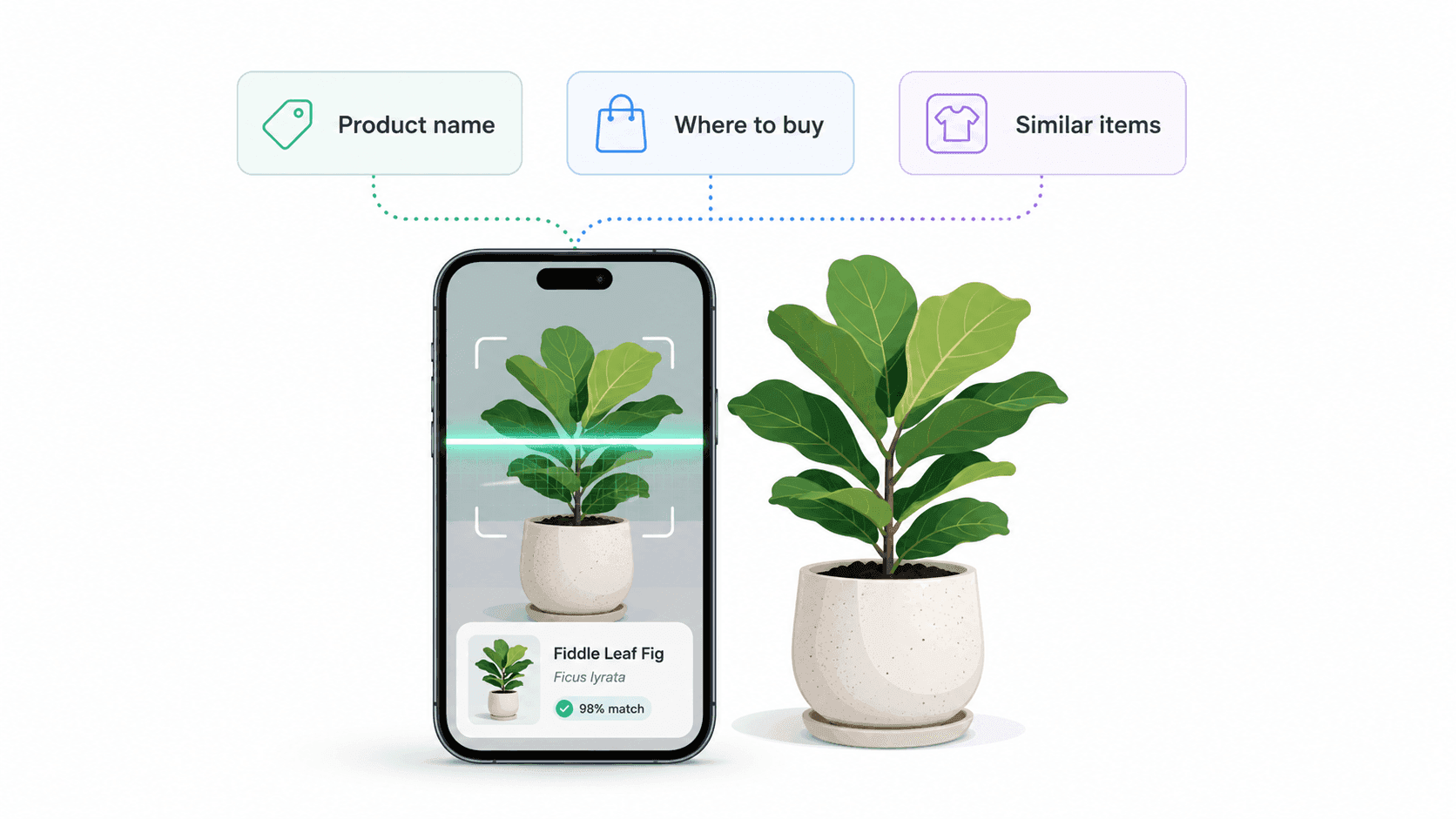
To image search an object, point a phone camera or upload a photo to a visual search tool — most commonly Google Lens, Apple's Visual Look Up, or Bing Visual Search — which uses AI to identify the object and return relevant information about it. The single most effective technique is to crop the photo tightly to the object before searching, since backgrounds confuse the AI. Google Lens identifies products, plants, animals, landmarks, food, and text in real time, and links directly to retailers, plant databases, or further reading.
In Short
- Google Lens is the strongest general-purpose object search tool on Android and iPhone.
- Apple Visual Look Up is built into iOS for plants, animals, landmarks, art, and food.
- Bing Visual Search excels at product identification and shopping links.
- Cropping the image to the subject is the highest-impact step for accuracy.
- Adding a text refinement to a visual search dramatically improves results for ambiguous objects.
- Different objects need different tools — products, plants, landmarks, and text each have a best-in-class option.
What Does It Mean to Image Search an Object?
Image searching an object means using a picture as the query to find out what the object is — its name, category, brand, model, species, or location — instead of describing it in words. Where reverse image search asks "where else does this image appear?", object image search asks a different question: "what is this thing in front of me?"
This is the technology behind Google Lens, Apple's Visual Look Up, and similar tools. The system runs the image through a deep learning model trained on millions of labeled examples, identifies the object, and returns relevant information — a product page for a sneaker, a species name for a plant, a Wikipedia article for a landmark.
Object image search is one of three branches of image search, alongside reverse image search (finding where a known image appears) and similarity search (finding pictures that look alike). The full overview is in the pillar guide on image search techniques, and the technical mechanism is explained in how image search works.
The Best Tools for Identifying Objects in Photos
Three tools dominate object identification, and each is genuinely best at a different category.
| Tool | Best For | Strength | Available On |
|---|---|---|---|
| Google Lens | General object search, products, plants, text, landmarks | Broadest object recognition, real-time camera mode | Android, iPhone, Chrome desktop |
| Apple Visual Look Up | Plants, animals, landmarks, art, food, laundry symbols | Built into iOS, no app required | iPhone, iPad, Mac |
| Bing Visual Search | Products, shopping, fashion items | Strong shopping integration, retailer links | Web, Edge browser, Bing app |
For most everyday object identification, Google Lens is the strongest starting point because of its breadth. For a wider look at AI-powered tools beyond visual search, see our best AI tools for 2026 Apple's Visual Look Up is a faster alternative on iPhone for natural-world objects (plants, animals, landmarks). Bing Visual Search is the strongest tool when the goal is to buy the object.

How to Image Search an Object on Android
Google Lens is built into Android and is the fastest tool for identifying objects on this platform.
Method 1: Real-time camera identification
- Open the Google app or the Camera app (depending on the phone manufacturer)
- Tap the Lens icon
- Point the camera at the object
- Tap the shutter button or simply hold the camera steady — Google Lens identifies the object in real time
- Review the results panel for product matches, plant species, landmark info, or further reading
Method 2: Identifying objects in existing photos
- Open Google Photos
- Select the photo containing the object
- Tap the Lens icon at the bottom of the screen
- Drag to crop the image to the specific object if needed
- Review the identification results
Method 3: Identifying objects in screenshots
- Take a screenshot of any social media post, video frame, or web page
- Open the screenshot from the notification or in Google Photos
- Tap the Lens icon
- Crop to the object of interest
- Results appear immediately
According to Google's official Lens documentation, the system uses on-device and cloud-based recognition models trained across categories including products, plants, animals, landmarks, books, and text — which is why a single tool handles such a wide range of object types.
How to Image Search an Object on iPhone
iPhone users have two strong options: Apple's built-in Visual Look Up and the Google app's Lens feature.
Method 1: Apple Visual Look Up (no download required)
- Open the photo containing the object in the Photos app
- Look for a small star icon on the info button at the bottom — this indicates Visual Look Up is available for this image
- Tap the info icon, then tap "Look Up"
- The result appears with the identification and links to further information (Wikipedia for landmarks and species, the App Store for fashion brand identification, and so on)
Apple's official iPhone documentation lists the categories Visual Look Up handles: plants and flowers, pets and other animals, landmarks, art, food, books, and laundry care symbols. For these specific categories, Visual Look Up is faster than any third-party app because it runs without leaving the Photos app.
Method 2: Google Lens via the Google app
- Open the Google app (download from the App Store if not installed)
- Tap the Lens icon next to the search bar
- Either take a new photo, select one from the library, or use the live camera mode
- Crop to the object if needed
- Review results — Google Lens covers a broader range of categories than Apple's Visual Look Up, particularly products and shopping
Method 3: Reverse search a screenshot
- Take a screenshot containing the object
- Open the Google app and tap the Lens icon
- Select the screenshot from the photo library
- Crop and search
How to Image Search an Object on Desktop
Object identification works on desktop computers, although the experience is different from mobile because there is no live camera mode.
Method 1: Google Lens in Chrome
- In Chrome, right-click any image on a webpage
- Select "Search image with Google" — a Lens panel opens on the right side of the browser
- The panel includes a crop tool to isolate one specific object in the image
- Results update in real time as the crop adjusts
Method 2: Google Lens website
- Visit lens.google.com (or images.google.com and click the camera icon)
- Upload an image file or paste an image URL
- Use the on-screen crop tool to focus on one object
- Review results
Method 3: Bing Visual Search
- Visit bing.com/visualsearch
- Upload an image, paste a URL, or drag-and-drop the file
- Use the crop tool to isolate the object
- Bing returns identification, similar items, and shopping links
Method 4: Right-click in Microsoft Edge
- Right-click any image in Edge
- Select "Visual search"
- The visual search results open in a side panel
How to Identify Specific Object Types
Different object types respond best to different tools and techniques.
Identifying a product or fashion item. Google Lens and Bing Visual Search are the strongest options. Crop tightly to the product and remove distracting backgrounds. For clothing and accessories, photographing the item flat against a plain background dramatically improves accuracy. Both tools link directly to retailers.
Identifying a plant or flower. Apple's Visual Look Up handles this on iPhone with no app required. Google Lens works across both Android and iPhone. For more detailed botanical information, dedicated apps such as PlantNet or iNaturalist (developed in partnership with the California Academy of Sciences) provide expert-verified species identification.
Identifying an animal or insect. Google Lens and Apple's Visual Look Up both identify common animals. For insects and less common species, iNaturalist is the most accurate option because its identifications are verified by a community of naturalists.
Identifying a landmark or building. Google Lens and Apple's Visual Look Up both identify famous landmarks. For lesser-known buildings, Google Lens generally outperforms Visual Look Up because of its broader index.
Identifying text in an image. All three major tools offer optical character recognition (OCR) — extracting text from photos. Google Lens additionally supports real-time translation, which is why pointing it at a foreign-language menu translates the entire menu in place.
Identifying food. Apple's Visual Look Up identifies prepared dishes and ingredients on iPhone. Google Lens often surfaces recipe links for the dish. Neither is perfectly accurate for home-cooked or unusual dishes — adding a text refinement (covered in the next section) significantly improves results.
Identifying art or sculpture. Google Lens and Apple's Visual Look Up both identify well-known artworks. For lesser-known pieces, Google Lens with a museum or location text refinement performs better.
Pro Tips for Better Object Identification
The following techniques significantly improve the accuracy of object image search and are free.
Crop tightly to the object. This is the single highest-impact technique. The same focus-first principle applies to visual design workflows, as explained in how modern digital tools are redefining visual expression. When an image contains multiple objects, the AI may match on the wrong one — identifying the couch instead of the lamp. Cropping eliminates this ambiguity. Most modern visual search tools include a built-in crop tool inside the results page.
Add a text refinement to the search. Google Lens supports adding a text query to a visual search. Photographing a chair and typing "mid-century" returns mid-century versions of the chair style. Photographing a plant and typing "indoor" filters to indoor varieties. This hybrid technique is significantly underused.
Photograph against a plain background. When identifying a product, placing it on a white wall, sheet of paper, or solid-color surface makes recognition far more accurate than a busy background.
Try multiple angles. If the first photo returns no useful identification, taking a second photo from a different angle frequently produces a result. Products in particular respond to this — a logo or distinctive feature visible from one angle may be hidden from another.
Use good lighting. Visual search models perform poorly on dark, blurry, or motion-affected photos. Taking the photo in even, natural light produces noticeably better results.
Try a second tool when the first fails. Google Lens, Visual Look Up, and Bing Visual Search are trained on different data and recognize different objects. When one returns an unhelpful result, the next often succeeds.
Reverse-search the result. After identifying an object, running the result image through reverse image search frequently surfaces additional information, alternate sources, and product variations. The full reverse image search workflow is covered in reverse image search techniques.
Why Object Identification Sometimes Fails
Even modern visual search returns wrong results — or no results — for predictable reasons.
The image contains multiple competing subjects. When several objects appear in one frame, the AI may match on the wrong one. Cropping resolves this in most cases.
The object is unusual, regional, or rare. Visual search models are trained on common objects. Rare antiques, regional plant species, or niche products may simply not be in the training data. Specialized communities (iNaturalist for natural species, antique-specific forums for rare items) often outperform general AI for these.
Poor image quality. Dark, blurry, or low-resolution images produce noisy embeddings and unreliable matches. Re-taking the photo in better light usually fixes this.
The object is partially obscured. When most of the object is hidden behind other elements, the AI has too little visual information to identify it confidently.
Generic or featureless objects. A plain white shirt or a generic pen has few distinguishing visual features and may produce only generic results ("white t-shirt" rather than the brand or model).
The wrong tool for the category. Asking Google Lens to identify a rare insect or asking Bing Visual Search to identify a wildflower yields weaker results than using a category-specific tool. Match the tool to the object type.
Common Use Cases
Object image search has practical applications across many everyday scenarios.
Shopping. Identifying a product seen on social media, in a store window, or on a friend, and finding where to buy it. For marketers using visual discovery and customer data together, our guide to the best tools for data-driven marketing gives broader tool-selection context. This is the most common use case for Google Lens and Bing Visual Search.
Plant and garden care. Identifying a plant before buying, or diagnosing a sick houseplant by photographing the leaves. Apple's Visual Look Up and PlantNet are widely used for this.
Travel and exploration. Identifying landmarks, buildings, and statues encountered while traveling, and reading their history without typing.
Cooking and food. Identifying an unfamiliar dish at a restaurant, or the name of an ingredient seen in a market.
Translation. Pointing Google Lens at a foreign-language menu, sign, or document for in-place translation.
Homework and research. Identifying a piece of artwork, a historical artifact, or a math equation from a textbook image.
Identifying laundry or care symbols. Apple's Visual Look Up and Google Lens both decode the small symbols on clothing care tags — one of the more practical everyday applications.
Insect and pest identification. Identifying an unknown insect indoors, especially before deciding whether to call pest control. iNaturalist is particularly effective here.

FAQs
Q1.
What is the best app to identify an object from a photo?
Q2.
How do I image search something on my phone?
Q3.
Can I image search an object from a screenshot?
Q4.
How accurate is Google Lens at identifying objects?
Q5.
Can image search identify a person's face?
Q6.
Does Apple's Visual Look Up work on every photo?
Q7.
Can image search identify a product if I don't know the brand?
Q8.