On this page
Image Search Techniques: 7 Methods That Actually Work

WebbyCrown Solutions-
May 7, 2026-11 min read

Quick Answer
Image search techniques are methods for finding information using a picture as the query instead of text. The three core types are reverse image search (finding where a known image came from), visual search (identifying objects inside an image), and similarity search (finding pictures that look like a reference image). The most reliable approach combines several engines — Google Images, Google Lens, TinEye, Yandex, and Bing Visual Search — because each indexes a different slice of the web and excels at different tasks.
In Short
- Reverse image search finds the source or duplicates of a picture you already have.
- Visual search identifies objects, products, or text inside a picture.
- Similarity search finds pictures that look like a reference image.
- No single engine indexes the whole web — combining two or three tools dramatically improves results.
- Cropping the image to its subject is the highest-impact technique most users skip.
- Mobile and desktop methods differ — phones support camera and screenshot search; desktops support drag-and-drop and right-click search.
What Is Image Search?
Image search is a method of retrieving information using a picture as the query, instead of typing words into a search bar. Where traditional text search answers "what does this word mean?", image search answers a different set of questions: "what is this picture, where did it come from, and what does it contain?"
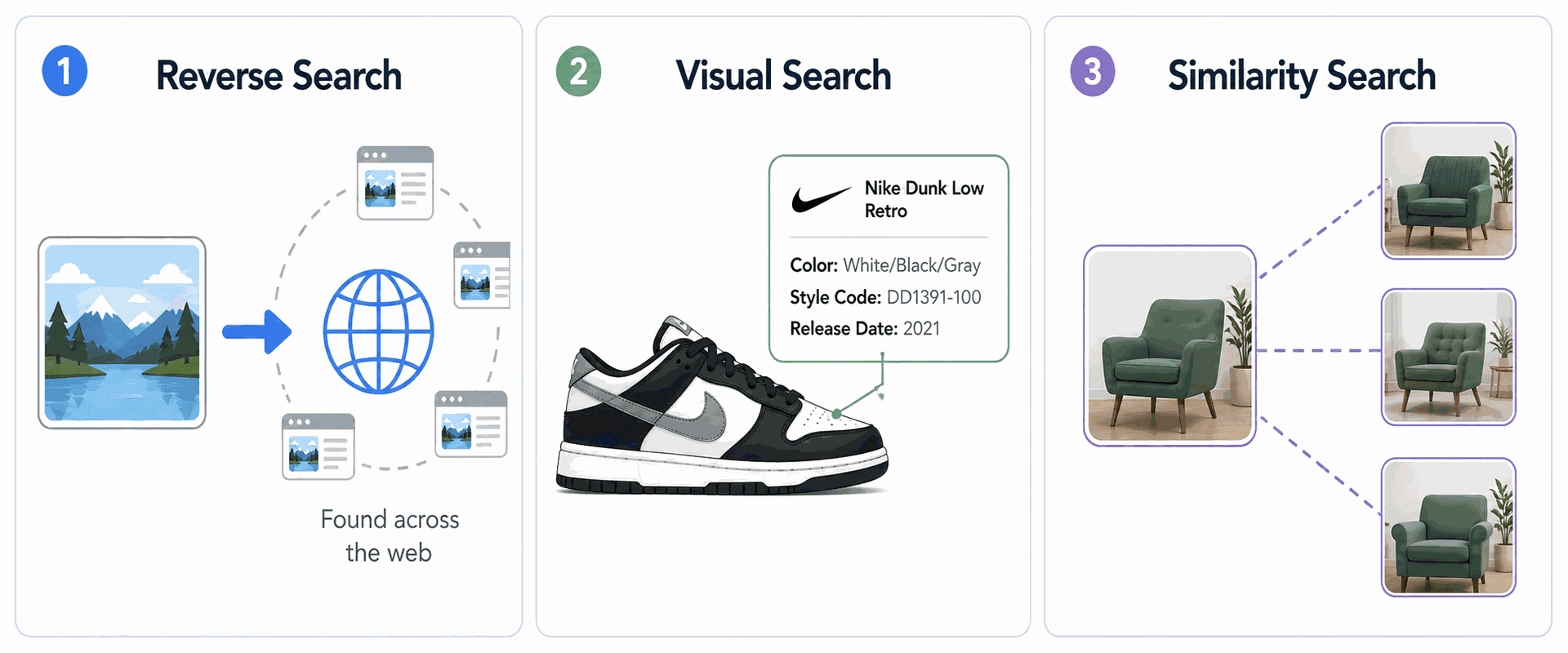
There are three distinct categories of image search, and confusing them is the most common reason a search fails to return useful results.
Reverse image search is used when a picture already exists and the goal is to find where else it appears online. This is how journalists verify viral photos, photographers detect unauthorized use of their work, and shoppers identify products spotted on social media.
Visual search is used to identify what is inside a picture. Pointing a phone camera at a plant returns the species. Photographing a sneaker returns the model and where to buy it. This is the technology behind Google Lens, Bing Visual Search, and Apple's Visual Look Up.
Similarity search is used to find pictures that look like a reference image — the same style, composition, or subject. Designers use it to build moodboards; e-commerce platforms use it to power "more like this" recommendations. Similar visual discovery is also useful when working with Figma UI kits for startups and agencies because teams often search by style, layout, and component pattern.
Image search is sometimes confused with image retrieval, a related but more academic term referring to the database technology behind all three categories above. The two are explained side-by-side in our companion article on image retrieval vs. image search
How Image Search Works
Modern image search is powered by artificial intelligence — specifically, deep learning models such as convolutional neural networks (CNNs) and vision transformers. For a broader look at AI-powered creative and productivity platforms, see our best AI tools for 2026. According to Google's research blog and public documentation on Google Lens, when an image is submitted to a search engine, the system converts it into a mathematical representation called an embedding — a vector of numbers describing the image's visual features, including edges, shapes, colors, textures, and recognized objects.
The search engine then compares this embedding against billions of pre-indexed embeddings, ranking results by mathematical similarity. The closer two embeddings sit in this mathematical space, the more visually or conceptually similar the images.
This is why modern image search can identify a picture even when it has been cropped, resized, recolored, or partially edited. The embedding captures the essence of the image rather than its exact pixel data. It is also why a photo containing multiple objects sometimes returns the wrong results — the engine may have matched on a background element rather than the intended subject. The fix for this problem appears later in this guide.
A more detailed technical breakdown of indexing, ranking, and retrieval is available in our companion piece on how image search algorithms work.

The 7 Core Image Search Techniques
These seven techniques cover the full range of practical image search. Most users rely on one or two; mastering all seven significantly increases the chances of finding what is needed.
1. Upload-Based Reverse Image Search
The most common technique. An image file is uploaded directly to a search engine — Google Images, TinEye, Yandex Images, or Bing Visual Search — to find where the picture appears elsewhere online.
When to use: A saved image is available, and the goal is to find its origin or other appearances.
2. URL-Based Reverse Image Search
Instead of uploading the file, the URL of an online image is pasted into the search engine. This is faster than downloading and useful for investigating an image spotted on a webpage.
When to use: Investigating an image already visible online, without saving it locally.
3. Drag-and-Drop Search
In most modern desktop browsers, an image can be dragged directly from a webpage or folder into the Google Images or Bing Visual Search bar — no upload dialog or file save required.
When to use: Quick desktop searches with no need to save files.
4. Camera-Based Visual Search
Pointing a phone camera at an object lets Google Lens, Bing Visual Search, or Apple's Visual Look Up identify it in real time. This is the fastest way to identify products, plants, animals, landmarks, and even printed text.
When to use: Identifying real-world objects through a phone camera.
5. Screenshot-Based Search
A screenshot of a social media post, video frame, or magazine page is processed through Google Lens (Android) or Visual Look Up (iOS). The system identifies items, text, or products inside the screenshot. This is now one of the most common ways consumers shop from social media.
When to use: Identifying items spotted in social posts, videos, or messages.
6. Cropped or Region-Based Search
After running an initial search, most modern engines allow the image to be cropped to a specific region and re-searched. This significantly improves accuracy for images containing multiple subjects.
When to use: When a first search returns generic or off-target results, narrowing focus to one subject often resolves the issue.
7. Advanced Operators and Filters
Google Images offers filters for size, color, type (photo, clip art, line drawing), usage rights, and time. Combining filters with reverse search narrows large result sets from millions to dozens.
When to use: Filtering large result sets, finding usage-rights-cleared images, or narrowing by recency.

Reverse Image Search Techniques
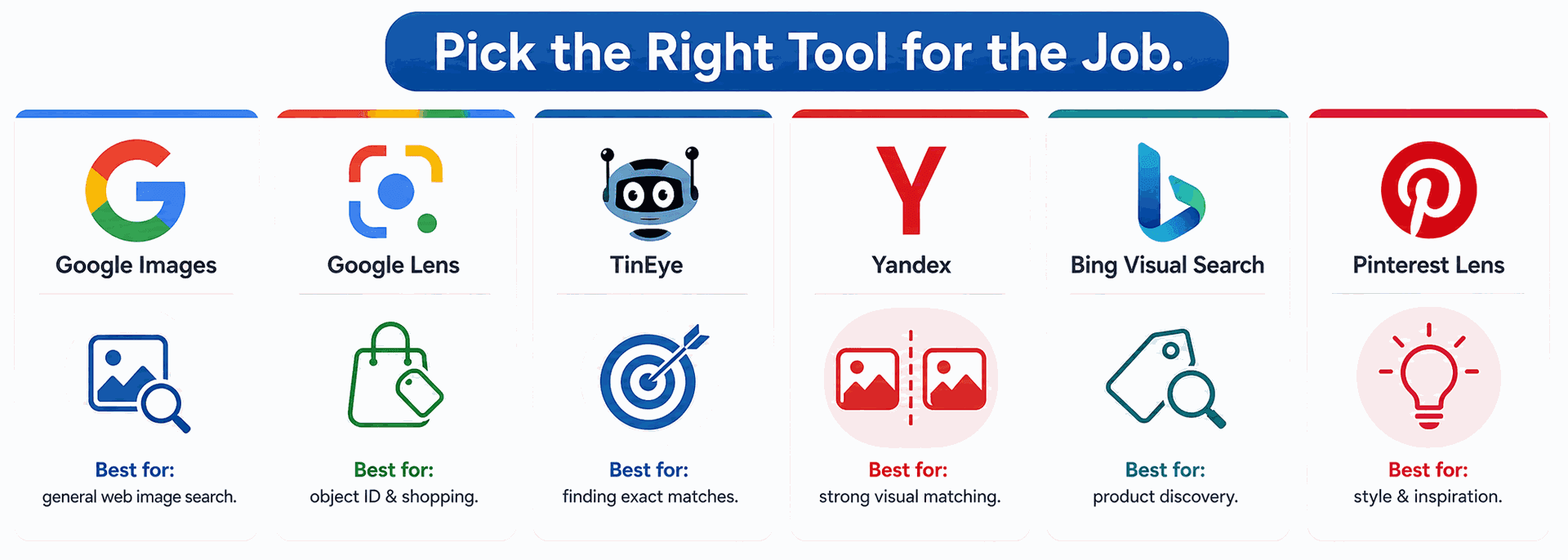
Reverse image search is the most powerful — and most misunderstood — branch of image search. The core skill is matching the right engine to the right job, since the major reverse search engines index very different parts of the web.
Google Images has the broadest index and the strongest visual similarity matching. According to Google's official documentation, the engine uses computer vision to detect objects, scenes, and similar visual patterns. It is the best general-purpose starting point, although it tends to return visually similar rather than exact matches, so results should always be verified.
TinEye specializes in exact and modified matches — the same image cropped, recolored, or watermarked. As TinEye explains on its official about page, its system creates a unique digital fingerprint of every image it indexes and ranks results in order of date, making it the strongest tool for tracing an image to its earliest known appearance.
Yandex Images is widely regarded as the strongest reverse search engine for face matching and for finding sources on Russian, Eastern European, and Asian websites that other engines under-index. It is often used as a cross-check when Google and TinEye return no results.
Bing Visual Search is increasingly competitive with Google for product and shopping matches and is well-integrated with Microsoft Edge, allowing right-click visual lookups directly inside the browser.
A complete walkthrough including step-by-step instructions for each engine is available in our reverse image search techniques guide.
Searching by Object, Person, or Similar Image
The right technique depends on the task, not the tool. Three common tasks each require a different approach.
Searching for an object or product. Google Lens and Bing Visual Search are the strongest options. Cropping the image to the object only — removing distracting backgrounds — significantly improves accuracy. Both engines link directly to retailers, which is why they are widely used in product research and competitive analysis. A complete walkthrough is available in our guide on how to image search an object.
Searching for a person. This is the most ethically and legally complex form of image search. Some engines (notably PimEyes and Yandex) support face matching; major Western engines deliberately do not. Privacy laws including the GDPR in Europe and the BIPA in Illinois place restrictions on facial recognition use without consent, and platform terms of service often prohibit using these tools to identify strangers. Our full ethical and legal walkthrough is in how to find someone using image search.
Searching for similar-looking images. Google's "Similar images" feature, Pinterest Lens, and specialty tools such as Same.Energy each excel at different tasks. For design moodboards, Pinterest typically outperforms general engines because of its curated visual content. Full method details are in our guide on how to find similar images.
Pro Tips and Tricks
The following techniques separate casual users from those who consistently find what they are looking for. Each takes seconds to apply and is free.
Crop before searching. This is the single highest-impact tip in this guide. When an image contains multiple objects, the engine has to guess which one is the subject. Tight cropping removes that ambiguity. Searching the same image cropped three different ways often returns three different correct answers.
Search the same image in two or three engines. Google, TinEye, and Yandex index different corners of the web. An image that returns no results in one frequently returns dozens of results in another. These engines are best treated as complementary, not competing.
Use the right-click menu in Chrome and Edge. Right-clicking any image in either browser exposes a "Search image with Google" option that runs reverse search instantly — no downloads, no new tabs.
Reverse-search a video frame. Pausing a video, capturing a screenshot, and reverse-searching the screenshot often surfaces the original video, the people in it, or the source. This is the standard verification technique used by journalists.
Sort results by oldest first. TinEye and Google both allow date-based sorting. Sorting by oldest-first usually surfaces the original source rather than the most recent re-share, which is critical for source attribution.
Combine a visual search with a text query. Google Lens allows a text query to be added to a visual search — for example, photographing a dress and adding the word "navy" returns the same dress style in navy. This hybrid approach is powerful and underused.
Check the EXIF data when available. If the original image file is available (not a re-saved copy), its EXIF metadata may include the camera model, GPS coordinates, and exact timestamp. This information is sometimes more useful than any reverse search and can be inspected free using tools such as Jeffrey's Image Metadata Viewer.

| Tool | Best For | Strength | Limitation |
|---|---|---|---|
| Google Images | General reverse search, shopping | Largest index, best visual similarity | Weaker on exact matches |
| Google Lens | Objects, plants, landmarks, text in images | Strongest visual recognition AI | Mobile-first experience |
| TinEye | Source tracing, modified copies | Date-sortable, finds exact matches | Smaller index than Google |
| Yandex Images | Face matching, Eastern European sources | Strongest face-matching technology | Russian-language interface |
| Bing Visual Search | Products, shopping, Microsoft ecosystem | Strong shopping integration | Smaller image index |
| Pinterest Lens | Design, fashion, aesthetic matches | Best for visual style matching | Limited to Pinterest content |
Common Image Search Mistakes
Searching only one engine. No single engine indexes the whole web. When a first search fails, the answer is almost always to try another engine, not to give up.
Searching the full image when only one element matters. Cropping changes results dramatically. The most common reason an image search "didn't work" is that the engine matched on a background element rather than the intended subject.
Trusting visually similar matches as identical. Google Images frequently returns visually similar — not identical — results. Each match should be verified manually before being treated as the same image.
Defaulting to Google for source-tracing. Google is the default for most users, but for finding the original source of a known image, TinEye is usually faster and more accurate due to its date-sorted index.
Using face-matching tools without checking the law. Face search tools exist, but using them to identify strangers may violate privacy laws including the GDPR and BIPA, as well as platform terms of service. Local laws should be reviewed before using these tools.
FAQs
Q1.
What is the best image search technique for beginners?
Q2.
What is the difference between reverse image search and visual search?
Q3.
Can image search be done on a phone?
Q4.
Why does a reverse image search sometimes return no results?
Q5.
Is reverse image search free?
Q6.
Can image search find a specific person?
Q7.
Does image search work on cropped or edited images?
Q8.