On this page
Figma to HTML AI Tools: Choose a Workflow and Check the Code

WebbyCrown Solutions-
October 5, 2026-12 min read
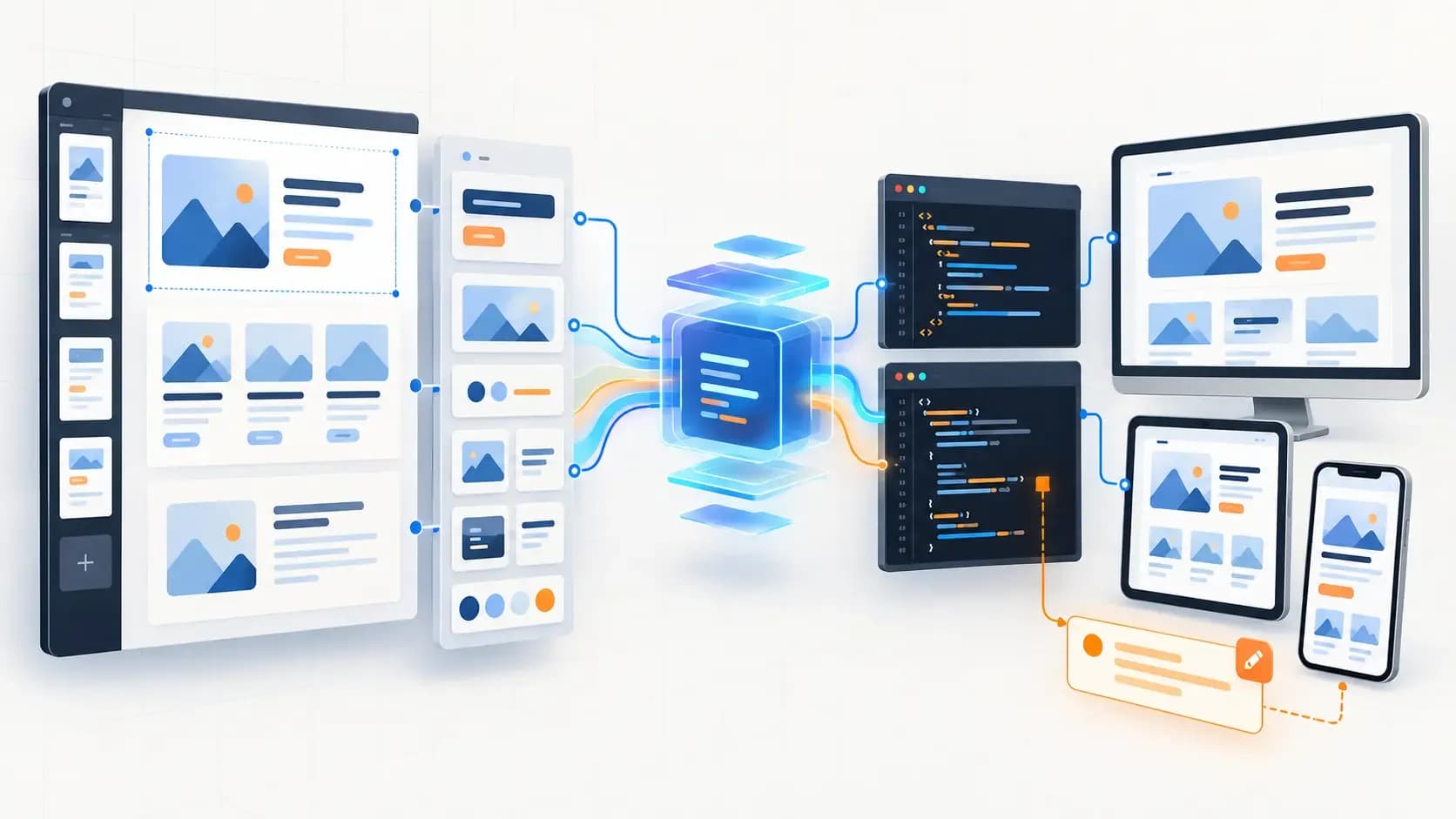
Figma to HTML AI tools can turn interface designs into a first implementation, but the right choice depends on the files you need. For downloadable HTML and CSS, start by checking tools with an explicit HTML export option. For an existing application, consider a workflow that can work with your repository and components. In either case, review the generated code, responsive layouts, accessibility, and interactions before accepting the result.
A design that looks correct in a browser can still contain broken navigation, inaccessible controls, duplicated styles, or forms that never submit. The useful question is therefore: Does this workflow produce files your team can test, complete, and maintain?
This guide compares documented workflows and provides a repeatable acceptance process. Product documentation was reviewed on October 5, 2026. We did not run a controlled benchmark of these tools, so the comparison does not rank their visual accuracy, speed, or code quality.
Choose the Output Before Choosing the Tool
“Figma to HTML” can describe several different deliverables. Decide which one your project needs before installing a plugin or buying an export plan.
| Required deliverable | Workflow to investigate | What to confirm |
|---|---|---|
| A static website package | A converter with explicit HTML/CSS export | Editable files, assets, scripts, and instructions for serving the site |
| Screens inside an existing app | Repository-based generation or component mapping | Framework compatibility and reuse of your actual components |
| Visually editable pages | A design import into a visual platform | Publishing options, code export, platform dependencies, and ongoing editing |
| Developer handoff | Figma Dev Mode inspection | Measurements, variables, assets, and implementation references |
Plain HTML, React components, and pages inside a managed platform are different outputs. A tool supporting one does not automatically satisfy a requirement for another.
Also define what “working” means. A navigation menu may need only frontend behavior. A contact form requires a submission destination. Account screens require authentication. Checkout screens need a payment and order system. Include those requirements in the project brief rather than assuming the design defines them.
Figma to HTML Tools and Related Workflows
Use this table to shortlist workflows. It records documented capabilities, not tested performance.
| Tool or workflow | Documented capability | Suitable evaluation scenario | Main question before committing |
|---|---|---|---|
| Anima | Figma plugin with HTML, React, and Vue options | You want to generate code from selected designs | Does the selected export contain the format and styling your project requires? |
| Locofy | HTML/CSS and several framework targets, with generation and refinement steps | You want an explicit output target and a staging workflow before export | Does the resulting project fit your stack and component structure? |
| TeleportHQ | Figma import with HTML/CSS and framework export options | You want visual editing after importing the design | Does the plugin support the Figma features used in your file? |
| Builder Code | Figma frame links and instructions used to generate changes for a codebase | You want to implement designs within a repository | Does the generated change follow your existing application conventions? |
| Figma MCP with a coding assistant | Structured design context supplied to an AI coding workflow | A developer wants design-aware implementation in a codebase | Has the assistant received the required stack, components, and behavior instructions? |
| Figma Dev Mode | Selected-object inspection and code snippets | A developer is implementing the page manually | Which parts still need to be assembled and implemented? |
Anima
Anima’s Figma plugin documentation lists HTML, React, and Vue framework options, with settings that vary by target. It also describes breakpoint controls and AI personalization.
For an HTML project, select the HTML workflow explicitly. Check the exported folder rather than judging only the plugin preview. Confirm how styles, images, fonts, scripts, and responsive rules are organized.
Treat its output as a candidate implementation. Whether it needs minor adjustments or substantial refactoring depends on your design and acceptance requirements.
Locofy
Locofy’s plugin quickstart lists HTML/CSS alongside React, Next.js, Gatsby, Vue, and Angular. Its documented process includes selecting a design, running the Lightning conversion, refining the result, and preparing the project for export.
This is useful to investigate when the output target must be specified early. If component reuse matters, evaluate that separately: a repeated visual pattern is not proof that the export uses your existing implementation.
Record any design preparation, prompts, and manual edits required. Those steps belong in the workflow comparison alongside generation itself.
TeleportHQ
TeleportHQ’s Figma export page describes HTML/CSS and framework output, with an opportunity to edit the imported result visually.
Its plugin limitation documentation lists unsupported features including masks, blur, rotations, radial gradients, component overrides and variants, shadow tokens, and GIFs. That help page carries a 2025 update date, so treat it as the published limitation list and confirm behavior in the installed version.
If your design relies on one of those features, include it in the first test export. A successful conversion of a simple card will not establish support for a more complex page.
Builder Code
Builder’s current Figma-to-Code instructions describe pasting a Figma frame link into a Builder Code Space with instructions, then creating a pull request for the connected codebase.
Evaluate this as a repository-oriented workflow. Check whether the change uses the intended components, routes, styling conventions, and dependencies.
Builder also documents a separate Content product. Do not assume that every Builder Code implementation requires the same content model or integration as a Builder Content setup. Confirm the specific workflow you are evaluating.
Figma MCP With a Coding Assistant
Figma’s MCP server can provide structured design context and a code starting point to a coding assistant. The assistant then adapts the implementation to its instructions and available codebase.
Figma’s documentation distinguishes the server’s role from the agent’s role: design context does not automatically become a finished implementation.
For a plain HTML project, explicitly request HTML, CSS, and the permitted JavaScript approach. For an existing application, identify the framework, reusable components, tokens, and files the assistant should use. Inspect the resulting changes before merging them.
Figma Dev Mode
Figma Dev Mode provides design inspection and selected-object code snippets. It supports developer handoff, but copying CSS properties does not assemble an entire HTML document or implement its interactions.
Use it when a developer needs accurate design information while building the page. It belongs in this comparison as a handoff option, rather than as an equivalent to an automatic site exporter.
Prepare a Conversion Brief
Before generating code, write down the requirements that the canvas cannot communicate reliably.
A useful brief specifies:
- Output: Plain HTML/CSS, a named framework, or changes within an existing repository.
- |Page scope: The selected frame, required sections, and related screens.
- Responsive behavior: What stacks, wraps, hides, or becomes scrollable.
- Interactions: Menus, dialogs, forms, tabs, validation, and loading states.
- Reuse: Existing components, styles, tokens, and approved dependencies.
- Delivery: Files, setup instructions, asset requirements, and known exclusions.
For example, “convert this page” leaves many decisions open. A more useful instruction is:
Implement the selected landing-page frame using semantic HTML, a separate stylesheet, and JavaScript only for the mobile menu. Preserve the supplied content and assets. Stack the cards on narrow screens, keep navigation keyboard-operable, and list any behavior that remains unimplemented.
This is an example brief, not a claim that every converter accepts or follows the same instructions.
Make the Design Structure Clear
Use components for repeated elements, meaningful layer names, variables for shared values, and Auto Layout where it expresses the intended relationships. Add annotations for behavior that is difficult to infer from appearance.
These practices align with Figma’s guidance for preparing files for code generation. They improve the available context; they do not prove the generated code will be correct.
Include realistic content and a mobile reference. A layout containing only short headings and evenly sized cards can conceal problems that appear with actual copy.
Confirm that fonts, images, icons, and other assets can be used in the final project. Keep credentials and private customer information out of sample content.
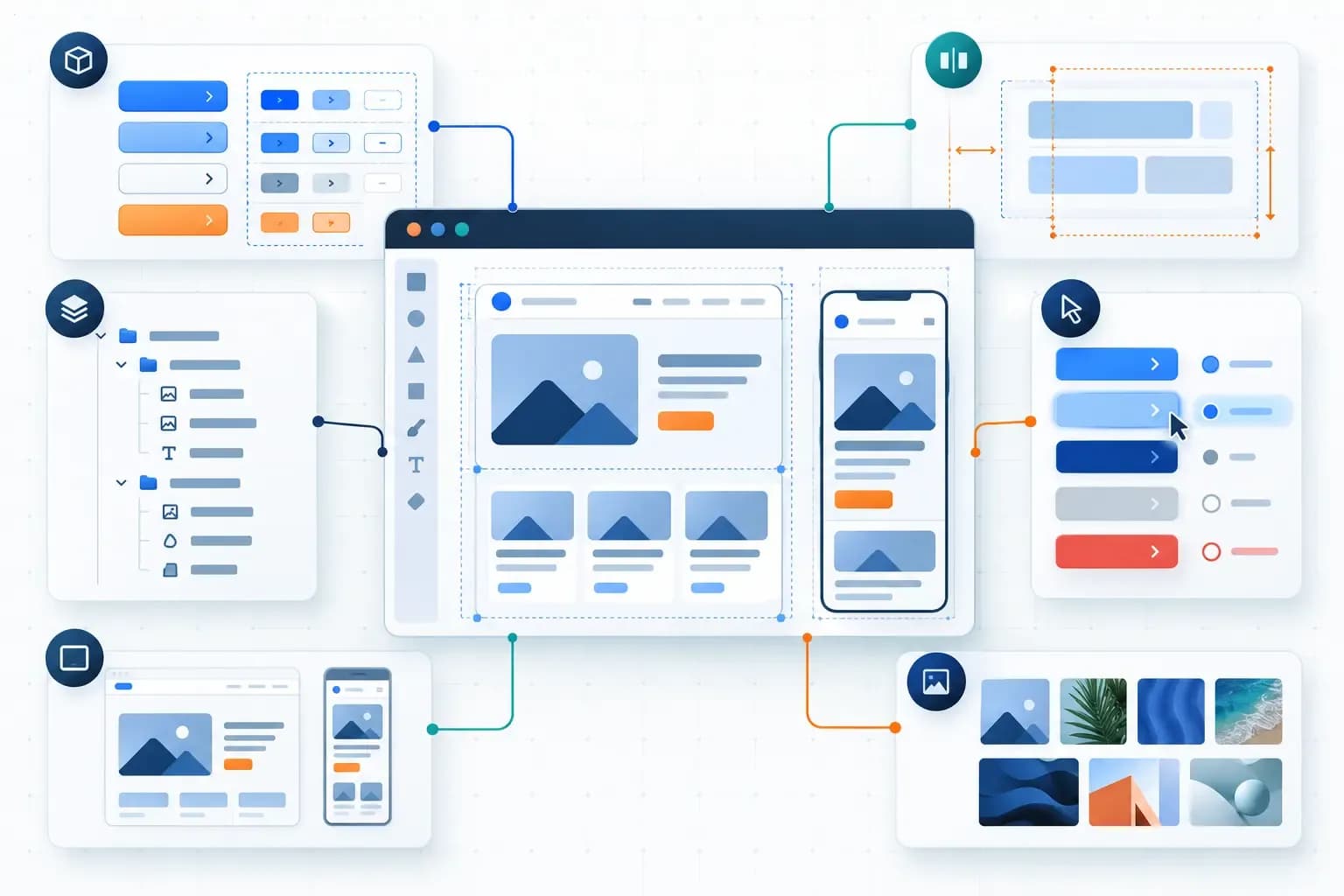
Clear design structure and behavior notes give a conversion workflow more useful input.
Test One Representative Page First
Choose a page that exposes the project’s real difficulties. A useful sample might contain a header, repeated cards, a multi-column section, a form, and a mobile menu.
Before conversion, define the expected behavior. For example:
- The menu opens and closes using keyboard controls.
- Card titles can wrap without overlapping adjacent content.
- Form errors remain visible and understandable.
- The page works between the supplied desktop and mobile widths.
- Shared components can be updated without editing every instance.
Save the first generated output before making corrections. Record the tool, output target, settings, date, and any prompts used.
If you compare two tools, use the same source design and requirements. Where their preparation steps differ, record the differences. The effort needed to prepare, generate, correct, and deliver the result matters more than generation alone.
Use an Acceptance Checklist for the Generated Code
The following checklist is a proposed review framework. It contains no test results.
For each item, record Pass, Fix required, or Not applicable, with a short evidence note. A screenshot alone is insufficient for checks that depend on code or behavior.
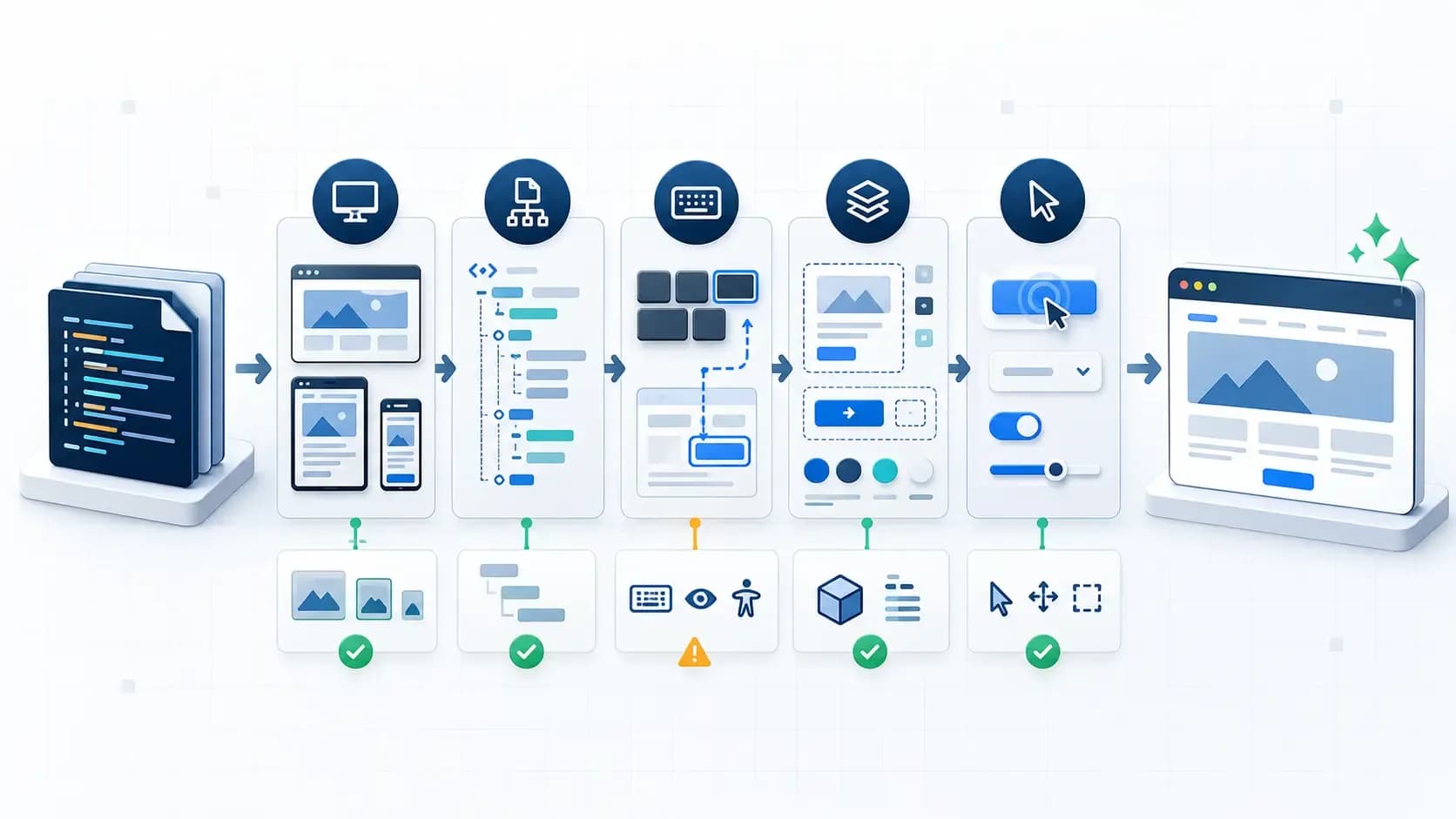
Conceptual review stages. The symbols illustrate checks and possible issues, not measured results from any tool.
| Review area | What to check | Evidence to retain |
|---|---|---|
| Delivery format | The output matches the requested HTML or framework target | File list and setup instructions |
| Design coverage | Required sections, content, and assets are present | Reference and browser screenshots |
| Responsive layout | No unintended clipping, overlap, or page-wide horizontal scrolling | Captures at selected widths and notes from continuous resizing |
| Content resilience | Longer headings, labels, and realistic images fit | Examples using actual project content |
| HTML structure | Headings, regions, links, buttons, and forms have appropriate markup | Relevant source excerpts |
| Keyboard behavior | Controls are reachable, operable, and visibly focused | Manual interaction notes |
| Accessibility | Labels, text alternatives, contrast, zoom, and dynamic states are reviewed | Automated findings plus manual checks |
| Functional scope | Menus and controls work; connected and unconnected features are identified | Interaction checklist and submission evidence |
| Maintainability | Shared styles and components can be changed predictably | Source review and a small change test |
| Performance | Heavy assets and scripts are investigated under consistent conditions | Saved reports and environment details |
| Build and deployment | The documented setup works outside the converter preview | Build output and a deployed test URL |
Review the Page Beyond the Screenshot
Open the generated markup. A clickable element should use an appropriate link or button rather than relying entirely on a generic container. Form controls need meaningful labels. Document regions and headings should communicate structure.
Then navigate without a mouse. Test the mobile menu, form, dialog, and other important interactions. Check the page when zoomed and with longer content.
W3C’s Easy Checks provides an initial accessibility review, while explaining that a preliminary check is not a complete evaluation. For additional review areas, use the website template accessibility checklist.
Check Maintenance With a Real Change
Try changing a shared button style or card spacing. Observe whether the change can be made centrally or requires repeated manual edits.
Check whether repeated sections use an understandable structure, assets have sensible paths, and dependencies have a clear purpose. Absolute positioning is appropriate for some elements; investigate it when normal page layout becomes fragile.
This small change test gives practical evidence about maintenance without inventing a numerical “code quality” score.
Measure Performance Consistently
Run performance checks against the same hosting setup, assets, device settings, and browser conditions when comparing exports. Save individual reports and investigate the underlying findings.
Chrome’s Lighthouse documentation explains why performance scores can vary. One result should not become a permanent rating for a converter.
Separate Frontend Behavior From Connected Functionality
A form that displays a success message may still have no submission destination. Verify where the data goes and test failure handling as well as success.
Apply the same distinction to login, search, booking, cart, and checkout interfaces. Document what is implemented, what uses sample data, and what needs another service.
A Marketplace Example of Design and Code Deliverables
WebbyTemplate’s Design Studio Figma template lists 19 desktop pages and 19 mobile screens. Its description explicitly excludes HTML, CSS, a CMS, backend, database, and coded implementation.
The separate Design Studio HTML template lists 21 coded pages. The two products have related design purposes, but their page counts and deliverables differ.
This example comes from our own marketplace listings. It is not a converter benchmark, and it does not establish that either product has passed the checklist above.
The practical lesson is to compare the required deliverable with the actual package. Converting a Figma product should not be assumed to reproduce a separately developed HTML product file for file.
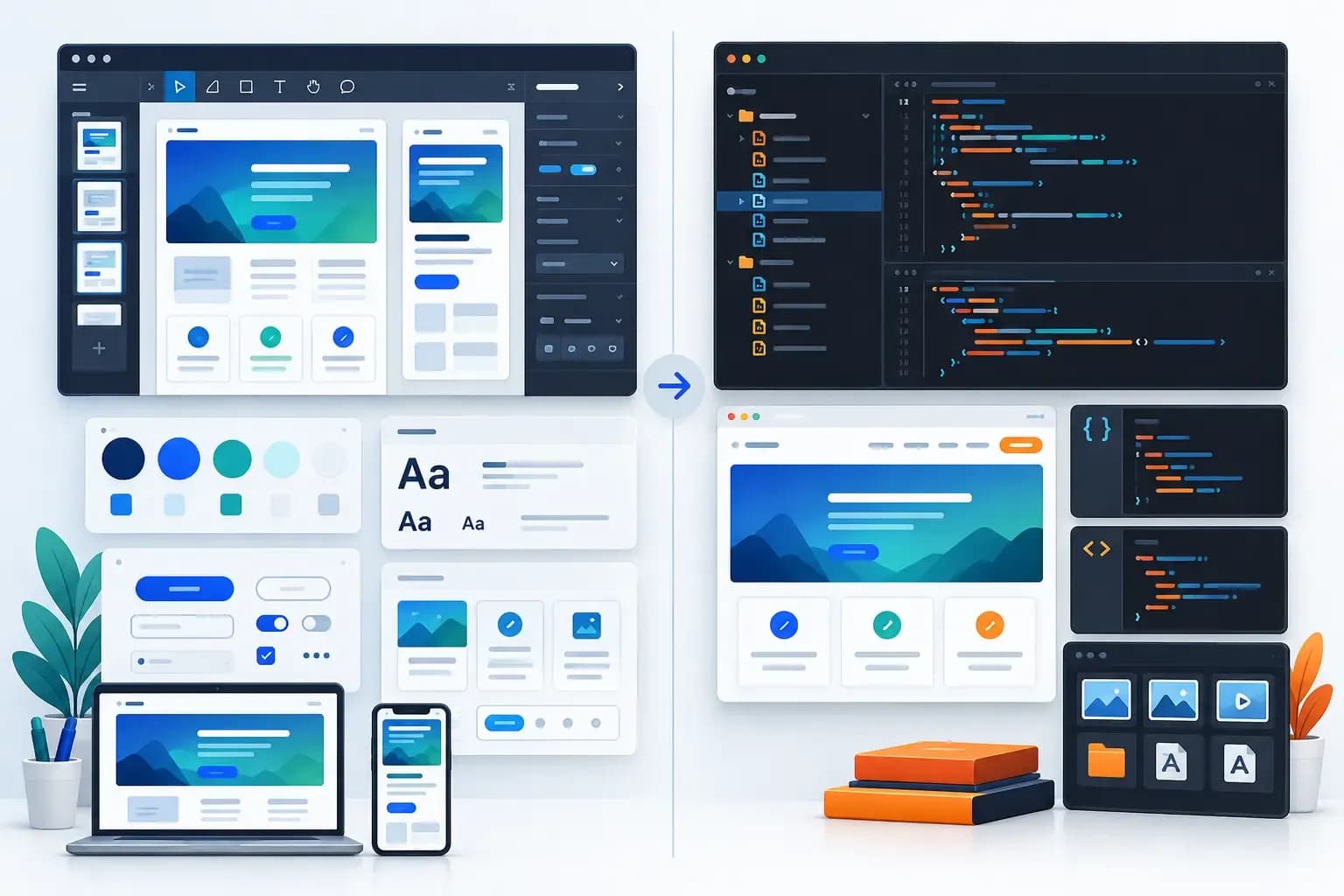
Design files and coded frontend packages are different deliverables. This illustration does not depict the actual Design Studio products.
When to Convert a Figma Design and When to Start With Code
Conversion is worth evaluating when the approved design already exists in Figma and its structure matters to the project. A representative-page test helps reveal whether the workflow fits before the team processes the entire design.
A coded template may be a useful starting point when its existing pages and technology already match the project. Review its source, documentation, dependencies, license, and functional scope before committing.
Neither approach removes implementation review. The decision should reflect your starting asset, required output, and observed correction work.
When comparing costs, include the relevant subscription or usage charges, preparation time, cleanup, integration, and deployment work. Measure those inputs during the trial rather than assuming that a faster first preview produces a cheaper finished website.
FAQs
Q1.
Can Figma export a complete HTML website
Q2.
Which Figma to HTML AI tool should I try first
Q3.
Is a Figma screenshot enough for conversion
Q4.
Can AI generate responsive HTML from a desktop frame
Q5.
Will the generated code include a working backend
Q6.
Can I turn the generated HTML into a WordPress or Shopify theme
Q7.
Can I describe the output as production ready
Q8.