On this page
Best WordPress Backup Plugins for Network Security

WebbyCrown Solutions-
March 19, 2026-11 min read
In the digital age, your WordPress website is more than just content on a server — it’s a living network of data, functionality, and user trust. Whether you run a personal blog or manage a multi-site enterprise, protecting your site against cyber threats, human error, and server failure is non-negotiable. And at the heart of any reliable network security strategy is a strong backup solution.
In this 2026 guide, we’ll explore the free WordPress backup plugin — with a focus on network security, performance, ease of use, and reliability.
Why WordPress Backups Matter for Network Security?
WordPress powers over 40% of all websites worldwide, making it a prime target for cyber attacks. Despite its popularity, WordPress itself is secure — but plugins and themes can introduce vulnerabilities.
Here’s why backups are essential:
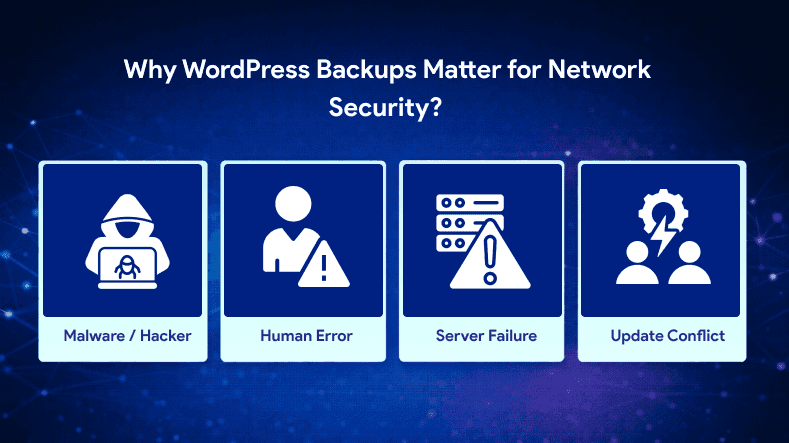
1. Protection Against Malware & Hacks
Hackers often target outdated plugins or weak passwords. When malware strikes, a clean backup helps you restore your site to a safe version.
2. Recovery from Human Error
Accidental file deletion, database corruption, or a faulty update can break your site. With backups, these mistakes become recoverable.
3. Quick Restoration After Server Failure
Web hosts may experience outages or hardware failures. A backup ensures your content and settings aren’t lost permanently.
4. Insurance for Updates
WordPress, themes, and plugins receive frequent updates — but sometimes updates conflict and cause issues. Backups provide a safety net.
What to Look for in a free WordPress Backup Plugin?
Before diving into specific tools, let’s define what makes a backup plugin worth your time. A backup tool is essential for managing, creating, and restoring backups for your WordPress website. Key backup features to look for include automated scheduled backups, remote storage, and encrypted backups, which ensure your data is protected, easily recoverable, and secure.
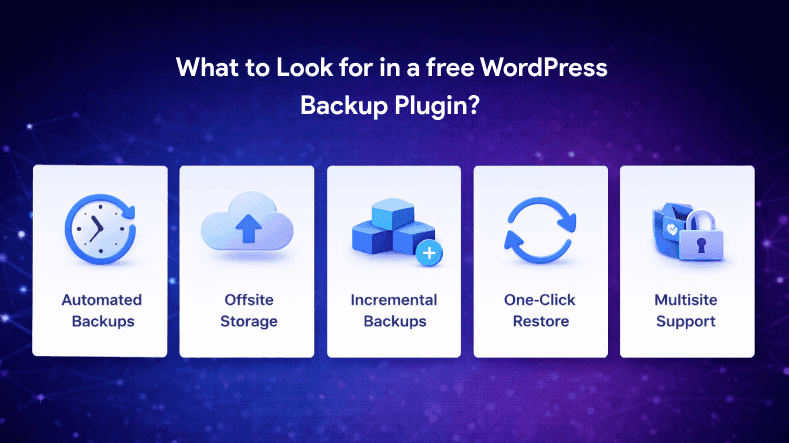
Automated Backups
You shouldn’t have to lift a finger every time a backup runs. Look for automatic scheduling.
Storage Flexibility
Backups should be stored offsite — such as on cloud services (Google Drive, Dropbox, AWS, etc.) or via secure FTP.
Incremental Backups
Instead of backing up the whole site every time (which slows performance), incremental backups save only changes — a huge efficiency boost.
One-Click Restore
Restoration should be simple, even for non-technical users.
Compatibility with Multisite
If you’re running a WordPress Network (multisite installation), the plugin must support it.
Security Features
Encryption, two-factor authentication (2FA), and audit logs are bonuses that strengthen network security.
Top free WordPress Backup Plugins for Network Security
Here are the best plugins in 2026 — ranging from free to premium, simple to advanced — all focused on reliable backups and network safety. There is a wide variety of free WordPress plugins and backup plugins for WordPress available, each offering different features such as basic backups, incremental backups, and cloud-based backup services. The best backup plugin for your site depends on your specific needs, whether you require just the database, full site backups, or advanced features like staging and real-time protection.
1. UpdraftPlus (Best All-Around Backup Plugin)
Overview: UpdraftPlus is the most widely used WordPress backup plugin — trusted by over three million sites worldwide. It offers automated backups, cloud storage integration, and flexible restore options.
Key Features:
- Full, manual & scheduled backups
- Cloud storage (Dropbox, Google Drive, S3, and more)
- Incremental backups (premium)
- One-click restore
- Multisite support (premium)
- Database encryption
Why It’s Great for Security:
- Proven reliability and reputation
- Strong cloud compatibility reduces risk of onsite data loss
- Scheduled backups minimize windows of vulnerability
Limitations:
- Some features require the premium version
- Large sites may need optimization before backups
Best For: Websites of all sizes, especially those that want a balance between features and pricing.
2. Jetpack Backup (Managed, Stress-Free Solution)
Overview: Developed by Automattic, Jetpack Backup (formerly VaultPress) is a cloud-powered backup solution with strong security focus.
Key Features:
- Real-time backup
- Easy restore from activity logs
- Automated daily backups
- Built-in security scanning (with higher tiers)
- Supports multisite (with Jetpack Professional)
Why It’s Great for Security:
- Real-time backups capture changes instantly
- Hosted off-site — no server storage risk
- Integrated activity logs help track unauthorized changes
Limitations:
- Subscription cost is higher than most plugins
- Some advanced security features require premium plan
Best For: Businesses and publishers who need professional, worry-free backup & security integration.
3. BlogVault (Best for Large Sites & Agencies)
Overview: BlogVault is a powerful backup solution built for high-traffic sites and WordPress agencies. It offers incremental backups, staging environments, and easy migrations.
Key Features:
- Real-time incremental backups
- Offsite backup storage
- One-click restore and site migration
- Staging site creation
- Uptime monitoring & malware scanning (optional)
Why It’s Great for Security:
- Scalable for large enterprise sites
- Minimal server load during backups
- Extra tools like staging add security for testing updates
Limitations:
- Higher price point than most alternatives
- Some users find the UI overwhelming at first
Best For: Enterprise sites, developers, and agencies managing multiple networks.
4. BackupBuddy (All-Around Premium Option)
Overview: BackupBuddy has been a trusted premium plugin in the WordPress ecosystem for years. It offers complete site backups and restores, scheduled backups, and strong security controls.
Key Features:
- Full site backups
- Scheduled backups
- Cloud storage (Stash, Dropbox, etc.)
- Database encryption
- WordPress multisite support
Why It’s Great for Security:
- Proven track record with robust backup tools
- Stash storage adds an extra layer of offsite security
Limitations:
- Premium-only — no free version
- UI feels dated compared to newer competitors
Best For: Users who prefer a premium, dedicated backup plugin with trusted support.
5. Akeeba Backup (Best for Performance-Focused Sites)
Overview: Originally popular in the Joomla community, Akeeba Backup now offers a WordPress version focused on performance and reliability.
Key Features:
- Full and incremental backups
- Command-line support (WP-CLI)
- Cloud storage integration
- Easy restores
Why It’s Great for Security:
- Efficient backups reduce server load (good for performance-sensitive sites)
- CLI integration allows for automated scripted backups
Limitations:
- Less polished UI than mainstream competitors
- Some users find setup complex
Best For: Developers and tech-savvy users who need powerful, low-impact backups.
Bonus: Other Reliable Backup Tools Worth Considering
While the five above are standout solutions, these plugins also deserve mention. Compared to other backup solutions, BackUpWordPress is more limited in features and may not meet the needs of users looking for advanced options like incremental backups, offsite storage, or automated scheduling, which are available in alternative backup plugins.
WPvivid Backup Plugin
- Free and premium options
- Cloud storage support
- Migration and staging features
Duplicator Pro
- Backup & migration tool
- Excellent for cloning and moving sites
BackWPup
- Good free option
- Multiple storage destinations
Each of these has pros and cons depending on your specific workflow — but they’re all solid backup solutions.
Backup and Restore Process
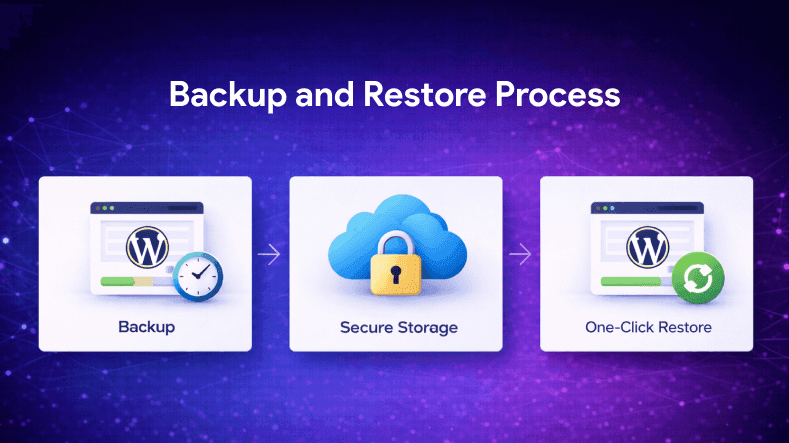
A reliable backup and restore process is the backbone of any effective WordPress backup solution. The best backup plugins, such as BlogVault and WPvivid, make it easy to create backups and restore your site with minimal hassle.
With automated backups, you can schedule automatic backups to run at regular intervals, ensuring your site is always protected without manual intervention. Scheduled backups let you choose the exact times and frequency that suit your workflow, whether that’s daily, weekly, or even hourly for high-traffic sites.
When disaster strikes, a smooth restore process is crucial. Top backup plugins offer one-click restore options, allowing you to quickly revert your site to a previous backup and minimize downtime. Some plugins, like Duplicator, provide a standalone installer file, making it easy to restore your site or migrate it to a new server with just a few steps.
When evaluating a backup plugin, look for features that streamline the backup and restore process, such as clear backup logs, easy-to-navigate interfaces, and reliable restore options. A solid backup and restore system gives you peace of mind, knowing you can recover your site quickly in any situation.
Web Host Considerations
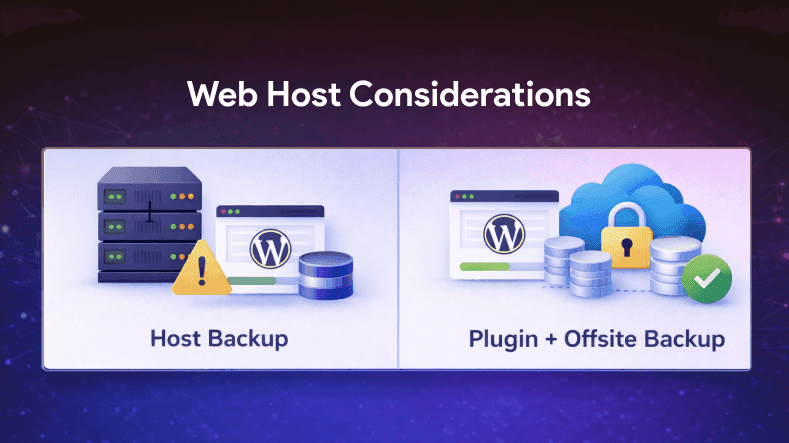
Your web host plays a significant role in your overall backup strategy. While some hosting providers include free automated backups as part of their packages, these solutions may not offer the flexibility or control of a dedicated backup plugin.
It’s important to review your web host’s backup policies, including how often backups are created, how long they’re retained, and where they’re stored. Some hosts keep backups on the same server, which can be risky if there’s a hardware failure or security breach.
The best WordPress backup plugins, such as UpdraftPlus and WPvivid, provide offsite storage options, allowing you to store backups in secure cloud locations independent of your web host. This extra layer of protection ensures your website can be restored even if your hosting server experiences issues.
When choosing a backup plugin, consider how it complements your web host’s offerings. Combining your host’s automated backups with a robust plugin gives you a comprehensive safety net for your WordPress site.
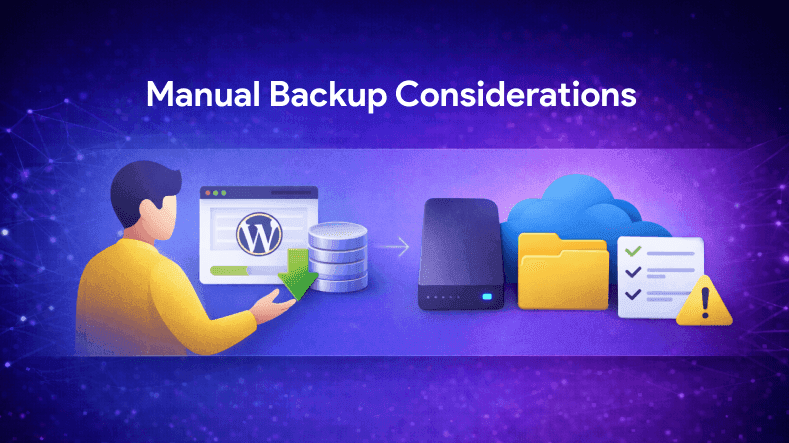
Manual backups can be a practical option for smaller sites or users who prefer direct control over their backup process. With manual backups, you’re responsible for downloading your WordPress files and database and saving them to a secure location, such as an external hard drive or a trusted cloud storage service.
Free WordPress backup plugins like Duplicator and WP Database Backup make it easier to create manual backups, offering tools to export your site’s data on demand. However, manual backups require discipline and attention to detail—missing a step or forgetting to back up regularly can leave your site vulnerable.
While manual backups offer flexibility, they are more time-consuming and susceptible to human error compared to automated solutions. For most users, especially those managing larger or more dynamic sites, automated backups provide a more reliable and efficient way to safeguard your data. Still, having a manual backup as an extra precaution can be a valuable part of your overall backup strategy.
How to Choose the Right Backup Plugin for Your Network?
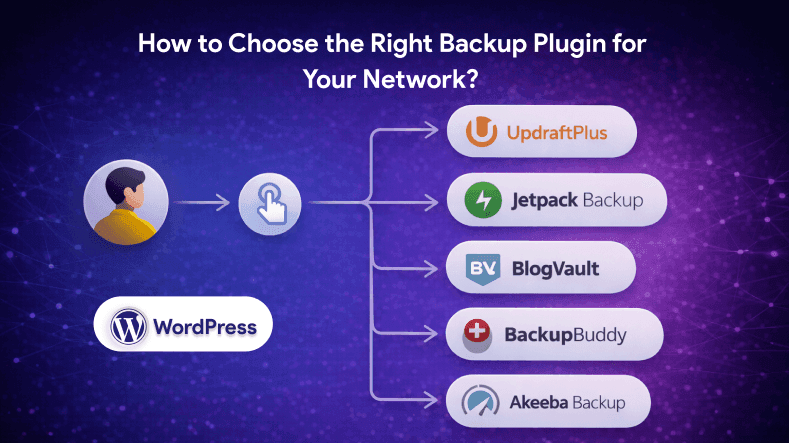
With so many options, how do you decide? Here’s a simple decision tree:
Most backup plugins are designed as WordPress plugins and are available in the WordPress plugin directory, making them easy to install and integrate with your site.
You’re a beginner
Choose UpdraftPlus — easy setup, free plan, and strong documentation.
You want professional support
Consider Jetpack Backup — it’s powerful and managed by Automattic.
You manage multiple client sites
BlogVault provides centralized dashboards and staging environments.
You prefer premium support and trusted legacy tools
BackupBuddy delivers stability and strong support.
You want performance-oriented backups
Akeeba Backup is lightweight and efficient.
Many website owners learn the importance of backups the hard way, often after experiencing data loss or site crashes.
Best Practices for Network Security with Backups
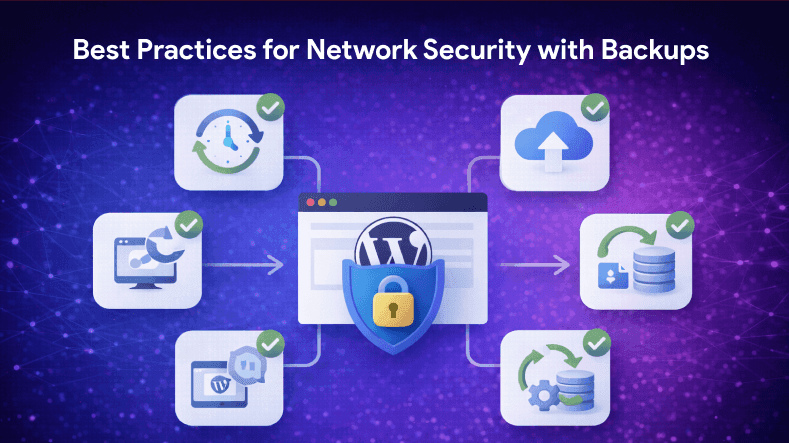
A backup plugin is only one part of the security puzzle. Here’s how to build a comprehensive strategy:
1. Schedule Regular Backups
Daily backups are ideal for most sites — more frequent for high-traffic or ecommerce sites.
2. Store Backups Offsite
Never keep backups on the same server as the site. Use cloud storage like Google Drive, Amazon S3, Dropbox, or remote FTP.
3. Test Your Restores
A backup that can’t be restored is useless. Regularly test restoration on a staging setup.
4. Encrypt Sensitive Data
Ensure database backups are encrypted to protect user information.
5. Monitor Your Logs
Use plugins or tools that alert you to suspicious changes — because early detection prevents major damage.
6. Keep Everything Updated
Backups won’t help if your site is constantly vulnerable. Update WordPress, themes, and plugins.
Conclusion
In an era where cyber-attacks are rampant, backups are the ultimate safety net for your WordPress site. They protect against malware, human error, hosting failures, and even accidental deletions.
The key is choosing the right backup plugin — one that fits your site’s size, complexity, and security needs. From beginner-friendly UpdraftPlus to enterprise-level BlogVault and professional Jetpack Backup, there’s a solution for everyone.
If you haven’t set up reliable backups yet — start today. Because when disaster strikes, a backup won’t just save your site — it will save your reputation.