On this page
Reverse Image Search Techniques: The Complete Step-by-Step Guide

WebbyCrown Solutions-
May 11, 2026- 12 min read

Quick Answer
Reverse image search is the technique of finding where a picture appears online by submitting the image itself as the query, instead of typing words. The four most reliable engines are Google Images, TinEye, Yandex Images, and Bing Visual Search — each indexing a different part of the web. The most effective reverse image search technique is not picking the "best" engine; it is searching the same image in two or three of them in sequence, because each engine catches what the others miss.
In Short
- Reverse image search finds where an image appears online, identifies its source, and surfaces edited copies.
- Four engines matter most: Google Images, TinEye, Yandex Images, Bing Visual Search.
- Each engine indexes a different slice of the web — combining them is essential.
- Three input methods: upload a file, paste a URL, or drag-and-drop.
- Cropping the image to its subject is the highest-impact technique most users skip.
- TinEye is best for source-tracing; Google for general use; Yandex for face matching and Eastern European sources; Bing for products.
- Mobile reverse search works on iOS and Android through Google Lens, browser uploads, and dedicated apps.
What Is Reverse Image Search?
Reverse image search is a method of finding information about a picture by submitting the picture itself as the search query, instead of typing keywords. Where a normal search asks "what does this word mean?", reverse image search asks "where does this picture appear online, and what else looks like it?"
The technology works by converting the submitted image into a mathematical fingerprint — an embedding — and comparing that fingerprint against billions of pre-indexed images. Because the comparison is based on visual meaning rather than exact pixel data, modern reverse image search can identify the same picture even after it has been cropped, recolored, watermarked, or resized. The full technical breakdown is covered in our companion post on how image search works.
Reverse image search is one of three branches of image search, alongside visual search (identifying objects inside an image) and similarity search (finding pictures that look alike). The full overview of all three is in the pillar guide on image search techniques.
The Best Reverse Image Search Engines Compared
Four engines dominate reverse image search, and each is genuinely best at a different task.
| Engine | Best For | Strength | Limitation |
|---|---|---|---|
| Google Images | General reverse search, shopping, broad coverage | Largest index, strongest visual similarity | Returns similar rather than exact matches |
| TinEye | Source tracing, finding modified copies | Date-sortable, finds exact and edited matches | Smaller index than Google |
| Yandex Images | Face matching, Eastern European/Asian sources | Strongest face match technology | Russian-language interface |
| Bing Visual Search | Products, Microsoft ecosystem | Strong shopping integration, Edge integration | Smaller image index |

Reverse Image Search on Google: Step-by-Step
Google Images is the most widely used reverse image search engine and the best general starting point.
Method 1: Upload an image file (desktop)
- Visit images.google.com
- Click the camera icon in the search bar
- Select "Upload a file" and choose the image from the computer
- Review the results page, which is divided into "Visual matches" and "Pages with matching images"
Method 2: Paste an image URL
- Right-click the image online and copy its URL
- Visit images.google.com and click the camera icon
- Paste the URL and press Search
Method 3: Drag-and-drop (Chrome, Edge, Firefox)
- Open images.google.com in a browser
- Drag any image directly from a webpage or folder into the Google Images search bar
- Results appear immediately — no upload dialog
Method 4: Right-click search (Chrome and Edge)
- Right-click any image on a webpage
- Select "Search image with Google" from the context menu
- A side panel opens showing matches
According to Google's official Search documentation, results combine visual similarity scoring with page-level signals such as alt text, surrounding text, and host site authority — which is why two visually identical images may rank in different positions depending on the credibility of the pages hosting them.
Reverse Image Search on TinEye: Step-by-Step
TinEye is the specialist tool for finding the original or earliest version of an image, and for catching modified copies.
Method 1: Upload or paste a URL
- Visit tineye.com
- Either upload an image file or paste an image URL into the search bar
- Press Search
Method 2: Browser extension
TinEye offers official extensions for Chrome, Firefox, Edge, and Safari. Once installed, right-clicking any image online runs a TinEye reverse search instantly.
Sorting results — the critical TinEye technique
The single feature that makes TinEye different is its ability to sort results by date. After a search, the result page lets users sort by:
- Best match — visually closest to the original
- Most changed — heavily edited copies of the original
- Biggest image — the highest-resolution version found
- Newest — most recent appearances
- Oldest — earliest known appearance, which usually identifies the original source
For source-tracing — identifying where an image originated — sorting by oldest is the standard technique. TinEye explains on its official about page that its index records the date each image was first crawled, which is what makes this sort possible.
Reverse Image Search on Yandex: Step-by-Step
Yandex Images is widely regarded as the strongest reverse search engine for face matching and for finding sources on websites that Google and Bing under-index.
Step-by-step
- Visit yandex.com/images
- Click the camera icon in the search bar
- Either upload an image file or paste an image URL
- Review the results page
The Yandex interface defaults to Russian for some users but switches to English at the top-right language menu. The results page is denser than Google's and includes a dedicated "Sites containing this image" section that is particularly useful for source-tracing.
Why Yandex is different
Yandex's reverse search is well known for two things: strong face-matching capability, and a much deeper index of Russian, Ukrainian, Eastern European, and parts of the Asian web. An image that returns no results in Google or TinEye often returns results in Yandex.
The face-matching capability raises ethical and legal concerns. Privacy laws including the GDPR in Europe and the Biometric Information Privacy Act (BIPA) in Illinois place restrictions on using facial recognition technology to identify individuals without consent. Reviewing the relevant law in the jurisdiction where this is used is essential before performing face-based searches.
Reverse Image Search on Bing: Step-by-Step
Bing Visual Search is increasingly competitive with Google for product matching and is tightly integrated with Microsoft Edge.
Method 1: Bing Visual Search website
- Visit bing.com/visualsearch
- Click the camera icon in the search bar
- Upload an image, paste a URL, or take a photo
- Bing returns matched images, similar items, and shopping links
Method 2: Right-click in Microsoft Edge
- In Edge, right-click any image on a webpage
- Select "Visual search"
- The results panel opens within Edge
Bing's strength is shopping
For product images — fashion, accessories, home goods — Bing Visual Search frequently returns retailer links Google misses, especially for products sold through smaller or international stores. According to Microsoft's product documentation, Bing's visual search is integrated directly with the Bing Shopping graph, which is why product matches surface so prominently in results.
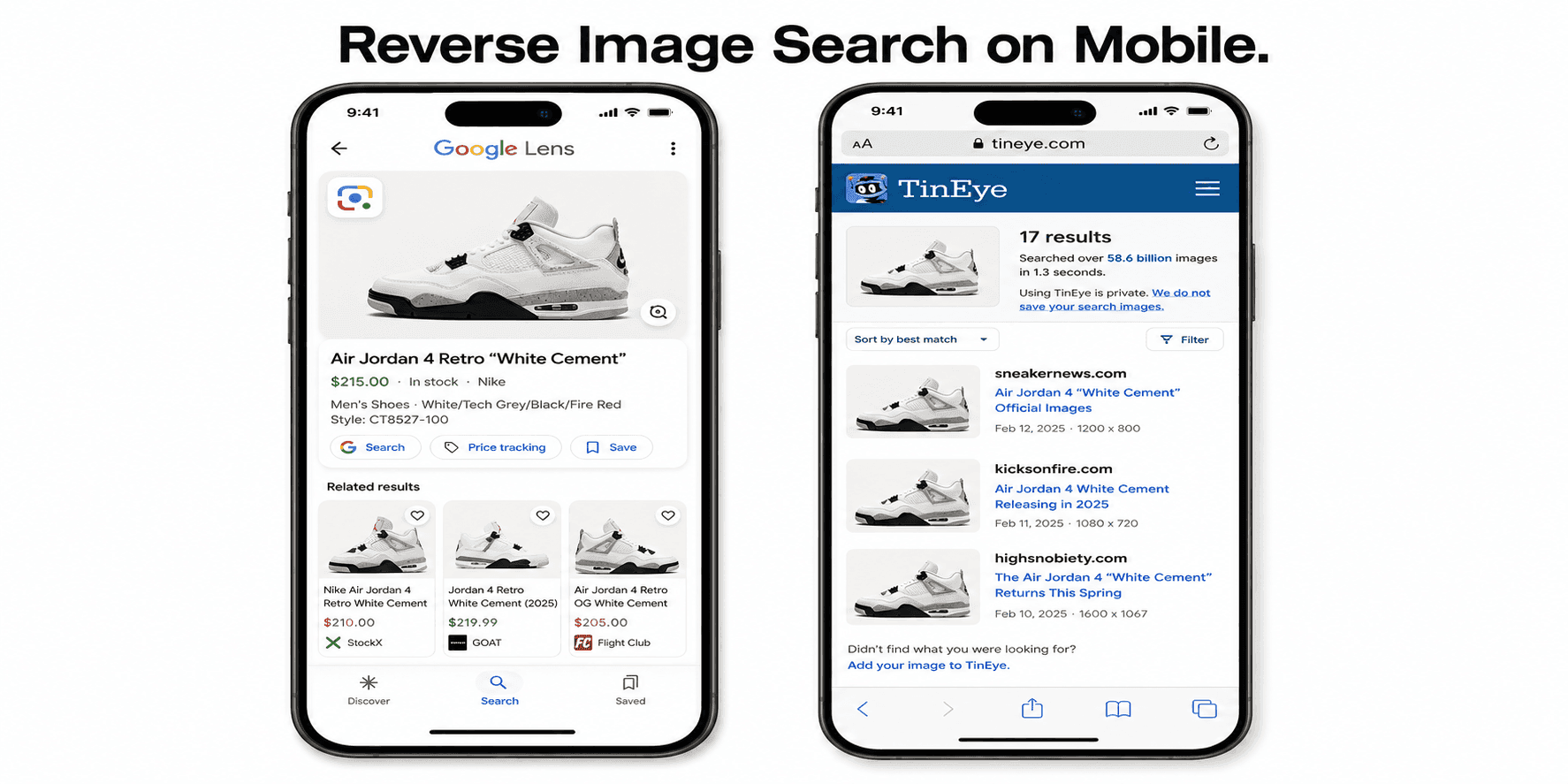
How to Reverse Image Search on Mobile
Reverse image search on a phone works differently from desktop because phones have no right-click menu and limited file management. The two reliable approaches are Google Lens and mobile browsers.
On Android
Google Lens is built into the camera, the Google app, and Google Photos. To run a reverse image search:
- Open the image in Google Photos or take a screenshot
- Tap the Google Lens icon
- The system identifies the image and returns reverse search results, similar images, and shopping links
On iPhone
Apple's Visual Look Up handles object identification (long-press any photo and tap the info icon), but full reverse image search requires the Google app or a mobile browser:
- Open the Google app and tap the Lens icon
- Either select an image from the photo library or take a new photo
- Results appear in the same format as desktop Google Images
Mobile browser method (works on both iOS and Android)
Modern mobile browsers support full reverse image search by visiting images.google.com, tineye.com, or yandex.com/images and using the camera or upload icon — the same flow as desktop. This is the most flexible mobile method because it works across all four major engines.
Advanced Reverse Image Search Techniques
The following techniques separate routine searches from those that consistently find difficult-to-locate sources. Each is free and takes seconds to apply.
Crop before searching. When an image contains multiple objects, the engine may match on the wrong one. For object-specific searches, our guide on how to image search an object explains how cropping helps identify products, plants, landmarks, and more. Cropping tightly to the subject before submitting the image is the single highest-impact technique. Searching the same image cropped in two or three different ways often returns three different correct answers.
Search the same image in multiple engines. No single engine indexes the whole web. Running the same image through Google, TinEye, and Yandex in sequence is the standard practice for any serious source search.
Sort TinEye by oldest first. When the goal is to find the original source, not the most recent re-share, sorting TinEye results by oldest is the default technique. The earliest indexed copy is almost always closest to the source.
Reverse-search a video frame. Pausing a video, capturing a screenshot, and reverse-searching the screenshot frequently surfaces the original video, the people in it, or the source. This is the standard verification technique used by journalists.
Try a higher-resolution version.Reverse image search performs poorly on images under approximately 200 pixels on the long side, because the embedding loses too much information at small sizes. If a search fails, finding and submitting a higher-resolution copy of the image often produces results.
Check the EXIF data first. Before running a reverse search, inspect the image's EXIF metadata using a free tool such as Jeffrey's Image Metadata Viewer. The metadata may already contain the camera model, date, and GPS coordinates — sometimes more useful than any reverse search result.
Combine reverse search with text refinement. Google Lens allows a text query to be added to a reverse image search — for example, photographing a chair and adding the word "vintage" returns vintage versions of similar chairs. This hybrid approach is underused.
Common Use Cases for Reverse Image Search
Reverse image search has practical applications across a number of fields.
Verifying photo authenticity. Journalists and fact-checkers routinely use reverse image search to determine whether a viral image is genuinely new or an old photo being re-shared out of context. Tools like Google Images and TinEye are part of the standard verification workflow at many newsrooms.
Detecting stolen images. Photographers, designers, and brand owners use reverse image search to find unauthorized use of their visual work across the web. TinEye is particularly effective for this because it surfaces watermark-removed and color-shifted copies.
Finding the source of a screenshot. When an image is encountered on social media or in a chat, reverse image search identifies its original publisher, full context, and date. This is the most common everyday use case.
Identifying products. Pointing reverse search at a product photo finds retailers selling the item, alternate listings, and similar products. Bing Visual Search and Google Lens are the strongest tools for this.
Researching artwork or photography. Reverse search identifies artists, locates higher-resolution versions, and traces the publication history of a piece. For broader creative workflows, see how modern digital tools are redefining visual expression.
Catching profile-photo fraud. Dating, social, and professional platforms all face fake profiles using stolen photos. Running a profile picture through reverse image search identifies whether it appears elsewhere under a different name.
Common Mistakes to Avoid
Searching only one engine. No single engine has the whole web indexed. When a first search fails, the answer is almost always to try another engine.
Trusting visually similar matches as identical. Google Images frequently returns visually similar results, not identical ones. Each result must be verified manually before being treated as the same image.
Searching the full image when only one element matters. Cropping changes results dramatically. Most "the search didn't find anything" cases are actually "the search matched the wrong part of the image."
Submitting low-resolution images. Embedding models lose information at small sizes. Images under approximately 200 pixels on the long side regularly produce no useful matches. Find a higher-resolution copy first.
Using face-matching tools without checking the law. Face search capability exists in Yandex and specialized tools like PimEyes, but using them to identify strangers may violate the GDPR, BIPA, or platform terms of service. Local legal review is essential.
Defaulting to Google for source-tracing. For finding the original source of a known image, TinEye is usually faster and more accurate than Google because of its date-sorted index.
FAQs
Q1.
What is the most accurate reverse image search engine?
There is no single most accurate engine. Google Images is the most accurate for general use and shopping. TinEye is the most accurate for finding the original source of an image and for matching cropped or modified copies. Yandex is the most accurate for face matching and for sources on Eastern European websites. The most reliable technique is using two or three engines together, since each indexes a different part of the web.
Q2.
Is reverse image search free?
Q3.
How do I reverse image search on my phone?
Q4.
Why does my reverse image search return no results?
Q5.
Can reverse image search find an edited or cropped image?
Q6.
Can reverse image search identify a person?
Q7.
How do I find the original source of an image?
Q8.
Is there a way to reverse image search by URL instead of uploading?
No headings found in this content.