On this page
How to Delete a Theme in WordPress?

WebbyCrown Solutions-
February 18, 2026-7 min read
Managing themes properly is an important part of maintaining a secure and high-performing WordPress website. Only users with administrator privileges can delete themes or make theme management changes. Many website owners install multiple themes for testing but forget to remove unused ones. Keeping unused themes for potential future use often leads to unnecessary clutter and security risks. Over time, this creates clutter, security risks, and unnecessary storage usage.
In this complete guide, you will learn:
- Why deleting unused themes is important
- When you should NOT delete a theme
- Step-by-step methods to delete a theme
- How to delete via Dashboard, cPanel, FTP & WP-CLI
- Common mistakes to avoid
- Best practices for theme management
- Special considerations for multisite networks
Removing themes is essential for maintaining a healthy WordPress site, and cleaning up unused themes can improve site security and prevent performance issues. Having many inactive themes may affect loading speed and make the site harder to manage.
Let’s understand everything in detail.
Understanding WordPress Themes
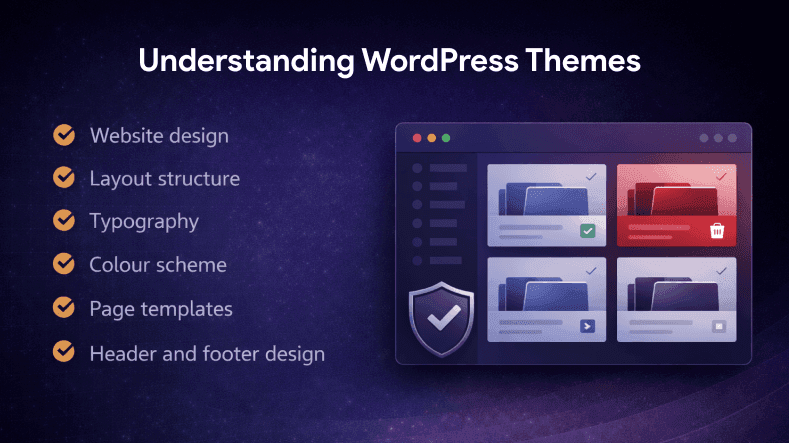
In WordPress, a theme control:
- Website design
- Layout structure
- Typography
- Colour scheme
- Page templates
- Header and footer design
WordPress allows only one theme to be active at a time. The current theme controls the appearance of your site, while old themes may leave behind settings or data even after you switch to a new theme.
Themes do not store your content. Your posts, pages, and media are stored in the database. The theme only controls how that content looks. When you deactivate a theme, all files related to it stay in your database.
That means deleting a theme does NOT delete your content — but it may remove theme-specific settings. Any associated data from an old or inactive theme will remain in your database even after you switch to a new theme.
Why You Should Delete Unused WordPress Themes
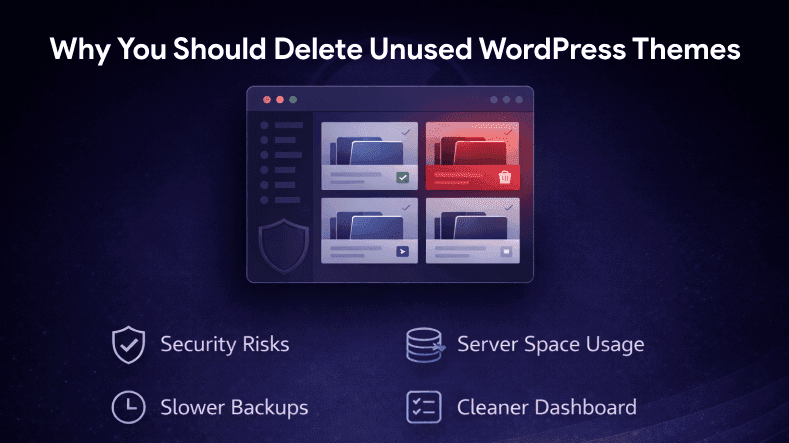
1. Security Risks
Even inactive themes can contain vulnerabilities. If the theme developer stops updating it, hackers may exploit outdated code.
Unused themes increase your website’s attack surface.
2. Server Space Usage
Each theme takes up storage space. While it may not be huge, multiple themes add unnecessary weight to backups.
3. Slower Backups
Backup plugins back up all theme files. More themes = larger backup files.
4. Cleaner Dashboard
A clean theme section makes management easier and more professional.
Important: When You Should NOT Delete a Theme
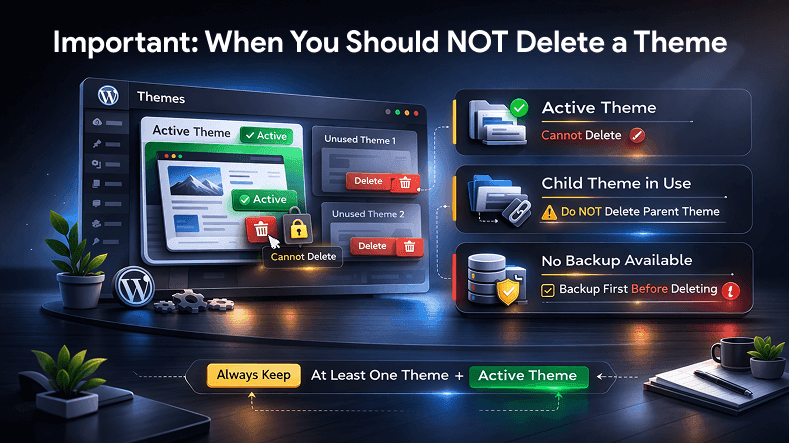
Before deleting any theme, check these situations carefully. It is a best practice to keep one official default theme installed for troubleshooting purposes, even if it is inactive. Always make sure you have at least one theme (the default theme) in addition to your active theme.
1. The Theme is Active
You cannot delete the active theme. WordPress will not allow it.
To check:
Go to → Dashboard → Appearance → Themes
The active theme will have an “Active” label.
2. You Are Using a Child Theme
If you are using a child theme, do NOT delete the parent theme.
Example:
If your active theme is a child of Astra, deleting the Astra parent theme will break your website completely.
3. You Don’t Have a Backup
Always take a full back up before deleting themes.
Professional rule:
Backup first. Delete later.
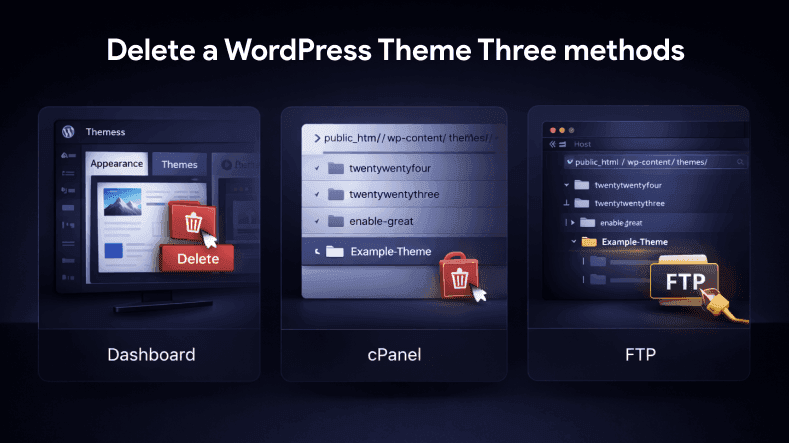
Method 1: Delete a WordPress Theme from Dashboard (Recommended Method)
The easiest and safest method for beginners to uninstall a WordPress theme is from the WordPress dashboard. To use this method, you need proper access to the dashboard as an administrator. Once you have access, navigate to the Appearance > Themes section, where you can select the theme, you want to remove and use the Delete button to initiate deletion. Always confirm the deletion by clicking OK on the confirmation prompt after you start the removal process. If you want to remove a WordPress theme completely, you need to delete it from the WordPress dashboard, WP-CLI, or FTP.
Step 1: Login to WordPress Admin
Go to: Domain name/wp-admin
Enter your username and password.
Step 2: Go to Themes Section
Navigate to:
Dashboard → Appearance → Themes
You will see all installed themes including default themes like:
- Twenty Twenty-Four
- Twenty Twenty-Three
Step 3: Activate Another Theme (If needed)
If the theme you want to delete is active:
1. Hover over another theme
2. Click “Activate”
Now your target theme becomes inactive.
Step 4: Open Theme Details
Click on the theme you want to delete.
A popup window will appear showing theme information.
Step 5: Click Delete
At the bottom right corner, click:
Delete → Confirm
That’s it. The theme is permanently removed.
Method 2: Delete WordPress Theme via cPanel
If your dashboard is not accessible, you can delete the theme manually from hosting by working directly in the theme’s directory. You can access the themes directory using the File Manager in your hosting control panel or by connecting to your site via File Transfer Protocol (FTP) with an FTP client.
Warning: If you use File Manager to uninstall your active site theme, WordPress will revert to its default theme.
Step 1: Login to cPanel
Login to your hosting account and open cPanel.
Step 2: Open File Manager
Navigate to: public_html → wp-content → themes
Inside the themes folder, you’ll see multiple theme folders.
Step 3: Delete the Folder
Right-click the theme folder → Click Delete → Confirm
Warning:
Never delete the active theme folder.
Method 3: Delete a Theme Using FTP
This method is useful when:
- WordPress shows white screen error
- Admin panel not loading
- Theme causing fatal error
To delete a theme using an FTP client, you will need to access your site files directly. You can do this by connecting to your server with an FTP client like FileZilla and navigating to the wp-content/themes directory.
Steps:
1. Connect via FTP (FileZilla)
2. Go to: wp-content/themes/ directory
Right-click the theme folder 3. Click Delete
This instantly removes the theme.
What Happens After You Delete a Theme?
After deleting:
- All theme files are removed
- Theme customizer settings may be lost
- Widgets may reset if theme-specific
- Database content remains safe
Your posts, pages, and media remain untouched.
However, some residual settings, such as words (site titles, slogans, or other textual content) or customizations from previous themes, may still remain in your database. Plugins can help clean up your database to remove these leftover settings for a cleaner, more consistent site appearance.
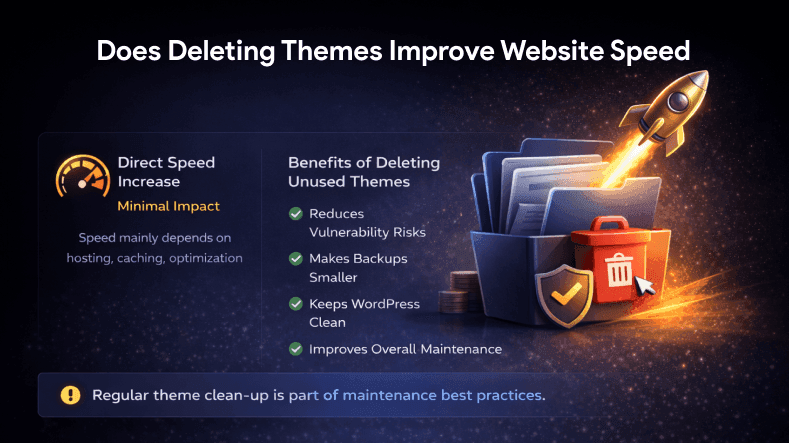
Does Deleting Themes Improve Website Speed?
Let’s be realistic.
Direct speed increase: Minimal.
Indirect benefits: Significant.
Deleting unused themes:
- Reduces vulnerability risk
- Makes backups smaller
- Keeps WordPress clean
- Improves overall maintenance
Website speed mainly depends on:
- Hosting quality
- Caching
- Image optimization
- Plugins
- Database optimization
But theme clean-up is part of professional maintenance.
Best Practice for Theme Management

Experts recommend:
- Keep only 1 active theme
- Keep 1 default WordPress theme as backup
- Delete all unused themes
- Update themes regularly
- Always backup before changes — creating a backup before deleting a theme is helpful and recommended to prevent data loss.
For example, keep:
Active Theme + One default theme like Twenty Twenty-Four
Delete everything else.
Common Mistakes to Avoid
- Deleting active theme
- Deleting parent theme of child theme
- Not taking backup
- Deleting theme used for staging
- Forgetting to check dependencies
- Not ensuring you have the correct access and administrator permissions before attempting to delete a theme
These mistakes can break your website instantly.
How to Reinstall a Deleted Theme
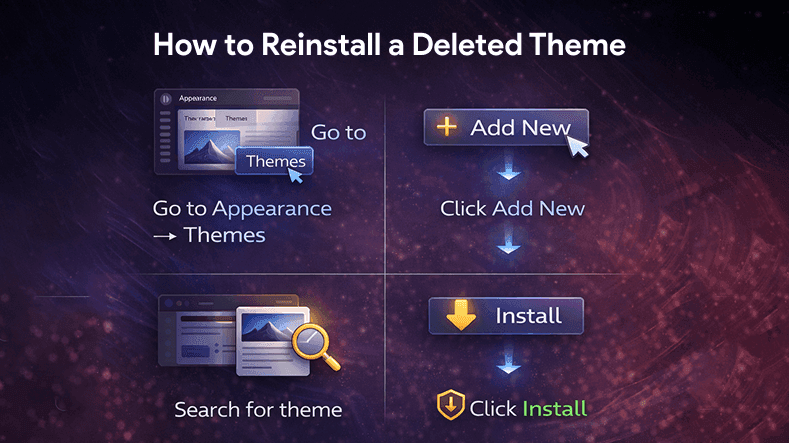
If you accidentally delete a theme:
1. Go to Appearance → Themes
2. Click Add New
3. Search for theme
4. Click Install
5. Click Activate
For premium themes:
Upload ZIP file manually.
FAQs
Q1.
Can I Delete an Active Theme in WordPress?
Q2.
Will Deleting a WordPress Theme Delete My Website Content?
Q3.
Is It Safe to Delete Unused WordPress Themes?
Q4.